Import and improve scripts
Bring text, Word, PDF, presentation, or spreadsheet files; review Improve Text suggestions before applying.
Teleprompter for Android
Move from script to camera, audio, live video, editing, subtitles, and cloud-connected work without losing the message between apps.
Bring text, Word, PDF, presentation, or spreadsheet files; review Improve Text suggestions before applying.
Choose speech-driven scrolling or predictable speed and timing controls.
Choose spoken and subtitle languages, edit timing, and preview active-word emphasis before export.
The Android app is designed around the whole job: getting text onto the device, reading it naturally, capturing the message, and preparing the result for its destination.
Write in the app, organize work in folders, or import common document formats instead of retyping the text.
Use fixed, timed, WPM, or voice-driven scrolling, then tune the reading area around the camera and your setup.
Use supported video editing, text, logos, background treatments, subtitles, and export without abandoning the mobile workflow.
Complete workflow
Create a script, import a supported document, or continue with a script available through your signed-in workflow.
Choose the scroll behavior, typography, mirror settings, reading area, and countdown for the way you speak.
Record with the camera, create an audio-only take, or prepare a supported RTMP live stream.
Edit the take, add supported layers or subtitles, resize for the destination, and export or sync selected work.
The feature set supports a quick solo recording and scales to longer, repeatable content workflows.
More control
Prepare
Read and record
Finish
See it in action
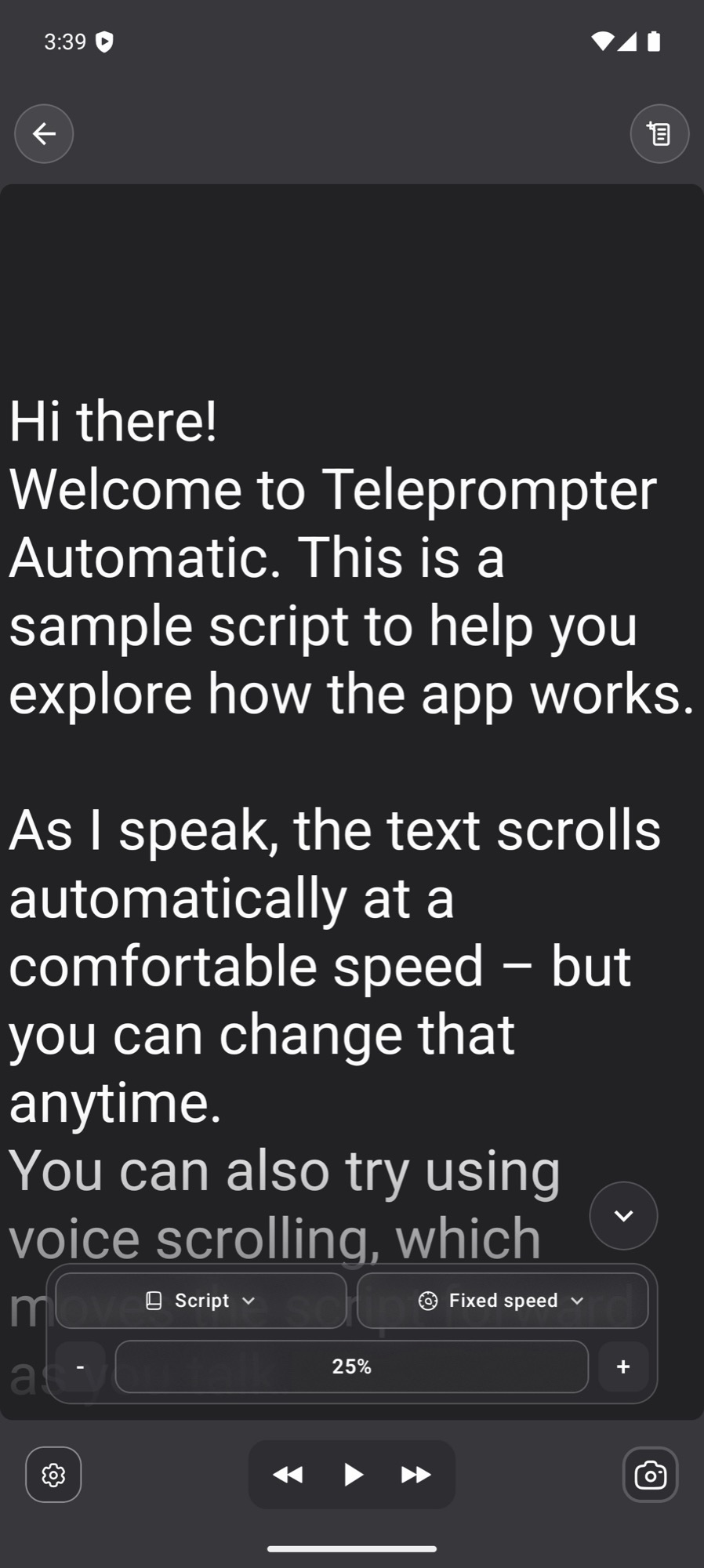
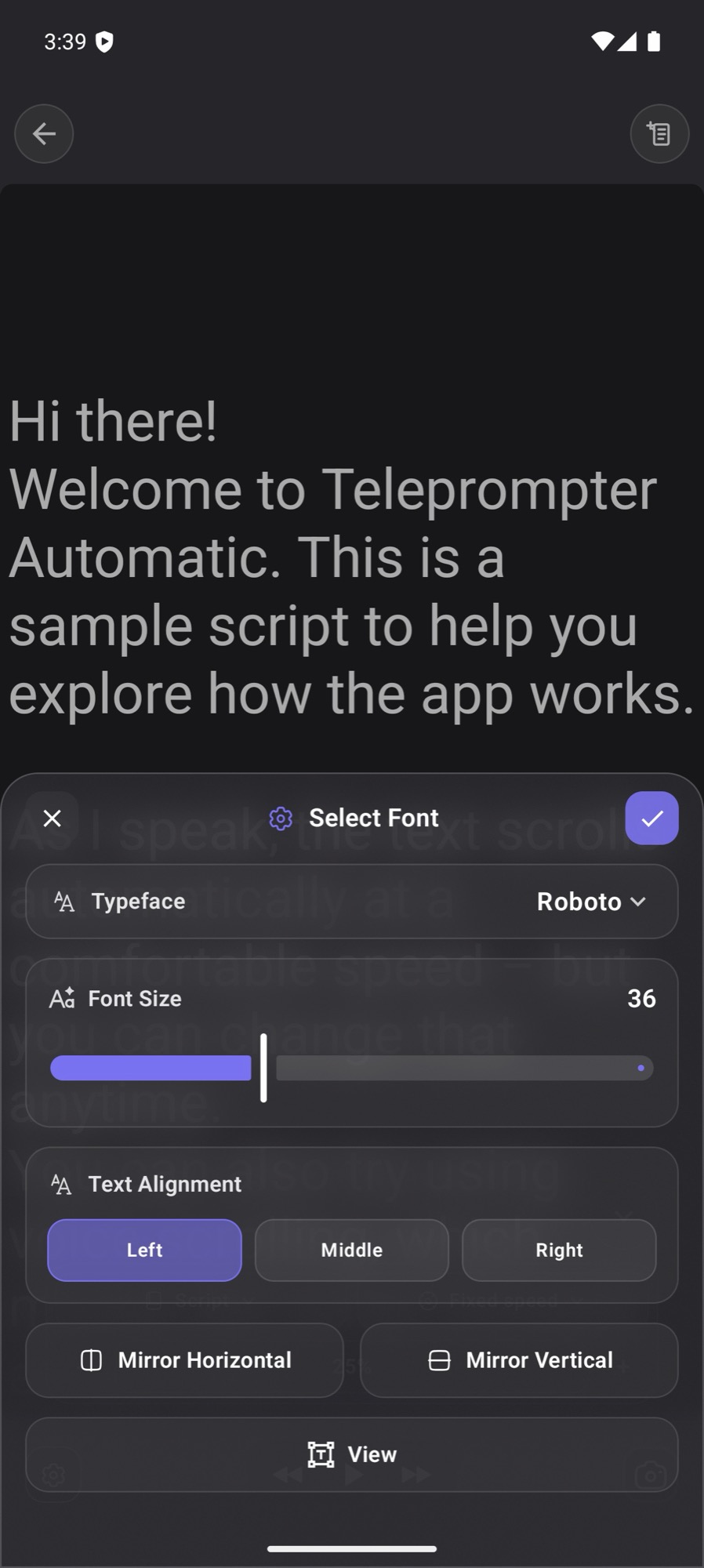
The latest reader uses a high-contrast stage with a compact control deck for capture mode, pace, playback, typography, and camera entry. Quick settings open as a focused sheet instead of burying reading controls in a separate setup flow.
Keep a sharp hook and call to action visible while recording vertical social content.
Follow steps, terminology, names, and examples without repeatedly stopping the camera.
Deliver a structured explanation, then resize or subtitle the take for another channel.
Use the same script for a supported stream, voice-over, lesson narration, or podcast segment.
One connected product
Prepare a longer script from Web, open it on Android for the take, and continue with supported account, cloud, device, and remote-control workflows when the recording setup grows.
Yes. The reader remains visible while supported camera recording controls capture the take on the Android device.
Supported Android workflows can import TXT, DOCX, PDF, PPTX, and XLSX files. Complex document formatting may be simplified into readable script text.
Voice Scroll uses speech recognition to follow your delivery on supported Android workflows. Fixed speed, target time, and words-per-minute controls remain available for predictable pacing.
Bring the document, reader, camera, audio, live, editing, and subtitle workflow onto the device you already use.