Scripts for 30, 60, or 90 seconds
Choose a reading pace, review the estimated length, and shorten a draft before using it.
Teleprompter for iPhone and iPad
Prepare the words, keep your eye line close to the lens, record the take, and finish it without assembling a different app for every step.
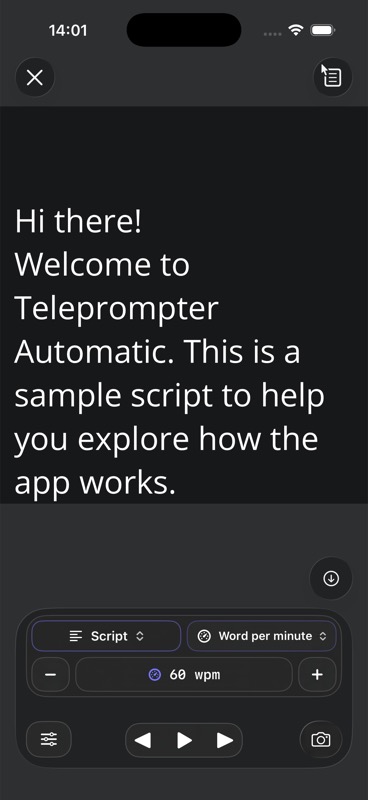
Choose a reading pace, review the estimated length, and shorten a draft before using it.
Choose the capture workflow that matches the message.
Resume autosaved drafts or restore deleted scripts and earlier saved versions as new scripts.
The useful part is the continuity between writing, delivery, capture, and finishing. Each stage keeps the script close instead of forcing you to rebuild the setup.
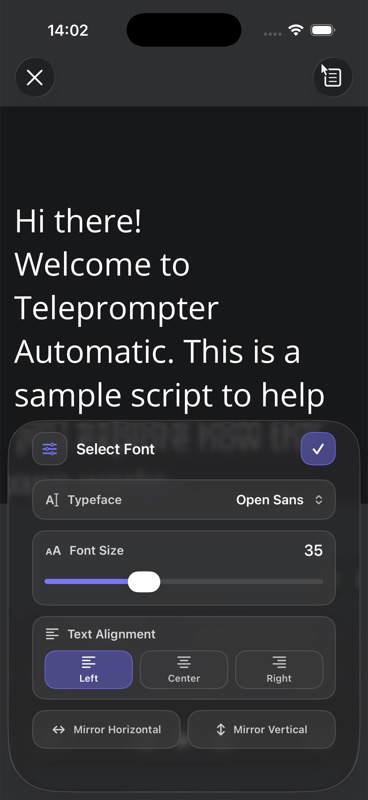
Adjust text size, alignment, spacing, cue position, and the reading area so your eyes travel less while you speak.
Use front or rear cameras for video, record M4A audio without a camera, or prepare a supported live workflow.
Trim and resize, add text or a logo, create subtitles, adjust the background where supported, then export.
Complete workflow
Write, import, or generate for a target duration. Find scripts by title or content, pin favorites, and return to recently opened work.
Choose a scroll mode, tune typography, set a countdown, and read a short section aloud before the camera matters.
Capture video, audio-only, or a supported live session while the script remains visible and controllable.
Review the result, edit what needs attention, add subtitles or branding, and export the version you want to publish.
Use only the controls your recording needs. The rest stays available when the project becomes more demanding.
Write and recover
Read naturally
Capture confidently
Finish and continue
See it in action
The reader separates the script from the compact control deck. Pace, capture mode, playback, camera entry, and typography remain available without covering the words you need to deliver.
Deliver hooks, product explanations, and calls to action without breaking eye contact to check notes.
Keep definitions, steps, names, and examples in the right order while maintaining a conversational pace.
Record a concise update from a prepared outline, then reuse the script for the next channel.
Use audio-only mode when the script matters but the camera does not.
One connected product
Write a longer script from a keyboard on Web, record from iPhone or iPad, and use the same account when you want supported scripts, folders, devices, and selected media to stay connected.
Yes. The iPhone workflow is also available on iPad, where the larger screen can make longer scripts and controls easier to handle.
Core reading and recording can work without a constant connection. Account, cloud, generation, subtitle, and other online features require network access when used.
Supported workflows include Apple Watch controls, compatible Bluetooth controls, and Web Remote from another browser-capable device.
Bring the script, reader, camera, and finishing tools into one repeatable iPhone or iPad workflow.