Teleprompter cloud sync is useful when planning, recording, and reviewing happen on different devices. This updated page explains where the feature fits, what it can do, and where to go next.
Teleprompter Automatic supports this workflow across iPhone, Android, and the web, with reader controls, recording tools, sync, and export depending on the platform and account state.
Check that the intended script is available before recording
Give the script a distinctive title and finish editing on one device before opening it on another. Check the opening and final lines on the recording device, especially if you have several similar drafts. Keep an independent copy of important text before making a large edit.
If the expected version is missing, verify that you are using the intended account and review the current sync guide before creating another copy. Treat scripts and recordings as separate checks: seeing a script on a second device does not by itself confirm that a recording has uploaded. Before leaving for a session, open the exact material you need on the device you will take.
Quick answer
When enabled and signed in, Teleprompter Automatic can sync scripts, folders, and videos through backend-supported mobile and web workflows.
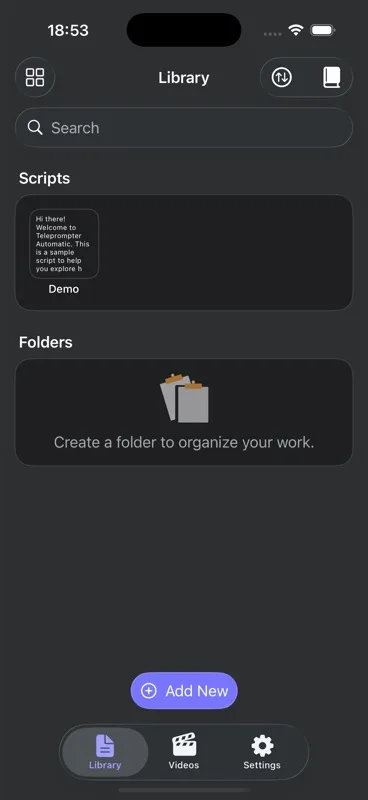
When this workflow is useful
Use cloud sync when you write on desktop, rehearse on a tablet, record on a phone, or need projects available after switching devices.
- users moving scripts and recordings between devices who need a prepared but natural delivery
- short videos where every sentence has to earn its place
- longer recordings that are easier to finish when the script is organized
- presentations, lessons, or updates where accuracy matters
Prepare the script before opening the camera
Use clear script names and folders before syncing. Organization prevents confusion when the same account appears on multiple devices.
Set up the reader for the format
Sign in, enable sync where available, and give large video files time to upload on a stable connection.
Match the workflow to the publishing context
Match the workflow to where the script will be prepared, read, recorded, reviewed, and exported. Device choice affects text size, control method, and how much setup you need before a deadline.
Record a short test before the full take
Create a small script first and confirm it appears on the second device before relying on sync for a full project.
Use product features only where they help
Server docs describe library sync and video sync endpoints, while web and mobile sources describe the product workflows that use them.
Keep the script useful after the recording
Keep the final script and setup notes after the first successful use. Reusing the same structure makes the next recording, presentation, or support task faster.
Common mistakes to avoid
- writing sentences that look fine on the page but are hard to say aloud
- setting scroll speed while reading silently instead of speaking at camera pace
- recording the full take before checking framing, audio, and script position
- adding too many visual effects before the message is clear
Review and publish with a clean next step
After the workflow is set up, save the script, review the result, and continue with the relevant support guide.
Related Teleprompter Automatic guides
- cloud sync for scripts and videos - Explains cross-device script and video sync.
- use Teleprompter Automatic on the web - Supports desktop preparation and browser workflows.
- create and import scripts - Supports script preparation and import workflows.
- teleprompter for iPhone - Connects iPhone users to the platform page.
- teleprompter for Android - Connects Android users to the platform page.
- fix sync and cloud upload problems - Routes troubleshooting to support.
For the next step, use the sync troubleshooting guide, check how to record and export videos, or return to the Help Center.