Use this guide when scripts do not appear on another device, a recording stays local, a cloud upload fails, or the app shows a storage limit warning. Sync depends on account sign-in, cloud settings, network access, app version, and available storage.
Confirm the same account
Sign in with the same Teleprompter Automatic account on iOS, Android, and Web. If one device uses another email or social login method, scripts and cloud videos can look missing even though they are stored under a different account.
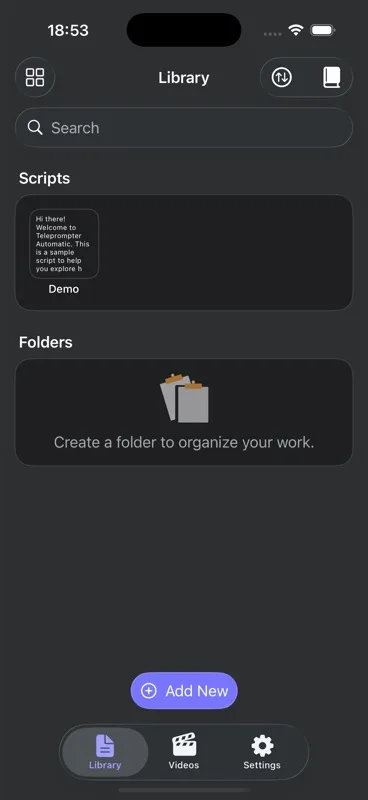
Check cloud sync settings
In the Web Dashboard, cloud synchronization includes scripts and folders, manual Sync now, and automatic video upload for Premium accounts. If automatic upload is off, local videos remain on the current browser or device until you upload them manually.
Understand local and cloud recordings
Local browser recordings are stored only in that browser. If you clear browser data, use private mode, or switch devices, local files may be lost. Cloud recordings are available after upload and sync. Before deleting a local file, confirm that its cloud status is synced or that you already exported it.
Storage limits and failed uploads
The web dashboard reflects a 1 GB free cloud storage limit and 30 GB for Premium. If storage is full, remove unneeded cloud videos or renew/upgrade the plan before uploading new large recordings. If an upload fails, keep the local file, check the network, then retry.
If scripts are not syncing
- Use Sync now when available.
- Refresh the dashboard or reopen the mobile app.
- Update mobile apps if the dashboard shows that text and folder sync require a newer iOS or Android version.
- Avoid editing the same script offline on multiple devices at the same time.
- Check whether the script is inside a folder you are not viewing.
If videos are not syncing
- Confirm that you are signed in and online.
- Check whether the video is marked Local, Uploading, Synced, or Failed.
- Use manual Upload for local or failed recordings.
- Keep the browser or app open until upload completes.
- Export important videos before clearing app or browser storage.
Expected result
Scripts should appear under the same account, and recordings should show a clear local, uploading, failed, or synced state. For the general cloud model, read cloud sync and video storage. For browser-specific limits, read use Teleprompter Automatic on the web.