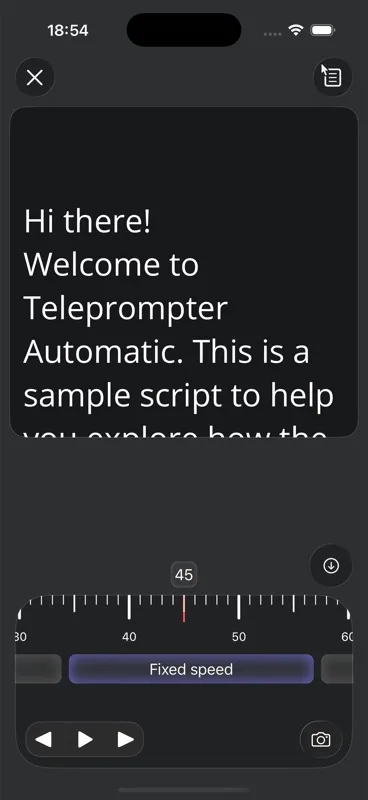
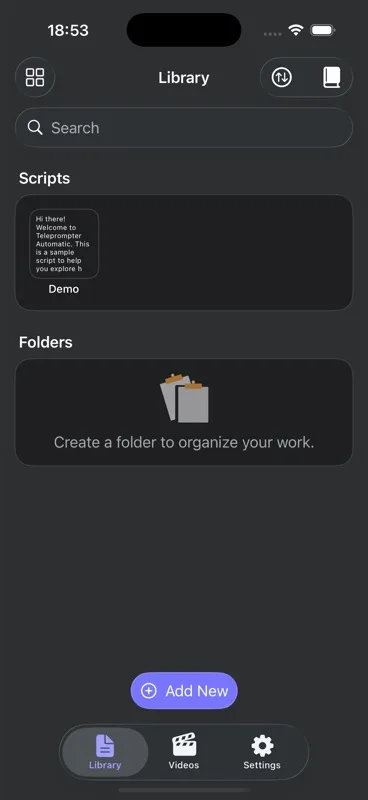
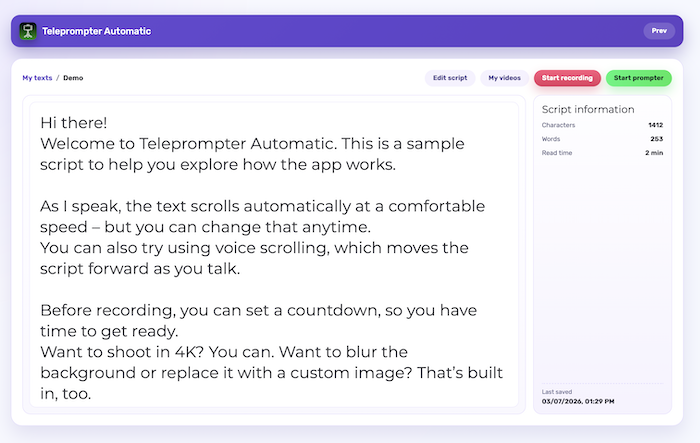
Teleprompter Automatic is built around the platforms creators actually use to prepare, read, record, and review scripts: iPhone and iPad, Android, and the Web dashboard. This page lists verified product workflows without trying to turn every platform into the same interface.
Feature availability can depend on platform, account state, Premium status, permissions, and whether cloud sync is enabled. Use the table as a practical planning guide before a recording session.
Platform overview
| Workflow | iPhone and iPad | Android | Web dashboard |
|---|---|---|---|
| Account registration and login | Supported | Supported | Supported |
| Script library and folders | Supported | Supported | Supported |
| Cloud script sync | Signed-in workflow | Signed-in workflow | Signed-in workflow |
| Fixed, timed, and words-per-minute scrolling | Supported | Supported | Reader workflow |
| Speech-aware scrolling or speech recognition workflow | Supported | Supported | Use mobile for recording |
| Text mirroring, size, spacing, alignment, and colors | Supported | Supported | Reader settings |
| Camera recording while reading | Supported | Supported | Prepare and rehearse |
| Camera, microphone, and recording setup controls | Supported | Supported | Account and script focus |
| Video editing and export tools | Supported | Supported | Manage synced media |
| Subtitles or caption-style output | Supported | Supported | Continue on mobile |
| Cloud video library and storage | Supported when enabled | Supported when enabled | Dashboard access |
| Remote control workflows | Web Remote, Apple Watch, Bluetooth-oriented controls | Web Remote, Bluetooth-oriented controls | Browser controller |
How to choose a platform
- Use iPhone or iPad when the camera, reader, subtitles, editing, export, and Apple Watch or paired remote workflows belong in one mobile setup.
- Use Android when you want CameraX recording, speech-recognition scrolling, script and folder management, import flows, video editing, and backend sync on Android.
- Use the Web dashboard when you want to sign in, prepare scripts, rehearse in the browser, manage account workflows, and keep cloud-connected work accessible.
- Use Web Remote when a mounted phone should stay still and another browser device should control the paired session.
Feature groups that work together
The most useful setup is not the longest feature checklist. It is a chain: write or import a script, adjust reader settings, record a short test, review the result, export or sync it, and reuse the script structure next time.
For most users, the starting point is the same on every platform: keep the script readable, choose a scroll mode you can speak aloud, verify camera and microphone permissions before the real take, and use cloud sync only after you have confirmed the account state.