Bluetooth control lets you manage Teleprompter Automatic without touching the screen. Pair a keyboard, compatible game controller, or Apple Watch, then use the supported controls while reading or recording.
Supported remote options
- Bluetooth keyboard shortcuts.
- Game controllers such as PlayStation or Xbox-style controllers.
- Apple Watch controls on iOS.
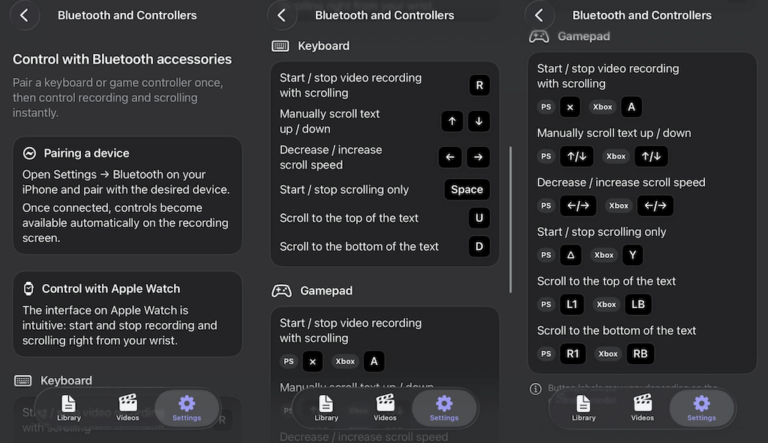
Pair the device first
- Open your phone or tablet Bluetooth settings.
- Pair the keyboard, controller, or watch accessory.
- Open Teleprompter Automatic.
- Open the recording or reading screen.
Common keyboard controls
- R starts or stops video recording with scrolling.
- Up and Down manually scroll text.
- Left and Right adjust scroll speed.
- Space starts or stops scrolling only.
- U jumps to the top, and D jumps to the bottom.
Common gamepad controls
- A or X starts or stops video recording with scrolling.
- D-pad up/down manually scrolls text.
- D-pad left/right adjusts speed.
- Y or triangle starts or stops scrolling only.
- LB/L1 jumps to the top, and RB/R1 jumps to the bottom.
Button labels can vary by controller model.
If Bluetooth control does not respond
- Confirm the accessory is connected in system Bluetooth settings.
- Reconnect the accessory and reopen the reader.
- Check that the focused app is Teleprompter Automatic.
- Try Web Remote if you prefer browser controls.
For browser-based control, read the Web Remote guide. For recording workflow, continue with record and export videos.
Best use cases
Bluetooth control works well when your phone is on a tripod, when you stand away from the screen, or when touching the phone would shake the shot. It is also useful for rehearsals because you can jump back to the start without walking to the device.
Pre-shoot checklist
Pair the accessory before the recording session, test every shortcut once, keep the accessory charged, and decide which control will start or stop recording. If reliability matters more than physical buttons, compare this setup with Web Remote before the final take.