Use this guide when your script is ready and you want to record a video. The workflow is simple: open a script, check camera and microphone access, start a short test recording, review the local take, then export or upload only the files you want to keep.
Before you record
- Open the script and confirm the text is readable.
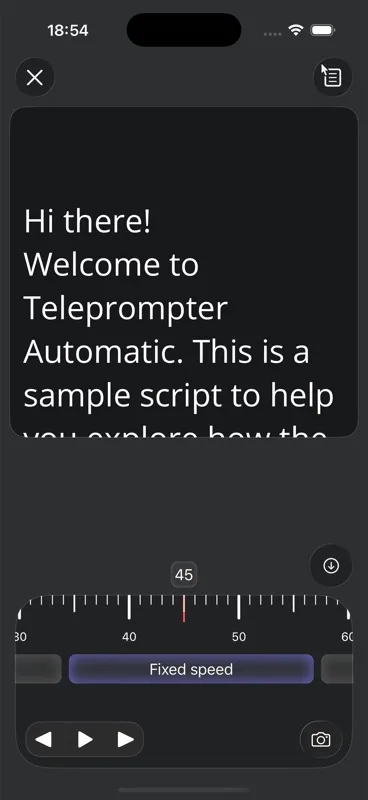
- Set a comfortable scroll speed.
- Choose the camera and microphone you want to use.
- Make sure browser or app permissions are allowed.
If access is blocked, follow camera and microphone permissions first.
Start recording
- Open the script in reading or recording mode.
- Tap Start recording or Record.
- Wait for the countdown if the app shows one.
- Read at your normal pace and avoid changing speed during a sentence.
- Stop recording when the take is complete.
Review local recordings
The web dashboard labels local recordings separately because local files can depend on the browser or device where they were created. Review the take before uploading or exporting. If you clear browser data or switch devices, local browser recordings may no longer be available.
Export or upload the video
Use Export MP4 where the browser or platform supports MP4 export. Use Upload to cloud when you want a selected recording available from cloud storage. The product UI also shows cloud upload status such as uploading, synced, failed, and local.
Cloud behavior and storage limits are covered in cloud sync and video storage.
Troubleshooting recording
- If recording cannot start, check camera and microphone permissions.
- If export fails, try another browser or export from the mobile app.
- If upload fails, check your connection and storage limit.
- If the script covers too much of the camera view, reduce the script window size before recording.
For hands-free takes, connect Web Remote or use Bluetooth remote control.