If Teleprompter Automatic cannot start recording, the most common cause is blocked camera or microphone access. Reading a script does not need these permissions, but video recording does.
Fast check
- Make sure another app is not already using the camera or microphone.
- Restart Teleprompter Automatic or reload the web dashboard.
- Confirm that the selected camera and microphone are available.
- Check system or browser permission settings if access was denied earlier.
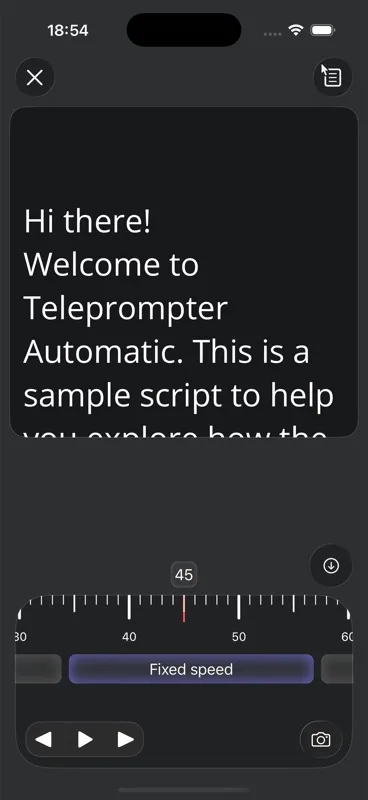
iPhone and iPad
- Open iOS Settings.
- Find Teleprompter Automatic.
- Allow Camera and Microphone.
- Return to the app and start a short test recording.
Android
- Open Android Settings.
- Open Apps and choose Teleprompter Automatic.
- Open Permissions.
- Allow camera and microphone access.
- Return to the app and test recording again.
Web dashboard
- Open the dashboard page where you record.
- Use the browser permission icon near the address bar.
- Allow camera and microphone for dashboard.teleprompter.pw.
- Reload the page and choose the correct devices.
If permission is allowed but recording still fails
- Disconnect external cameras or microphones and test the built-in device.
- Close video meeting apps that may hold the camera.
- Try another browser if MP4 or recording support is limited.
- Check your connection if you plan to upload the recording to cloud.
After permissions work, continue with record and export videos. If you only need to read a script, start with getting started.