Use this guide when you have just installed Teleprompter Automatic or opened the web dashboard for the first time. The shortest path is: sign in, open the Library, create or choose a script, adjust the reader, and start a short test before recording a full video.
1. Sign in to the same account everywhere
Use the same Teleprompter Automatic account on iPhone, Android, and Web. This keeps subscription checks, script sync, Web Remote pairing, and active-device management predictable.
If you switch devices later, the related guide explains how to restore Teleprompter Automatic purchases.
2. Create or open a script
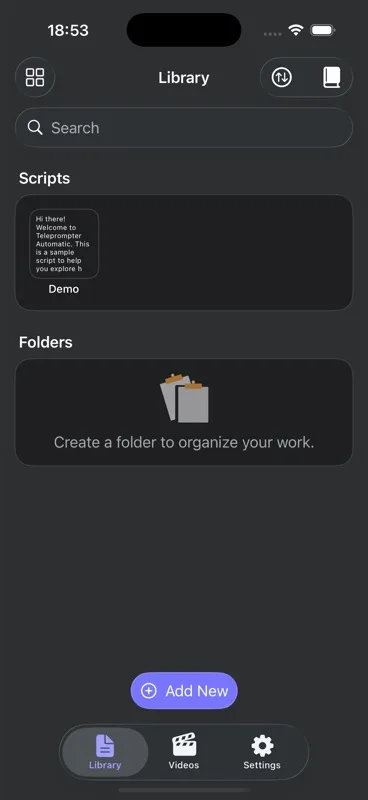
Open Library and choose Add New. You can create a blank script, import text where supported, or open the demo script to learn the reader controls before adding your own material.
For a deeper workflow, use the guide to create and import scripts.
3. Adjust the reader before recording
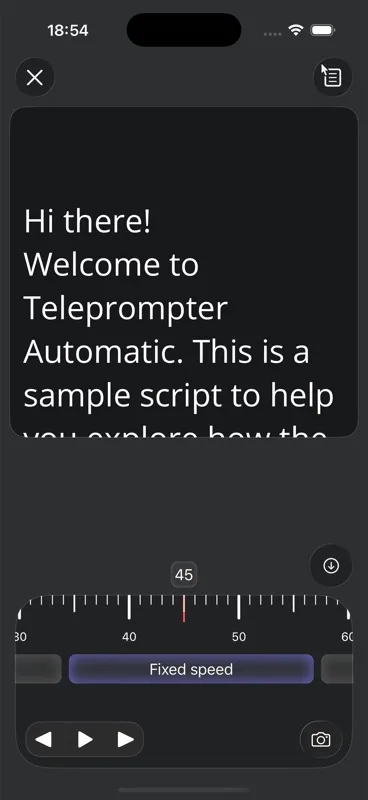
Open a script and check the text size, alignment, and scroll speed. A good first test is 10 to 15 seconds: read one paragraph, pause, and adjust the speed until your voice feels natural.
4. Give camera and microphone access only when recording
Reading a script does not require camera access. Recording video does. When the app or browser asks for camera and microphone permissions, allow them if you are ready to record. If access is blocked, follow the camera and microphone permission guide.
5. Pick the next workflow
- To record a take, continue with record and export videos.
- To control scrolling hands-free, open the Web Remote guide or Bluetooth remote guide.
- To understand device limits, read too many active devices.
Expected result
After setup, you should have one script in your Library, a comfortable reader speed, and a clear next step: practice reading, record a video, or connect a remote control.
Return to the Teleprompter Automatic Help Center whenever you need a different support path.