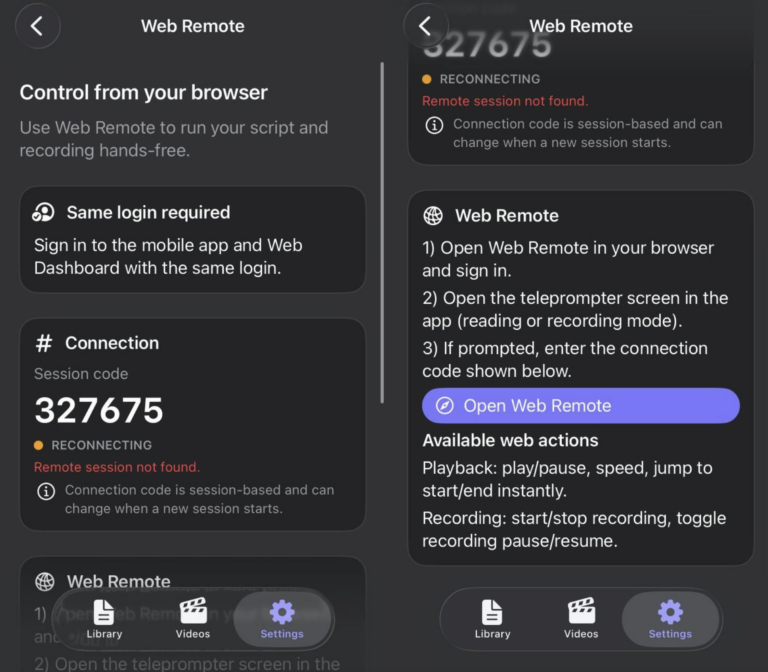
Web Remote lets you control Teleprompter Automatic from a browser while your phone stays mounted for reading or recording. Use the same account on mobile and Web, then pair the session with the code shown in the app.
Before you start
- Sign in to the same account in the mobile app and web dashboard.
- Open the teleprompter reading or recording screen on the phone.
- Use fixed scroll mode when the Web Remote status requests it.
- Keep both devices online during the session.
Connect Web Remote
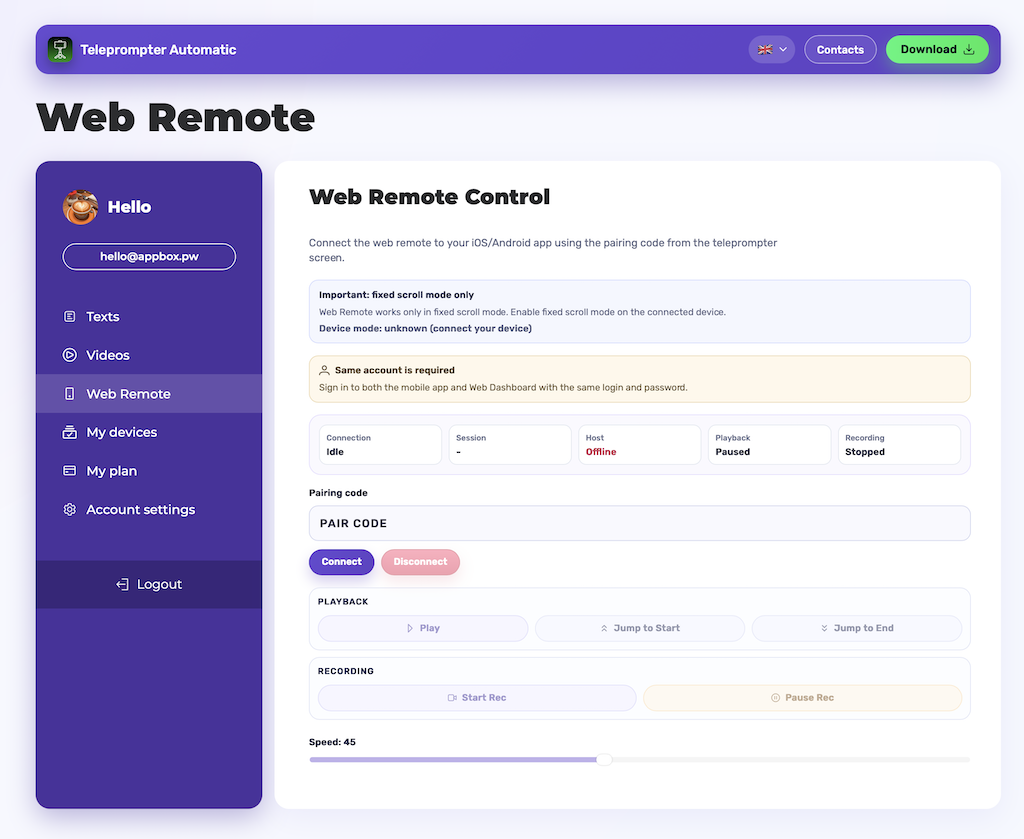
- Open Web Remote in the dashboard.
- Enter the pairing code from the mobile app.
- Select Connect.
- Wait for the connected status.
Available controls
- Play, pause, or toggle scrolling.
- Jump to the start or end of the script.
- Adjust speed during the session.
- Start or stop recording.
- Pause or resume recording where supported.
Troubleshooting
- If the code fails, generate or read the current code from the app again.
- If the dashboard says the mode is not fixed, switch the mobile reader to fixed scroll mode.
- If controls stop responding, reconnect both devices on a stable network.
- If account mismatch appears, sign out and sign in with the same login on both devices.
For physical remotes, use Bluetooth remote control. For recording steps, see record and export videos.
Best setup for solo recording
Mount the phone near eye level, open the script on the phone, and keep the browser remote on a laptop or tablet within reach. Do a short test to confirm that play, pause, speed, and recording controls affect the correct mobile session.
What Web Remote cannot fix
Web Remote depends on the mobile reading or recording screen being open. It does not replace camera permission, microphone permission, account sign-in, or a stable connection. Fix those prerequisites first, then reconnect the remote session.