Use text mirroring when a teleprompter rig, glass, monitor, or reflection makes normal text appear backward or upside down. Teleprompter Automatic supports horizontal and vertical text flipping in reader workflows on supported platforms. This is different from mirroring the recorded video.
Quick answer
- Open the script in the reader or recorder view.
- Open the reader controls or camera/reader settings.
- Turn on Mirror horizontally or Flip text H when the text appears backward left-to-right.
- Turn on Mirror vertically or Flip text V when the text appears upside down through the setup.
- Read one short paragraph through the real glass or monitor before recording.
- Turn the option off again when you read directly from the phone, tablet, or web screen.
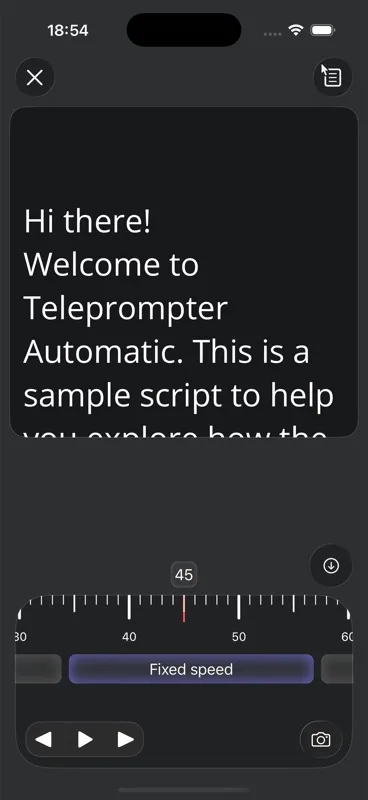
Choose horizontal or vertical flip
Horizontal mirroring reverses left and right. It is the common choice for beam-splitter glass, reflected teleprompter setups, and some external monitor rigs. Vertical mirroring flips top and bottom. Use it only when the physical setup inverts the text vertically or when the display path requires it.
Set it on web, Android, or iOS
On the web reader, the controls include separate horizontal and vertical mirror buttons. On Android recording settings, the camera settings panel exposes Flip Text H and Flip Text V options. On iOS, the reader stores separate horizontal and vertical flip settings in the reader menu. Labels can vary by platform, but the test is the same: the text should look normal from your speaking position.
Do not confuse text mirror with video mirror
Text mirror changes how the script is displayed for you. Video mirror changes the camera output or edited video. If your face preview looks reversed but the script reads correctly, adjust the video mirror setting instead. If the script is reversed but the video looks fine, adjust text mirror only.
Test before recording
- Place the device exactly where it will be during the take.
- Look through the glass or monitor path, not only at the device screen.
- Check numbers, names, logos, and punctuation because reversed text can be easy to miss at a glance.
- Record a short sample if the mirror setting is used with camera recording.
Expected result
The script should look natural from your reading position while the recording setup stays unchanged. For scroll speed and cue settings, continue with scrolling and reader controls. For camera mirror and recording setup, use camera and recording settings.