Reader controls decide whether the script feels calm or stressful during a take. This updated page explains where the feature fits, what it can do, and where to go next.
Teleprompter Automatic supports this workflow across iPhone, Android, and the web, with reader controls, recording tools, sync, and export depending on the platform and account state.
Choose a mode by the way you speak
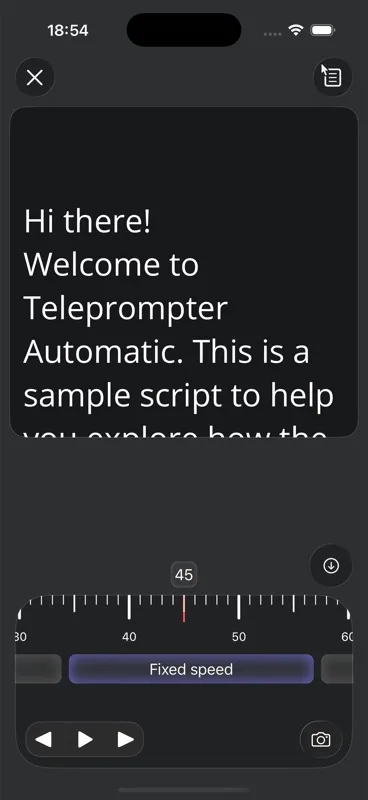
For a steady prepared passage, begin with a fixed pace and adjust it during a spoken test. For a time-constrained delivery, check the timed or words-per-minute options described in the relevant guide, then verify the actual duration aloud. When using Voice Scroll, test the intended language and microphone setup before relying on it for a recording.
Change one control at a time. First make the text readable from the recording position, then set the pace, and finally rehearse pauses and restarts. If a line wraps differently after a font-size change, repeat the pace check. Keep the controls you need within reach or consult the remote-control guide for your setup.
Quick answer
Choose the scroll mode, set text size, test speed aloud, adjust alignment and cue position, then record a short sample before the final take.
When this workflow is useful
Use this guide whenever the text is too fast, too slow, hard to read, or not positioned well for your camera setup.
- creators who need a prepared but natural delivery
- short videos where every sentence has to earn its place
- longer recordings that are easier to finish when the script is organized
- presentations, lessons, or updates where accuracy matters
Prepare the script before opening the camera
Fix very long paragraphs before changing every reader setting. Dense text is harder to read at any speed.
Set up the reader for the format
Start with fixed speed or WPM when you need predictability, and test Voice Scroll separately before relying on it.
Match the workflow to the publishing context
Match the workflow to where the script will be prepared, read, recorded, reviewed, and exported. Device choice affects text size, control method, and how much setup you need before a deadline.
Record a short test before the full take
Read one paragraph out loud for 15 to 30 seconds and tune from that real speaking pace.
Use product features only where they help
Mirror mode, countdown, alignment, font size, and cue position are support settings for the same goal: readable delivery.
Keep the script useful after the recording
Keep the final script and setup notes after the first successful use. Reusing the same structure makes the next recording, presentation, or support task faster.
Common mistakes to avoid
- writing sentences that look fine on the page but are hard to say aloud
- setting scroll speed while reading silently instead of speaking at camera pace
- recording the full take before checking framing, audio, and script position
- adding too many visual effects before the message is clear
Review and publish with a clean next step
After the workflow is set up, save the script, review the result, and continue with the relevant support guide.
Related Teleprompter Automatic guides
- Voice Scroll and speech recognition - Explains speech-based scrolling and its limits.
- speech time calculator - Helps readers estimate script length.
- camera and recording settings - Supports recording setup details.
- Web Remote control - Shows how to control a host device from another screen.
- Bluetooth Remote setup - Supports hands-off reader control.
- record and export videos - Moves readers from setup to output.