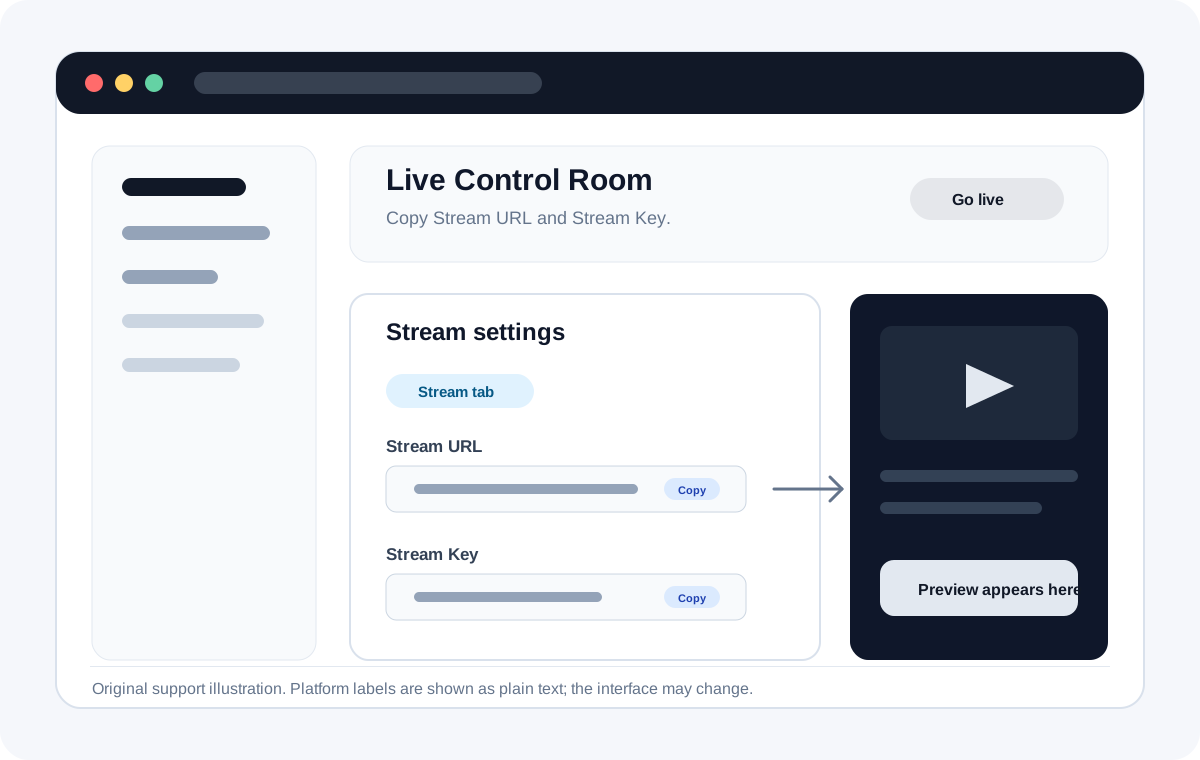
YouTube Live gives each encoder stream a Stream URL and Stream key in Live Control Room. Paste those two values into Teleprompter Automatic to send the camera feed while you read your script.
Before you start
Live streaming must be enabled on your YouTube channel. If this is your first time, YouTube says activation can take up to 24 hours, so check the channel before the planned live session.
Find the YouTube Stream URL and Stream key
- Open YouTube Studio.
- Click Create, then Go Live.
- Open the Stream tab in Live Control Room.
- Create a stream or reuse an existing stream setup.
- Copy the Stream URL and Stream key from the stream settings.
Use the details in Teleprompter Automatic
- Open your script and choose Live Stream.
- Select YouTube.
- Paste the YouTube Stream URL into Stream URL.
- Paste the Stream key into Stream Key.
- Start the stream in Teleprompter Automatic, then monitor the preview in YouTube Live Control Room.
Prefer RTMPS when YouTube provides it
If your YouTube stream settings show an RTMPS URL, use that secure URL. Teleprompter Automatic accepts both RTMP and RTMPS URLs.
Official references
- YouTube Help: create a live stream with an encoder
- YouTube Help: encoder settings and RTMPS recommendation