Use a recording reminder when you want the app to nudge you before the next video session. The reminder uses the app notification system, so notification permission must be available for the alert to appear.
Open Recording reminder
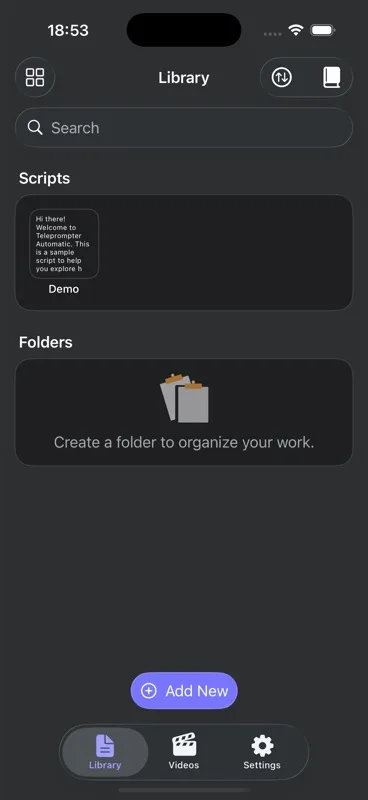
Open Settings and choose Recording reminder. Pick the time you want to be reminded, then save or schedule it.
- Use a time when your script, lighting, and camera setup will already be ready.
- If the app asks for notification permission, allow it for the reminder.
- Keep only reminders you actually want, so alerts stay useful.
Change or turn off the reminder
Return to the same Recording reminder screen to change the time or turn the reminder off. On Android the settings screen includes schedule and cancel actions; on iOS the reminder manager replaces the pending local notification when you schedule a new time.
If the reminder does not appear
Check that notifications are enabled for Teleprompter Automatic in system settings. Also confirm the device clock, Focus or Do Not Disturb settings, and battery restrictions that may delay app notifications.