Timed scrolling fits the script to a duration you choose. Use it when the recording must land close to a target length, such as a one-minute update, ad read, or timed presentation segment.
Set the target duration
Choose Timed scrolling, then enter minutes and seconds. The app calculates the scroll pace from the script and the selected duration.
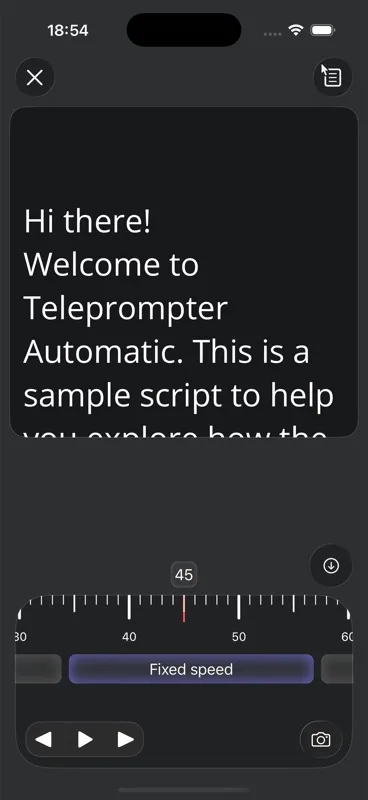
- Finalize the script before setting the time.
- Include pauses and breathing room in the duration.
- Use a short rehearsal if the timing is strict.
Use target duration in the browser
The Web dashboard offers target-duration pace in rehearsal, video recording, and audio recording. Set the desired time in the pace control; the same preference carries between these browser modes. Watch the approximate remaining time and rehearse aloud with your planned pauses.
Changing the duration changes how quickly the existing text moves. It does not rewrite the script. On iPhone and iPad, 30, 60, or 90-second script generation is a separate way to prepare a draft before rehearsal.
When it works well
This mode is best when the script is stable and the video length matters more than live pacing. It is less flexible if you improvise heavily during the take.
Adjust after edits
If you add or remove words, revisit the duration. A longer script with the same time will scroll faster; a shorter script will scroll slower.
How timed scrolling differs from the other modes
Timed scrolling starts from the final video length, not from how fast the text feels in the moment. It is the planning mode: if the script must fit 45 seconds, the duration tells the app how aggressively to move. It is less forgiving when you add jokes, pauses, or unscripted explanations.
Quick setup checklist
- Decide the target duration before choosing the mode.
- Read the script once with natural pauses and compare your actual time.
- Set the duration slightly longer if the video needs room for breathing or emphasis.
- After any meaningful rewrite, reopen the duration picker and test again.