If your account was created with Apple or Google, you can still add an email password while you are signed in. The account screen sends a setup code to your account email, then saves the new password after verification.
Open account password settings
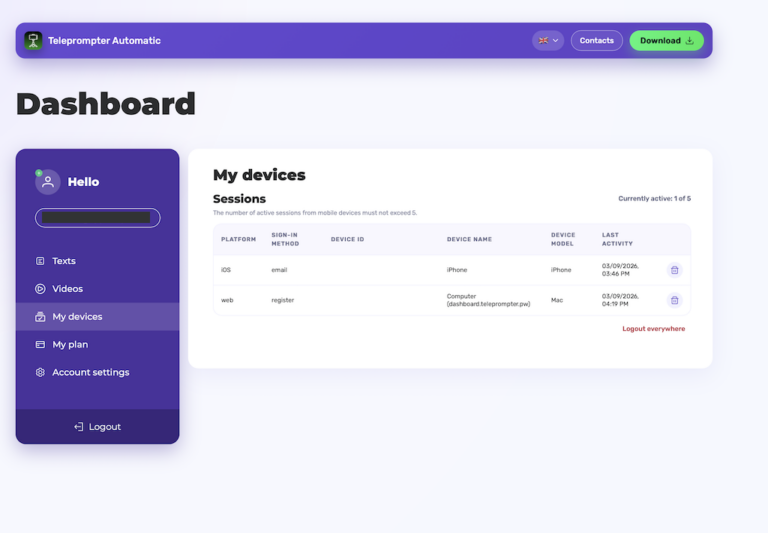
Go to My Account or Account settings while signed in. If the account does not already have a password, the password action appears as Set Password instead of asking for an old password.
- Stay signed in until the setup is complete.
- Make sure you can receive email for the account address.
- Use Change Password only when the account already has a password.
Send the setup code
Choose Send Code or Resend Code. Teleprompter Automatic sends a verification code to the account email so the app can confirm that you control the address before adding a password.
- If you use private relay email with Apple, check the relay inbox or forwarding destination.
- If the code is old, request a fresh one.
- Do not share the setup code with anyone.
Create the password
Enter the code, type the new password, and save. After that, you can sign in with email and password as well as with the Apple or Google login that is already connected to the account.