Use password recovery when you cannot sign in with email and password. Teleprompter Automatic sends a verification code to the account email, then lets you set a new password and create a fresh session.
Start from the sign-in screen
Open the email sign-in form and choose Forgot Password. Enter the email address used for your Teleprompter Automatic account, then request the reset code.
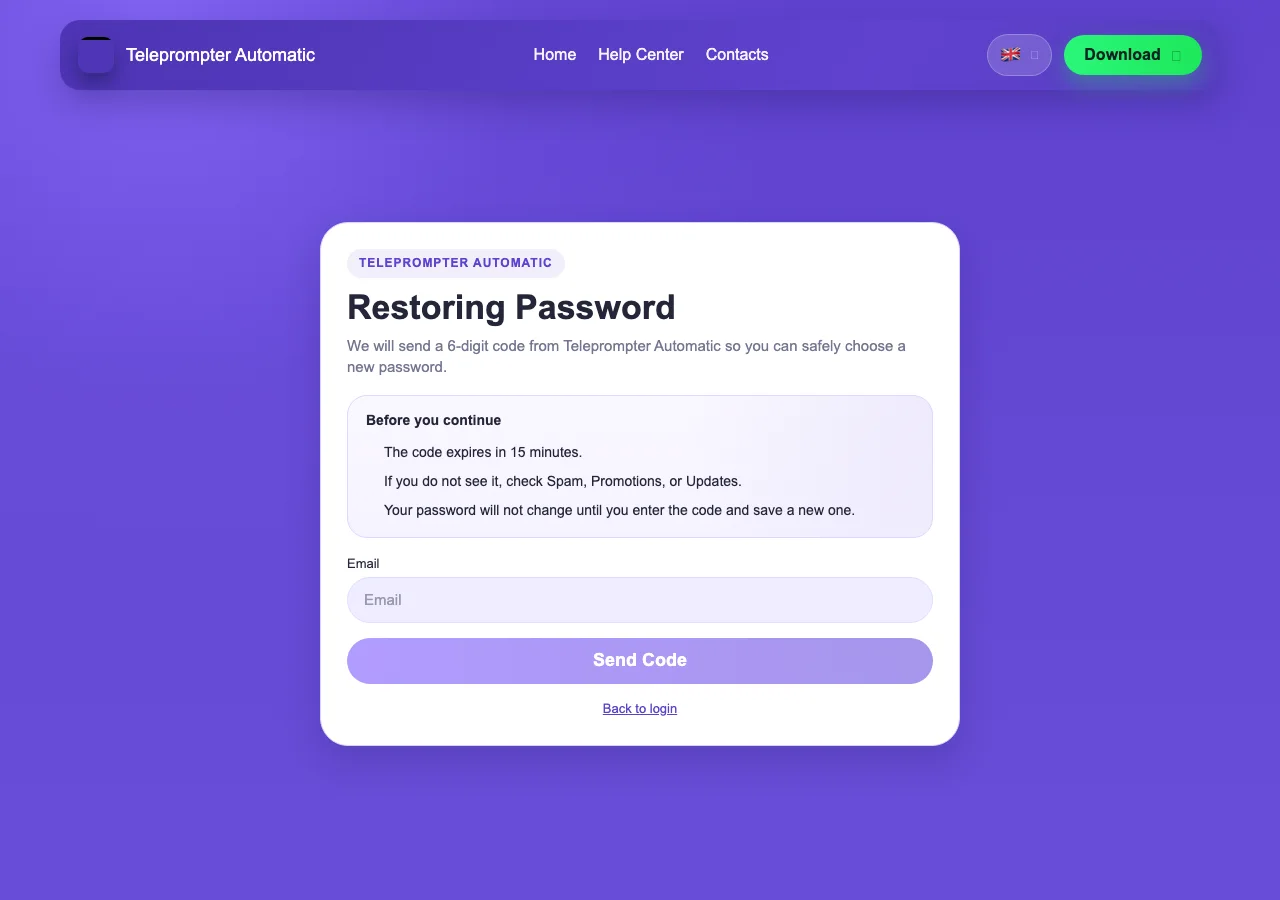
- Use the exact account email, including dots or aliases if you used them.
- Keep the app or browser open while you check mail.
- If you normally sign in with Apple or Google, use the set-password guide instead.
Enter the code and new password
When the code arrives, return to the reset screen, paste the code, enter the new password, and confirm. After confirmation, sign in with the new password.
- Do not reuse an old leaked password.
- If the code expires or never arrives, request a new code.
- Check spam, promotions, and mail forwarding rules before contacting support.
If the email does not arrive
For privacy, the reset flow may not tell you whether an email exists in the system. If nothing arrives, double-check the email, try the device or browser where you usually sign in, and contact support with the account email if you are still blocked.