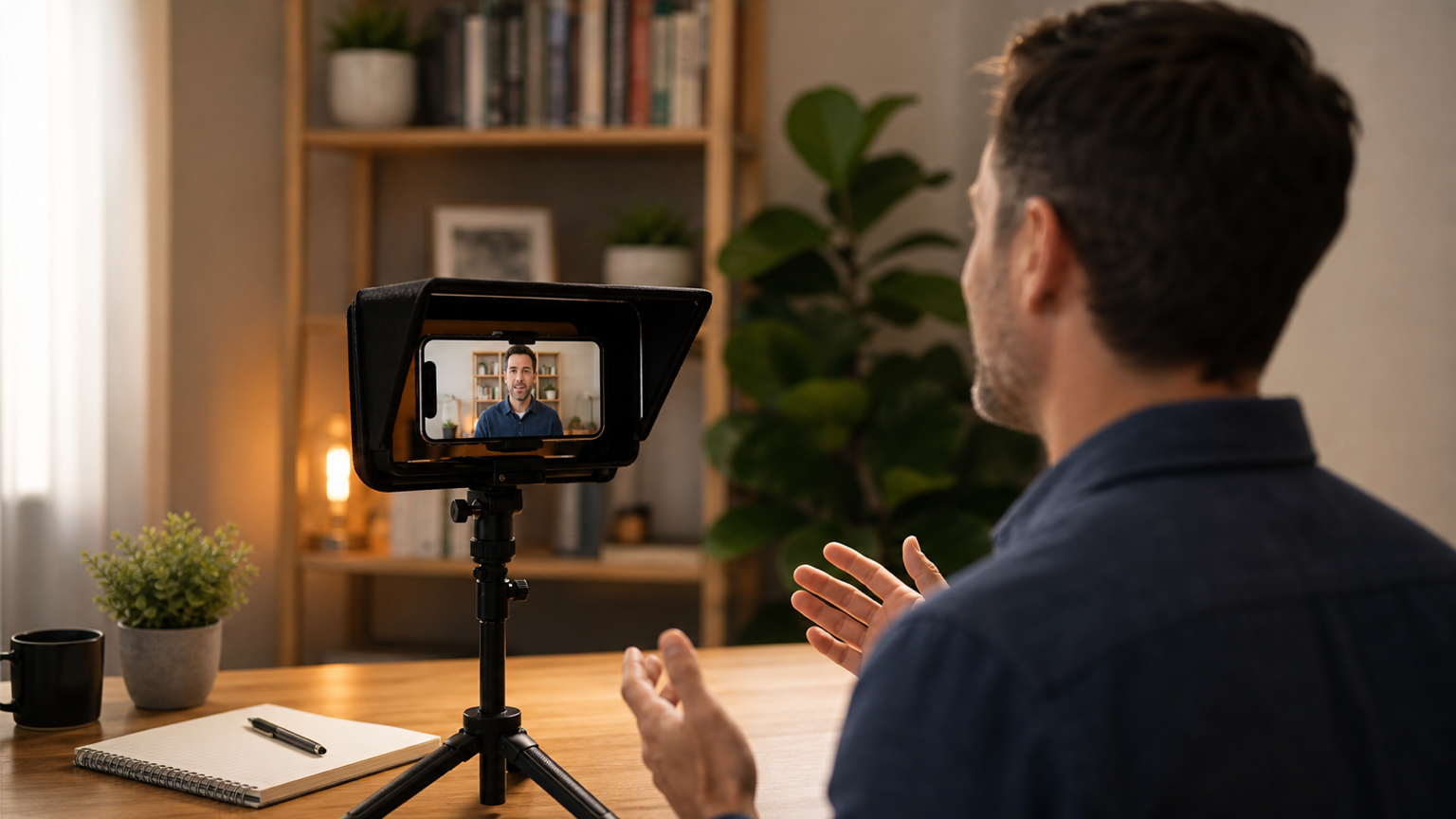
Coaching program videos work best when the coach sounds prepared without turning the lesson into a stiff lecture. A teleprompter app helps by keeping the module outline, exact prompts, client action steps, and closing summary near the camera while you stay focused on the person watching.
Use this workflow for course modules, cohort lessons, private client resources, onboarding videos, accountability prompts, and short program updates. The goal is not to read every sentence perfectly. The goal is to record clear, repeatable coaching content with fewer lost points and fewer avoidable retakes.
Start with the client outcome for one module
Before writing a script, decide what the client should understand, practice, or do after this one video. A strong coaching lesson usually has one outcome: clarify a goal, explain a framework, demonstrate an exercise, assign a reflection prompt, or answer a common blocker.
Write that outcome at the top of the script. Then keep the rest of the video pointed at it. If a story, tangent, or extra teaching point does not help the client complete the module, move it to a bonus video, worksheet, live call, or follow-up note. A teleprompter can hold a lot of text, but the client benefits from a lesson that stays focused.
Turn the program outline into recording blocks
Most coaches already have program notes, slide decks, workbooks, intake questions, or call outlines. Do not paste the entire program into the reader. Convert it into recording blocks that are easy to speak on camera.
A practical module script can use five blocks: welcome, why this matters, core teaching, guided exercise, and next action. Keep each block short enough to record in one confident take. If the module is long, split it into several scripts so each video covers one teachable step. That makes the final program easier to navigate and gives you smaller clips to re-record when a lesson changes.
Keep coaching prompts separate from spoken lines
Coaching videos often mix three kinds of text: words you say, prompts the client should answer, and production notes for yourself. Keep those separate in the teleprompter script. Spoken lines should sound conversational. Client prompts should be short and exact. Production notes can sit in brackets or on their own lines, such as "pause for reflection" or "show workbook page".
This separation keeps the delivery natural. You can glance at a prompt without accidentally reading a private note aloud, and you can pause long enough for the client to understand the exercise before the next section starts.
Prepare scripts and folders before recording day
Program recording is easier when the content library already matches the program structure. Create one folder per program, cohort, module, or client deliverable, then name scripts in recording order: module 1 introduction, module 1 exercise, module 1 recap, and so on.
Teleprompter Automatic supports script and folder workflows across product surfaces, and the create and import scripts guide explains how to prepare text before opening the reader. If your draft starts in a document, clean it into short spoken paragraphs before recording. If a script is likely to change after client feedback, save it as its own module file instead of burying it inside a long master script.
Use the speech time calculator to protect lesson length
Coaching scripts often look shorter on the page than they feel on camera, especially when you add examples, pauses, and reflection time. Before recording, paste the draft into the speech time calculator and compare the estimate with the lesson format.
A five-minute onboarding video may only need the promise, the next step, and one reassurance. A fifteen-minute lesson can include a framework and an exercise. A short accountability prompt should leave the client with one action, not a full teaching session. Estimate the spoken length first, then cut repeated setup or move extra examples into a separate resource.
Set the reader for a calm coaching pace
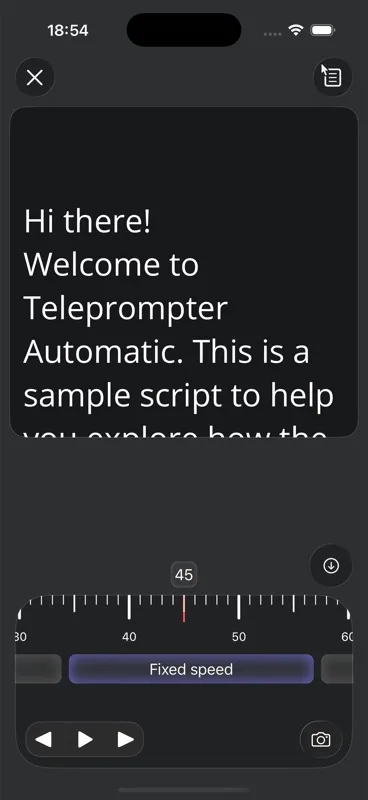
Coaching delivery needs room for pauses. If the reader moves too quickly, the video can feel rushed even when the script is useful. Open the script, read the first section aloud, and adjust text size, scroll speed, cue position, and line spacing until your eyes stay near the camera and your voice has time to breathe.
The scrolling and reader controls guide covers the settings that affect pacing. Fixed speed is useful for a polished lesson. Words-per-minute pacing is useful when the module needs to fit a known duration. Voice Scroll can help when you pause for emphasis or reflection, as long as the script language, recognition language, and spoken words match closely.
Record a setup test with the actual exercise
Do not test only the first sentence. Record 20 to 30 seconds that includes the hardest part of the lesson: a reflection prompt, a framework explanation, a client action step, or a demonstration. Then watch it once for eye line, once for audio, and once for whether the instruction is clear.
Use the camera and recording settings workflow to check camera choice, microphone, countdown, resolution, frame rate, grid, and mirror behavior before the full take. If the video includes a workbook, whiteboard, screen, or client example, make sure no private client details, emails, account names, or sensitive notes are visible.
Use remote control when you need to demonstrate
Some coaching videos are not pure talking-head lessons. You may need to stand, point to a board, demonstrate a breathing exercise, show a physical setup, or step away from the phone. If touching the recording device breaks the flow, use a remote-control workflow.
Web Remote control lets another browser device control a session after pairing, which is useful when the phone needs to stay mounted. Keep short production cues in the script so you know when to pause, start the demonstration, return to the camera, or repeat the action step.
Keep retakes manageable during batch recording
Coaches often batch several program videos in one session. Batch recording works best when each script is small, named clearly, and checked before the camera starts. Record in module order when possible, but leave enough room to redo one video without disturbing the rest of the program.
After each take, mark the result quickly: keep, redo intro, redo exercise, or needs edit. If you missed one line but the client instruction is still clear, do not automatically re-record the whole module. If you added an unsupported promise, skipped a key limitation, or made the action step confusing, record another take before moving on.
Review, edit, and export by program destination
A coaching program may need several versions of the same message: a full course lesson, a short recap for a client portal, a vertical teaser for social, or a private follow-up clip. Decide the destination before editing so the crop, length, subtitles, and opening line match the channel.
The record and export videos guide covers the core recording path, and edit videos in Teleprompter Automatic covers post-recording adjustments such as trimming, resizing, rotating, speed changes, subtitles, overlays, background effects, and export. Keep the coaching content honest: edit for clarity, not to hide a vague lesson.
Store the reusable lesson script with production notes
The script is part of the program asset, not just a recording aid. Save the final version with notes about what worked: scroll mode, estimated duration, camera position, microphone choice, and whether the exercise needed a pause. Those notes help when you update the program, record the next cohort, or translate the lesson structure into a shorter client reminder.
If you move between devices, use cloud workflows deliberately. The cloud sync and video storage guide explains the public support path for synced scripts, folders, videos, and storage state. Before deleting local files or replacing an older take, confirm that the version you need is saved where you expect it.
Common mistakes to avoid
- recording a whole program from one long script instead of module-sized blocks
- writing lesson text like a workbook instead of spoken coaching language
- putting private client notes in the same lines you plan to read aloud
- setting scroll speed silently instead of testing it at speaking pace
- skipping the setup test when the lesson includes an exercise or demonstration
- batch recording without a simple keep, redo, or edit decision after each take
- exporting every version the same way even when the client portal, social clip, and email follow-up need different lengths
Related Teleprompter Automatic guides
- Teleprompter Automatic for content creators - Connects coaching videos to the broader creator recording workflow.
- create and import scripts - Prepare program modules before recording day.
- speech time calculator - Estimate lesson length before the camera is involved.
- scrolling and reader controls - Tune pacing for calm coaching delivery.
- camera and recording settings - Check framing, microphone, countdown, and mirror behavior.
- Web Remote control - Control recording when the phone needs to stay mounted.
- record and export videos - Save final lessons for each program destination.