
A webinar teleprompter is most useful when it helps you stay present, not when it turns the live session into a script reading. The right setup keeps opening lines, transitions, names, numbers, and closing calls to action near the camera while you still leave room for slides, chat, and audience questions.
Use this workflow when you host live product demos, training sessions, expert panels, customer education webinars, sales presentations, online classes, or team broadcasts. The goal is to prepare the parts that must be clear while keeping the live delivery flexible enough for the room.
Quick workflow for a live webinar teleprompter
Prepare the webinar as a set of live speaking blocks: opening, agenda, transitions, key proof points, demo cues, audience prompts, backup lines, and closing action. Put those blocks into a teleprompter script, rehearse with the same camera and webinar software, then keep a shorter cue version ready for the live session.
In Teleprompter Automatic, the practical flow is to create or import the script, open it in the reader, tune the text size and scroll behavior, test the pacing out loud, and keep the recording or remote-control setup simple. For webinars, the difference is that the teleprompter supports the live presentation; it should not compete with your slides, chat, or audience.
Write the script around live moments
A webinar script should not read like a blog post or a slide deck. Write the exact words only where accuracy matters: the first thirty seconds, the promise of the session, the agenda, the handoff into a demo, a compliance-safe product claim, a pricing-neutral closing line, or the final invitation to act.
For the rest, use anchor lines. An anchor line is a short phrase that reminds you what to say without forcing every sentence. For example: "show the before state," "pause for the poll," "name the customer problem," or "invite questions before the demo." These lines keep you oriented while still letting your voice sound live.
Separate slides, speaker notes, and teleprompter text
Slides are for the audience. Speaker notes are for context. The teleprompter is for the spoken path you need to follow while looking near the camera. Mixing all three usually makes the live session harder because you start searching for the right detail at the exact moment you should be speaking.
Before importing the script, remove slide-layout language such as "as you can see on this slide" unless you truly need it. Keep URLs, names, numbers, dates, demo steps, and disclaimers on their own lines. If a line is only a private reminder, mark it clearly as a cue so you do not read it aloud by mistake.
Place the reader near the webinar camera
The reader should sit close enough to the webcam that your eyes still feel connected to the audience. If the teleprompter is on a phone, mount it near the laptop camera or external webcam. If the script is on a second screen, move the reader window near the camera side rather than leaving it far across the desk.
Set the text large enough to read without leaning forward. A slightly larger font and fewer words on screen usually feel more natural than tiny text that forces your eyes to scan. Before the live session, test the full setup with the same lighting, microphone, camera, and screen-sharing arrangement you plan to use.
Choose a scroll mode for live pacing
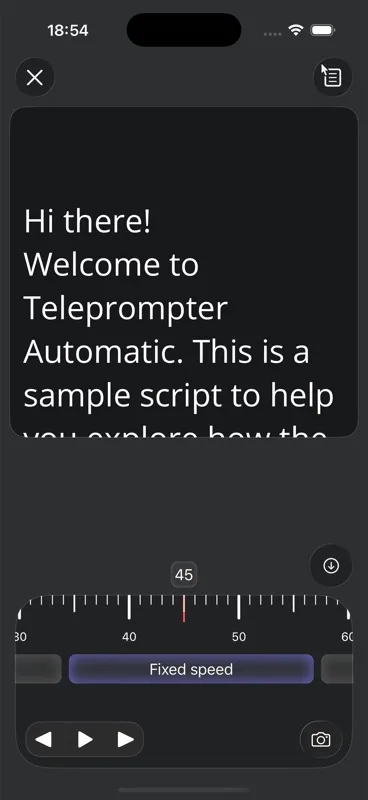
Live webinars need more breathing room than short recorded clips. Fixed speed can work for the opening and closing if the script is stable. Words-per-minute pacing helps when you want to estimate whether a section fits the agenda. Timed scrolling can help a strict five-minute segment stay inside its slot.
Speech-based scrolling can be helpful when you pause for questions, examples, or emphasis, but test it with the exact script language, microphone, room, and speaking style before a real webinar. If the topic includes names, acronyms, or technical terms, rehearse those lines aloud instead of assuming recognition will follow perfectly. The scrolling and reader controls guide explains the reader settings, and the Voice Scroll guide explains speech-driven behavior.
Plan what happens when chat interrupts the script
The best live sessions have interruptions by design. Someone asks a question, the chat reacts to a demo, a poll needs more time, or a guest speaker adds a useful example. Build those moments into the teleprompter instead of treating them as mistakes.
Add short reset lines after interactive moments. Examples: "Let me bring us back to the main point," "Now we can move into the demo," or "I will answer the rest at the end." A reset line is a quiet safety net. It helps you return to the planned structure without sounding abrupt.
Prepare a cue version for the live session
The rehearsal script can be detailed. The live script should usually be shorter. After you rehearse, duplicate the script and turn it into a cue version: opening words, section labels, transition lines, required facts, Q&A reset lines, and the closing action.
This cue version is easier to follow while you also watch the webinar room. It also protects the audience experience because you are not trying to read a full essay while checking slides, chat, screen sharing, and guest timing. The create and import scripts guide covers the basic text preparation flow.
Rehearse with the actual webinar stack
Do at least one rehearsal with the same camera position, microphone, screen share, slides, browser tabs, and teleprompter device you plan to use live. A setup that feels comfortable while reading alone can feel crowded once the webinar controls, chat, and screen share are open.
Use the speech time calculator before rehearsal to estimate the script length, then time the live run with pauses included. The spoken version often takes longer because you greet people, wait for screens to load, answer a question, or repeat a key point. Cut extra explanation before the live event rather than rushing the reader during the event.
Use remote control when the device should stay mounted
If the teleprompter phone needs to stay mounted near the camera, avoid touching it during the session. A small bump can shift the frame or change the eye line. Pair a remote-control workflow instead, or ask a teammate to manage playback from another browser device when the session is important.
Web Remote control is useful when the reader or recording device should stay fixed. Keep the commands simple for webinars: start, pause, resume, slow down, or move to the next section. The fewer controls you need live, the calmer the session feels.
Record, review, and reuse the webinar script
After the live session, keep the script and the recording together. The same script can become a replay intro, a recap email, a shorter product demo, a course lesson, a sales follow-up, or a support article outline. Mark the lines that worked live and the places where questions changed the flow.
If you record a separate replay or follow-up video, use the record and export videos workflow. If the script moves between devices, use cloud workflows deliberately and confirm the final version is saved where you expect it before deleting local drafts. The cloud sync and video storage guide explains the public support path for synced scripts, folders, videos, and storage state.
Common mistakes to avoid
- putting the teleprompter too far from the camera and losing eye contact
- trying to read a full article while also managing slides and chat
- using slide notes as the teleprompter script without rewriting them for speech
- testing scroll speed silently instead of speaking at live webinar pace
- forgetting reset lines after polls, Q&A, demo delays, or guest handoffs
- touching the mounted phone during the webinar instead of using a remote-control option
- saving the replay without keeping the final script and production notes
Related Teleprompter Automatic guides
- teleprompter for presentations - Connects webinar delivery to the broader presentation workflow.
- use Teleprompter Automatic on the web - Supports desktop script preparation before live delivery.
- create and import scripts - Prepare webinar scripts and cue versions before rehearsal.
- speech time calculator - Estimate whether a section fits the webinar agenda.
- scrolling and reader controls - Tune text size, cue position, and scroll behavior.
- Voice Scroll and speech recognition - Understand speech-driven scrolling before relying on it live.
- Web Remote control - Control the reader when the phone needs to stay mounted.
- record and export videos - Re-record a replay or follow-up after the live event.