
A teleprompter can keep your opening, update, figures, and closing action close to the webcam during a Zoom meeting. It works best as a quiet layer of preparation, not as a script for every answer. The goal is to look up more often, speak in a clear order, and still respond to the people in the meeting.
You can use Teleprompter Automatic in a browser reader near the meeting window or place a phone close to the laptop camera. This guide covers both setups, shows how to turn ordinary notes into readable cues, and explains when to stop reading and return to the conversation.
Quick setup for a Zoom meeting teleprompter
- Reduce your notes to an opening, three to five key points, exact facts, questions, and a closing action.
- Create or import the script in Teleprompter Automatic.
- Choose a browser reader beside the webcam or a phone mounted close to it.
- Increase the text size and narrow the reading area so your eyes travel less.
- Rehearse with the actual meeting window, camera, microphone, and screen share.
- During the call, read prepared lines but pause the reader for discussion.
This is not a special Zoom integration. The teleprompter and the meeting run as separate tools, which gives you control over the script without changing how the other participants join the call.
Choose a one-screen or two-device setup
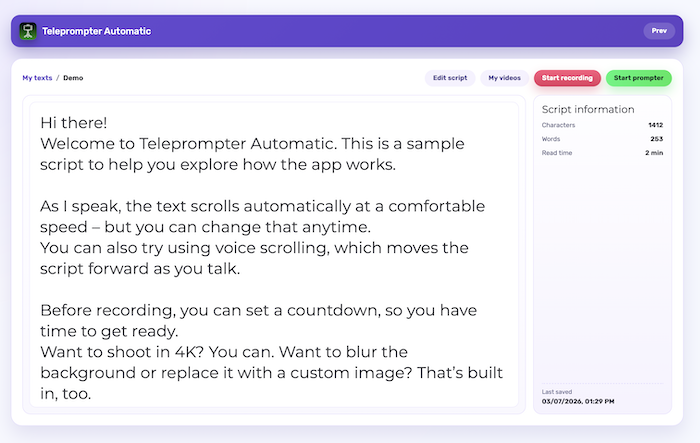
A one-screen setup is simplest when you work at a computer. Open your script in the Teleprompter Automatic browser reader, make the reader window narrow, and place it directly below or beside the webcam. Keep the Zoom window large enough to see participants, chat, and screen-sharing controls. The exact arrangement depends on your display, but the script should be closer to the camera than the participant grid is.
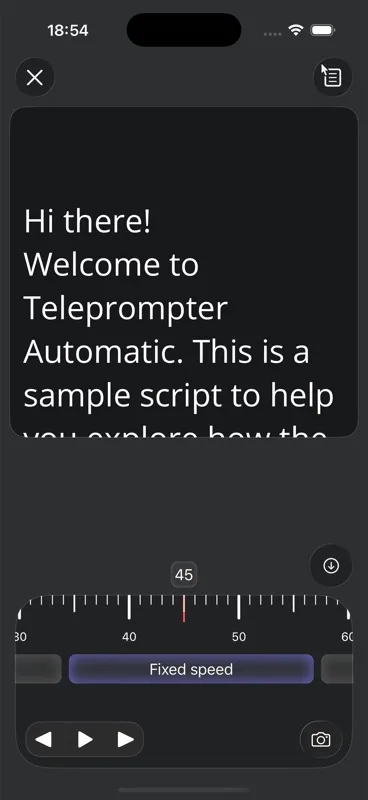
A two-device setup leaves more computer space for the meeting. Put the script on a phone, mount the phone above or beside the webcam, and keep its screen facing you. This works well when you need to share slides or demonstrate another app. Keep the mount stable and avoid touching it during the meeting, because a small movement can change both framing and eye line.
Turn meeting notes into speaking cues
Do not paste an agenda, document, or slide deck into the reader unchanged. Written notes often contain long sentences, headings that are not meant to be spoken, and details you only need as reference. Rewrite them for the voice.
Start with the words you want to say in the first twenty seconds. Then give each topic a short heading, one main point, and any exact name, number, date, or decision that must be accurate. Put questions on their own lines. Finish with the owner, action, and deadline you want the group to remember.
A useful status-update pattern is: outcome, evidence, blocker, decision, next step. A client-call pattern might be: context, goal, two questions, recommendation, confirmation. These structures keep the script short enough to scan while leaving room for conversation.
Place the reader close to the webcam
The farther your eyes move from the camera, the more obvious the reading becomes. Place the script as close to the webcam as the hardware allows, then keep the active line near the top or center of that reading area. You should not need to turn your head or scan across a wide paragraph.
Camera height matters too. Raise the laptop or external webcam until it is near eye level, then position the reader around that line. If the phone blocks the webcam, move it just to one side rather than mounting it directly in front. Record a short local test or use your meeting preview to check that your eyes still feel connected to the viewer.
Set text size and pacing for conversation
Meeting notes need more space than a rehearsed video script. Use larger text, short paragraphs, and blank lines between topics. A narrow line length reduces side-to-side eye movement. Highlighting is less important than clear structure: an uppercase cue such as ASK, PAUSE, or SHARE SCREEN is easy to notice without turning the page into a wall of formatting.
Fixed-speed scrolling can work for a prepared introduction or update. Words-per-minute or timed modes help when a section has a firm duration. Voice Scroll can leave room for natural pauses, but test it with your real microphone, language, names, and room before using it in an important meeting. For a discussion-heavy call, manual play and pause is often calmer than continuous movement.
Use eye contact as a rhythm, not a fixed stare
Natural meeting behavior includes looking at another speaker, checking a shared screen, and glancing at notes. You do not need to stare into the webcam for the entire call. Instead, return to it at high-value moments: your first sentence, the main recommendation, a direct question, the decision, and the closing action.
Read one short thought, look at the participant grid while someone responds, then find the next cue before you speak again. This rhythm looks more natural than reading continuously while other people are talking. It also makes interruptions easier because your script is a map of the meeting rather than a recording transcript.
Pause the script when the meeting becomes interactive
A Zoom meeting is different from a webinar because the conversation can change direction quickly. Someone may add context, challenge an assumption, or ask for a demonstration. Pause the reader instead of trying to catch up with moving text while listening.
Add reset cues between prepared sections: “return to recommendation,” “confirm the owner,” or “ask whether anything is missing.” After the discussion, use one of those cues to re-enter the planned structure. If the group makes a new decision, write it in separate meeting notes; do not edit the running script while you are supposed to be listening.
Rehearse with the real meeting workspace
A script that feels comfortable in a full-screen reader can become cramped once the participant grid, chat, slides, and controls are visible. Rehearse with the exact windows and devices you plan to use. Test notifications, camera framing, microphone level, screen sharing, and whether the reader remains visible when you switch applications.
Speak the opening and one transition aloud. Check that you can pause the script without hunting for a control. If you use a mounted phone, confirm it remains charged and stable. If you use the browser reader, make sure the window does not cover the people or material you need to see. A two-minute test usually exposes more setup problems than a silent read-through.
Match the script to the meeting type
- Daily update: keep only completed work, current priority, blocker, and the help you need.
- Client call: script the opening, key figures, sensitive wording, questions, and agreed next step.
- Interview: prepare your introduction and examples, but answer follow-up questions in your own words.
- Sales demo: keep transitions and proof points in the reader while the product steps remain in a separate checklist.
- Leadership update: put the decision, rationale, risk, and owner on separate lines.
- Remote training: script the explanation and recap, then pause for exercises and questions.
For a larger hosted session with slides, audience chat, polls, and formal Q&A, use the separate guide to a teleprompter for webinars. That workflow needs a fuller run of show than a normal meeting.
Protect private notes and reduce distractions
Keep private names, account details, access information, and unrelated client notes out of a reusable teleprompter script. If you share your screen, verify that the reader window, notifications, and document titles will not appear in the shared area. Close unrelated tabs and apps before the meeting.
Save the final speaking outline with a clear title so you can reuse its structure without carrying old confidential details into the next call. If you move scripts between supported devices, confirm that the correct version is available before the meeting and follow your organization’s rules for storing business information.
Common Zoom teleprompter mistakes
- placing the script at the far edge of a wide monitor
- copying an entire agenda or slide deck into the reader
- scrolling continuously while another person is speaking
- making the text so small that your eyes scan across every line
- trying a new voice or timed scroll mode for the first time in an important call
- covering the webcam with a phone mount
- letting the reader hide chat, participants, or screen-sharing controls
- reading follow-up answers instead of responding to what was actually said
- sharing a screen before checking notifications and private window titles
Related Teleprompter Automatic guides
- teleprompter for presentations - Plan a broader presentation, lesson, or formal update.
- use Teleprompter Automatic on the web - Create scripts and open the reader in a desktop browser.
- create and import scripts - Turn existing notes into a reader-ready script.
- scrolling and reader controls - Adjust text position, size, pace, and playback behavior.
- Voice Scroll and speech recognition - Decide whether speech-driven movement fits your meeting language and setup.
- Web Remote control - Control a mounted mobile reader from another browser when needed.
- speech time calculator - Estimate whether a prepared update fits its agenda slot.
- teleprompter for webinars - Prepare larger hosted sessions with slides, chat, and Q&A.