
A conference introduction has a small job with a lot of details to get right: tell the audience who is speaking, why the session matters, and what happens next. A teleprompter can keep those details in view without turning the announcement into a long speech. This guide focuses on pre-recorded conference intros and speaker announcements—from checking the run of show to reviewing each finished take. For broader presentation and speech uses, see Teleprompter for Presentations.
Start with an approved announcement sheet
Before writing spoken lines, make one row for each recording: its playback point, speaker or session name, approved pronunciation, session title, room or stage, and the action the audience should take next. Ask the person responsible for the program to confirm names, titles, times, and any wording that must be read exactly. Mark information that may change, such as a room assignment, so it is checked again before the video is played.
Decide which messages should be separate clips. An opening welcome, a speaker introduction, and a room-change notice have different purposes and may need different revisions. Keeping them separate lets the team replace one announcement without rerecording unrelated material.
- Opening welcome: orient attendees and introduce the first transition.
- Speaker introduction: establish the speaker’s relevant role and hand the audience to the session.
- Operational notice: state the change, whom it affects, and the next action.
Write the handoff, not a full biography
For a speaker introduction, use four short blocks: welcome, speaker identification, one relevant reason to listen, and a clear handoff. Keep pronunciation notes separate from the words you intend to say. If a credential or claim cannot be verified from the approved program, leave it out rather than filling the gap with praise.
Hypothetical script example: “Welcome back to the main stage. Our next session looks at how teams can make event check-in easier for attendees. Please welcome Jordan Lee, operations lead at Example Events, for ‘Designing a Smoother Arrival.’ Jordan, over to you.” The names, organization, role, and session title here are placeholders; replace them only with confirmed event details.
For a recorded intro, avoid a handoff that assumes the speaker is physically beside you unless the playback sequence supports it. “Up next is…” may fit a video that ends before the speaker walks on; “Please welcome…” may fit a cue played immediately before that entrance. Check the actual playback order with the stage team.
Make the script easy to read on camera
Put each announcement in its own clearly named script. Break long sentences at natural breaths, keep a name and its title close together, and give the final handoff its own line. Read every name and acronym aloud before setting the scroll pace. If a line feels difficult to say, simplify it without changing its approved meaning.
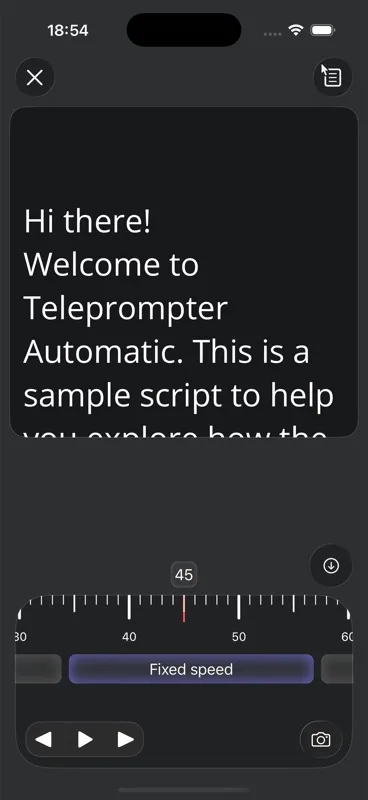
Teleprompter Automatic lets you adjust the reader’s font, size, spacing, alignment, colors, and reading position. Place the reading area near the lens, then rehearse at a pace that leaves room for names and audience cues. Fixed-speed scrolling provides a steady rate; timed scrolling and words-per-minute controls are other supported ways to set pace. Choose the one that feels natural in a spoken rehearsal rather than assuming a target duration guarantees the delivery. See the reader and scrolling guide for the available controls.
Test the camera setup before the scheduled take
Set the phone where the speaker can read near the lens while remaining comfortably framed. Open the script and make a brief test recording. Play it back for sharpness, audible speech, readable pacing, and whether the speaker’s eyes visibly track across the text. If they do, shorten the lines, adjust the reading area, or move the device before recording the full set.
In Teleprompter Automatic, choose the camera and an available microphone before the take; supported resolution and frame-rate options depend on the active device and camera. A countdown can give the speaker time to settle before recording begins. Test the delay once so the first spoken word is not cut off. For the controls and checks, use camera and recording settings and the countdown guide.
Record and review one announcement at a time
Record each approved script as its own take. Pause naturally after the welcome and before the handoff; do not rush a name to catch up with the scroll. If a fact changes mid-session, stop and confirm the new wording rather than improvising a replacement in the same take.
After each take, watch and listen from beginning to end. Check spoken names against the approved sheet, confirm the final cue matches the playback order, and look for a clipped first word or an awkward pause at the end. Teleprompter Automatic’s recording and export guide covers opening a script, recording a test, reviewing the take, and exporting. Keep the reviewed file identifiable to the team with a filename such as main-stage-speaker-intro-approved; treat that filename as an example of your own handoff convention, not an app setting.
Plan for changes without creating confusion
Before delivery, compare the reviewed clips with the current run of show. If a speaker, session title, room, or order changes, identify every affected clip and rerecord only those announcements. Make the superseded file unmistakable to whoever manages playback, and ask that person to confirm which version is queued.
Some notices are better delivered live. If their facts are likely to change after recording—an active schedule disruption, for example—prepare a short cue rather than a video containing an unconfirmed time or location. The decision is simple: record stable information; keep volatile instructions ready for a fresh confirmation.
Conference announcement recording questions
How long should a speaker introduction be?
Use only what the audience needs for this handoff: the speaker’s confirmed name and role, the session’s relevance, and a clear introduction. Rehearse it aloud against the event’s playback timing instead of aiming for an arbitrary word count.
Should I record schedule changes in advance?
Record a notice only when its details are confirmed and likely to remain accurate at playback. For changing times or rooms, prepare a short live cue and verify the facts immediately before delivery.
What should I check before handing an intro to the playback team?
Watch the complete file, check names and titles against the approved program, listen for clipped words, confirm that its final line matches the stage transition, and identify which version is approved.