Policy update videos work best when the message is exact, calm, and easy to repeat. A teleprompter app helps the speaker stay on approved wording without turning the update into a stiff reading performance.
Use this workflow for HR policy changes, security reminders, compliance training notes, product process updates, school or team rules, and any internal announcement where the wording has already been reviewed. This article is a communication workflow, not legal advice: confirm the policy language with the right owner before recording.
Start with the approved policy message
Before opening the camera, separate the policy from the explanation. The policy is the exact language that must be correct. The explanation is the short bridge that helps viewers understand what changed, when it starts, and what they should do next.
A reliable update script usually needs five parts:
- what changed, in one direct sentence
- who the change affects
- when the change starts or when viewers need to act
- where to find the full policy, form, checklist, or support contact
- one closing action that tells the viewer what to do after the video
Keep version numbers, dates, department names, and required phrases on their own lines. That makes them easier to read accurately in the teleprompter and easier to check during review.
Write the script for trust, not drama
A policy update video should sound clear and human. It does not need dramatic hooks, exaggerated urgency, or marketing language. The goal is to help the viewer understand a change without guessing what matters.
Write short sentences that can be spoken in one breath. Replace legal or operational paragraphs with plain transitions such as, "Here is what changes," "This applies to," and "If you are unsure, use this contact route." When the official wording must be exact, quote it in the script and read it slowly.
For sensitive updates, avoid promising outcomes you cannot control. Say what the policy says, where the full source lives, and how employees or viewers can get help. If the update depends on legal, HR, or customer support review, keep that approval outside the recording script and record only after the text is final.
Prepare the teleprompter layout before recording
Teleprompter Automatic supports a practical recording flow: create or import the script, open it in the reader, adjust the text for comfortable delivery, record a short sample, then export the usable take. For policy videos, the important setup detail is readability.
Use larger text than you think you need. Policy names, numbers, and dates should not sit at the edge of a paragraph where they can be skipped. Break the script into sections with one idea per block, then test the opening out loud. Reading silently makes most scripts seem shorter and easier than they are on camera.
If the policy update will be recorded on a phone, check the camera and recording settings before the full take. If the script starts on a desktop, use Teleprompter Automatic on the web for writing and review, then move into the mobile recording flow when you are ready.
Use scroll controls to protect accuracy
Policy videos often fail when the speaker rushes through the most important sentence. Set the reader so the official language stays visible long enough to say it naturally.
A fixed speed can work when the script is short and predictable. Words-per-minute or timed reading can help when the update must fit a meeting agenda or training module. Speech-based scrolling can be useful when the speaker pauses for emphasis, but any speech-driven mode should be tested with the exact room, microphone, and script language before relying on it for an important recording.
The safest review method is simple: record the first 30 to 45 seconds, watch it once for accuracy, once for pace, and once for eye line. If the speaker has to chase the text, adjust the reader before recording the final version. For more detail, use the scrolling and reader controls guide.
Set up the room for a serious but approachable update
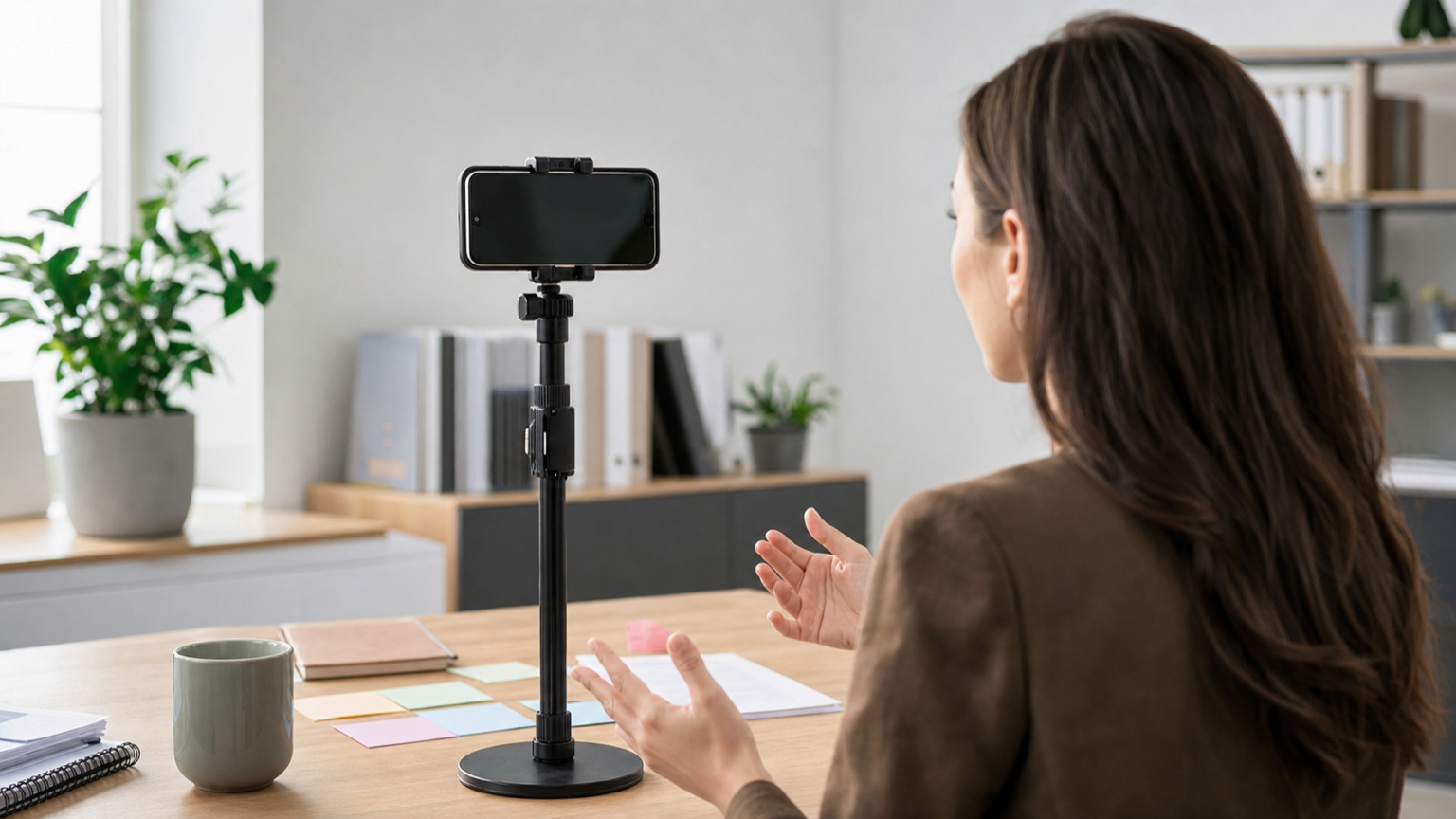
A policy video does not need a studio. It needs stable framing, clear audio, and a background that does not compete with the message. Place the camera or phone at eye level, keep the teleprompter text near the lens, and remove private documents, customer data, dashboards, and internal notes from the visible area.
Speak to one viewer, not to a committee. The tone should be steady and direct: explain the change, acknowledge what viewers may need to do differently, and close with the next step. If the update affects different groups in different ways, record separate short versions instead of forcing one long script to cover every exception.
Record a test take for approval review
Do not make the first complete recording the version you send for approval. A short test take finds the common problems while they are still cheap to fix: unclear wording, awkward names, dates that flash by too quickly, audio that sounds distant, and a camera angle that makes the reader look off-screen.
After the test, compare the spoken version with the approved script. If the speaker naturally changes a phrase, decide whether that change is harmless or whether the exact wording must be restored. For policy updates, the transcript can be just as important as the video because it gives reviewers a quick way to confirm the message.
Export the video with a clear handoff
When the take is approved, export a version that matches the destination: landscape for a training portal or meeting replay, vertical for mobile-first internal channels, or square when the video will sit inside a feed-like interface. Keep the original recording until the final published version is confirmed.
Teleprompter Automatic recording and editing workflows are useful here because the same source script can support recording, review, caption drafting, and follow-up copy. If the take needs trimming or resizing, move through the record and export videos workflow before publishing.
Keep a repeatable template for future updates
Most organizations repeat the same types of updates: policy launch, deadline reminder, process correction, safety notice, product support change, or executive explanation. Save a template with the structure, not the private details.
A reusable template might look like this:
- opening: why this update exists
- change summary: one sentence with the policy name
- effective date: when the change starts
- viewer action: what to read, sign, watch, or submit
- support route: where questions go
- closing: one calm reminder
That template keeps each future video consistent while still letting the owner update the exact policy language. For wider business communication workflows, see the business presentations and meetings guide or the teleprompter for presentations page.
Common mistakes to avoid
- recording before the policy owner has approved the wording
- reading a full policy document instead of summarizing the viewer task
- using tiny text that makes dates and required phrases easy to miss
- burying the effective date or next action near the end
- showing private documents, dashboards, customer information, or staff notes on camera
- publishing without checking the exported file from start to finish
Related Teleprompter Automatic guides
- create and import scripts - Prepare approved policy wording before the recording session.
- scrolling and reader controls - Tune speed and readability for careful delivery.
- camera and recording settings - Check framing, microphone, and recording setup.
- record and export videos - Save the finished policy update for the right channel.
- Web Remote control - Control the reader when the recording device needs to stay fixed.