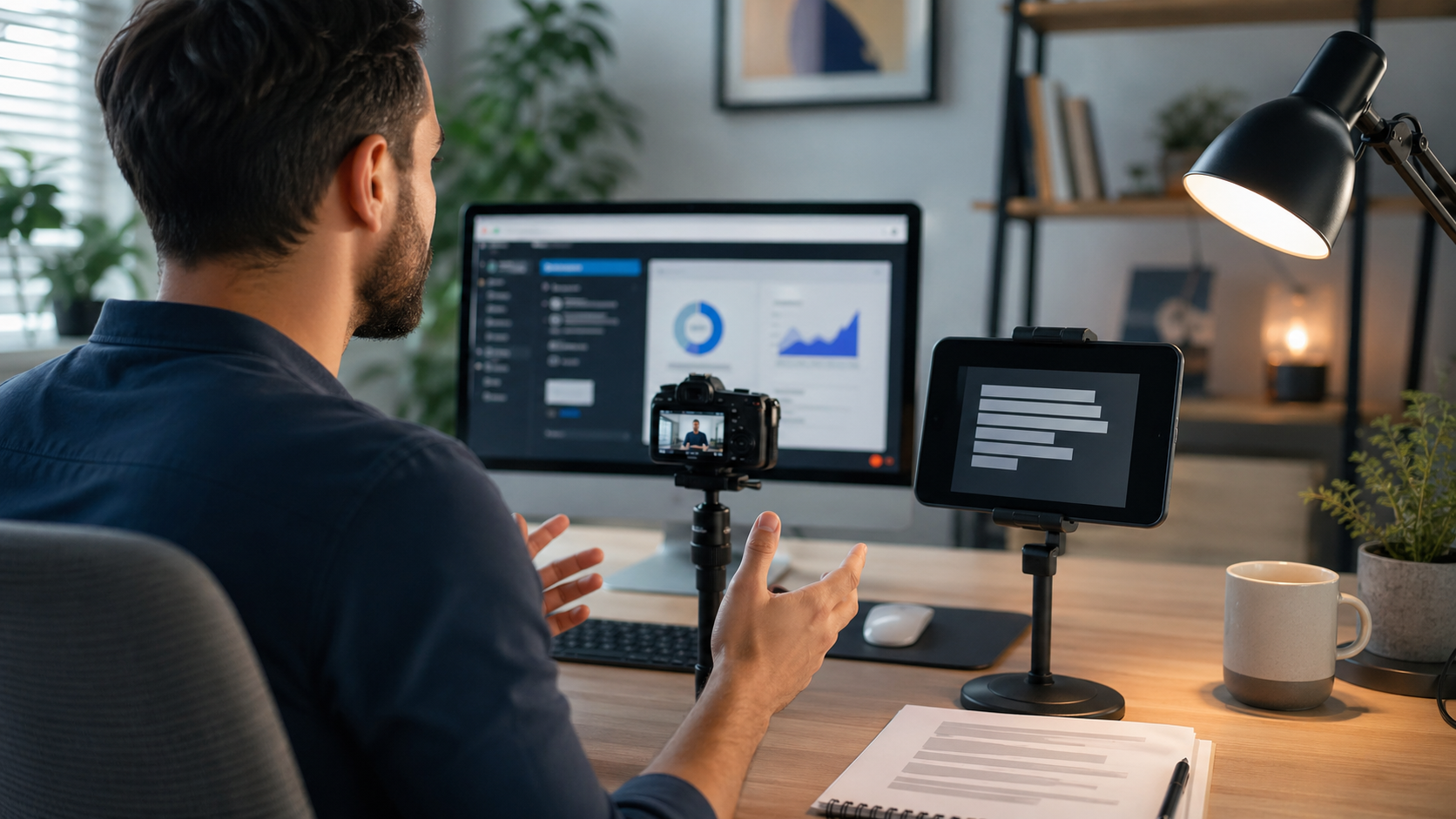
Screen recording tutorials work better when the script is planned around what the viewer sees, not around everything the presenter knows. A teleprompter keeps the narration steady, but the script has to leave room for cursor movement, pauses, loading states, and the moments when the screen explains more than another sentence would.
This guide shows how to combine a separate screen recorder with a teleprompter script for software tutorials. Teleprompter Automatic is useful for writing, importing, rehearsing, reading, recording camera narration, exporting supported clips, syncing scripts when enabled, and controlling the reader hands-free. It is not being presented here as the desktop screen recorder itself, so use the screen capture tool that fits your computer or tutorial platform.
Start with the screen recording goal
Before writing the script, decide what the viewer should be able to do after the tutorial. A useful software tutorial usually answers one task: create a project, adjust a setting, export a file, read a dashboard, fix an error, or compare two options. If the goal needs three separate outcomes, split it into three tutorials.
Write the screen path first. List the exact screens, menus, buttons, and result states you need to show. Then add the narration beside those screen beats. This prevents the common problem where the voiceover is polished but the capture jumps around because the presenter is searching for the next screen.
Split the script into screen beats and spoken lines
Use two columns while drafting: what happens on screen, and what you will say. The screen column can be short and mechanical. The spoken line should explain why the step matters, what to watch for, or what the viewer should avoid.
Screen: Open the export menu.
Say: The export menu is where you choose the file format before saving the final tutorial clip.
Screen: Select the resolution setting.
Say: For a tutorial, choose the resolution that keeps interface text readable after upload.
Do not put every click into the spoken line. If the viewer can see a click, the narration can explain the decision. This is where a teleprompter helps: it keeps the explanation concise while your hands handle the software.
Place the teleprompter beside the screen recorder
For desktop tutorials, the teleprompter should support the narration without stealing attention from the software. Put the script close enough to the camera or monitor that your eyes do not travel far, but not directly over the part of the screen you need to operate. If you are recording face camera and screen at the same time, test the eye line before the full take.
If you use a phone or tablet as the prompter, mount it so the screen faces you and the camera can still capture a natural angle. For a talking-head intro, keep it near the lens. For a mostly screen-only tutorial, place it near the monitor edge and use a larger text size so you can glance without losing your place.
Set reader controls before capture
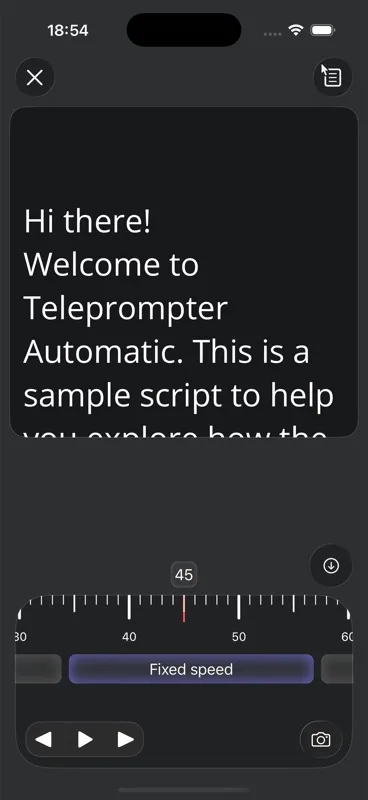
Open the script in Teleprompter Automatic and rehearse the first minute out loud. Tune the text size, cue position, and scroll pace before starting the screen recorder. The teleprompter scrolling and reader controls guide covers the product settings behind that advice.
Fixed-speed scrolling works when the tutorial is linear and the software responds predictably. Timed or words-per-minute pacing can help when the tutorial has a strict duration. Speech-driven scrolling should be tested with the same microphone, room noise, and screen-recording setup before you rely on it for a production take.
Record narration, screen, and face video deliberately
Choose your capture layout before recording. Some tutorials need only the screen and voice. Others need a face-camera intro, a small picture-in-picture view, or a separate camera clip for the opening and closing. If you use a camera track, check camera and recording settings before the full session.
A practical workflow is to record a short screen sample first, then record a 20 to 30 second narration test with the teleprompter. Watch the test once for cursor clarity, once for voice pace, and once for whether your eyes look natural when the face camera appears. Fix the script before fixing the edit.
Use a short tutorial script template
Start with a repeatable structure so every tutorial does not begin from a blank page.
Today I am going to show you how to [task].
By the end, you should be able to [result].
First, open [screen or menu]. This matters because [reason].
Next, choose [setting or option]. Watch for [common mistake].
Now confirm [result state]. If you see [alternate state], check [fix].
Before you finish, review [quality check].
That is the workflow. Save this setup or move to [next useful task].
Keep the template conversational. Software tutorials become hard to follow when every line starts with “click.” Use the screen to show the mechanics and the script to explain judgment.
Where Teleprompter Automatic fits
Use create and import scripts when the tutorial draft starts in another writing tool. Use the online teleprompter workflow for quick desktop rehearsal before moving to a mobile or camera setup. If you record a face-camera segment, the record and export videos guide explains the product recording and export path where supported.
Remote control can also help. If the prompter device is mounted beside the monitor or camera, Web Remote control can reduce reaching and keyboard noise during a take. Cloud sync can help when the script is written on one device and read on another, as long as the user is signed in and sync is enabled.
Common software tutorial mistakes
- writing a paragraph of theory before showing the first useful screen
- describing every click instead of explaining the decision behind the click
- placing the prompter so far from the monitor that the presenter keeps looking away
- setting scroll speed silently instead of rehearsing at speaking pace
- recording a long tutorial before testing cursor visibility, audio, and eye line
- making platform, export, or privacy claims that are not visible in the product or tutorial source material
Related Teleprompter Automatic guides
- Teleprompter Automatic for content creators - connects software tutorials to the broader scripted recording workflow.
- online teleprompter workflow - helps desktop creators rehearse scripts in the browser.
- create and import scripts - use this before recording a tutorial script.
- scrolling and reader controls - tune reading pace before capture.
- camera and recording settings - check face-camera narration setup.
- record and export videos - move from rehearsal to a finished camera clip.