
LinkedIn video posts need a different kind of polish from entertainment clips. The viewer is usually judging clarity, expertise, and trust in a professional context. A teleprompter helps when you want the message to stay structured without sounding like a memorized corporate statement.
Use this workflow for founder updates, expert commentary, hiring messages, product explanations, customer education, conference recaps, and short thought-leadership clips. The goal is not to make every sentence perfect. The goal is to record a video that feels prepared, specific, and easy to watch.
Start with one professional point
Before writing the script, choose the one point the viewer should remember. A LinkedIn post can start from many angles: a lesson learned, a customer problem, a market observation, a hiring note, a product update, or a practical tip. Pick one and let the script serve it.
If the video tries to prove your whole resume, explain every exception, and invite every possible viewer to act, it will feel crowded. Write one sentence at the top of the script: after watching this, the viewer should understand, try, or believe one thing. That sentence becomes the guardrail for the rest of the take.
Choose the post format before writing
Decide what kind of professional video you are recording before you open the camera. A founder update needs a clear change and next step. An expert tip needs a problem, a method, and a quick example. A conference recap needs the useful insight, not a travel diary. A product explanation needs the user task, not the whole feature list.
A simple structure works for most LinkedIn creator videos: name the problem, make the point, give one example, then close with a question or next action. Keep the script short enough that you can record it with energy. If the idea needs many caveats, split it into a series instead of forcing one long post to carry everything.
Write spoken lines, not a blog paragraph
Professional does not mean stiff. Write the script in the words you would use with a client, colleague, or peer. Short sentences are easier to read and easier to believe. Put names, numbers, product terms, and exact phrases on their own lines so they do not disappear in the middle of a paragraph.
Teleprompter Automatic is useful here because the script can stay close to the lens while you speak. Prepare the text in short blocks, then use the create and import scripts workflow if the draft starts in another document. Clean the draft before recording: remove repeated setup, rewrite long written sentences, and leave only the lines you would actually say.
Prepare repeatable scripts for recurring topics
Many LinkedIn creators come back to the same themes: lessons from customers, hiring updates, founder notes, product education, event takeaways, or point-of-view posts. Save reusable script structures so each video starts from a clear template instead of a blank page.
For example, keep one script template for a quick expert tip, one for a product walkthrough, one for a hiring message, and one for a founder update. Name the scripts by topic and destination so you can find them later. The Android product documentation confirms script and folder management, and the iOS product documentation confirms library sync workflows, so this advice stays aligned with how Teleprompter Automatic is built.
Check the length before the camera is involved
Business videos often feel longer when spoken aloud than they look in a notes app. Before recording, paste the draft into the speech time calculator and compare the estimate with the kind of post you want to publish.
If the estimate is too long, cut examples before cutting the main point. Keep the opening direct, remove throat-clearing, and move extra context into the caption or a follow-up post. A clear short video can make the viewer want the longer explanation. A long video with three competing points usually makes the viewer work too hard.
Set the teleprompter for a conversational business tone
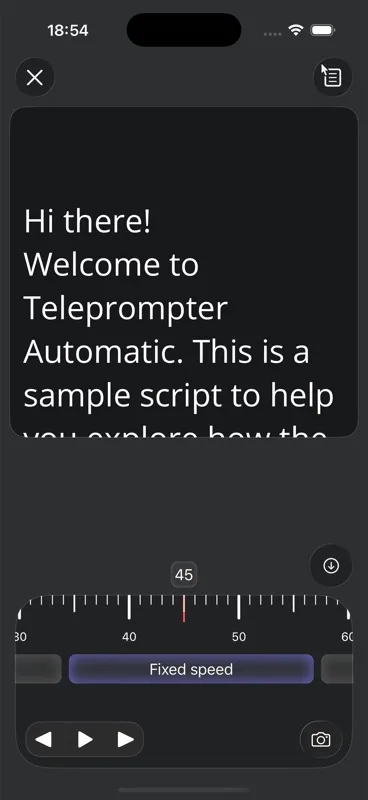
Open the script in the reader and test the first section aloud. Silent reading is too fast for camera delivery, especially when you need pauses for credibility. Adjust text size, line spacing, cue position, and speed until the words move at the pace you would use in a real explanation.
The scrolling and reader controls guide covers fixed speed, timed reading, words-per-minute pacing, countdown, mirror behavior, and readability controls. Fixed speed is useful when the script is short and predictable. Voice Scroll can help when you pause for emphasis, as long as the script language, recognition language, and spoken delivery match closely.
Record a setup test for eye line and audio
Before the full take, record 20 to 30 seconds with the actual opening and one important point. Watch it once with the sound muted to check eye line, then listen once without watching to check voice and room sound. This separates delivery problems from technical problems.
Use the camera and recording settings workflow to check camera choice, microphone, countdown, resolution, frame rate, grid, and mirror behavior. Keep private dashboards, customer names, internal notes, emails, and account screens out of the frame. A professional video loses trust quickly if the background exposes information that should not be public.
Keep credibility cues in the script
A polished LinkedIn video should still sound grounded. Avoid unsupported claims, vague superlatives, and pressure-heavy language. Instead of saying that a method always works, say when it helps. Instead of naming every feature, explain the user problem the feature solves.
Build credibility cues into the teleprompter text: a specific situation, a short example, a limitation, and one practical takeaway. These cues keep the video from sounding like an ad. They also help you stay natural because the script gives you ideas to explain, not just sentences to recite.
Use remote control when the phone needs to stay mounted
If the phone is mounted at eye level, touching it between takes can move the frame. For a careful setup, use a remote-control workflow so the camera can stay in place while you start, pause, or restart the reader.
Web Remote control lets another browser device control a paired session, which is useful when the recording phone needs to stay fixed. Keep short production cues in the script, such as pause, restart, show prop, or repeat closing. The cues should guide the recording without becoming visible clutter for the viewer.
Review, edit, and export by destination
After recording, review the take in three passes: message, eye line, and sound. Do not judge everything at once. If the message is unclear, fix the script. If the eyes drift, adjust the reader position or text width. If the sound is weak, fix the microphone or room before recording another version.
When the take works, continue with record and export videos. If the video needs trimming, resizing, subtitles, overlays, background effects, or another post-recording adjustment, use the edit videos in Teleprompter Automatic workflow. Decide the destination before export so the final file matches where the video will be used.
Save the final script as a content asset
The final script is useful after the video is recorded. It can become a caption draft, a newsletter paragraph, a sales follow-up, a webinar intro, or a shorter clip outline. Save the cleaned script with notes about the scroll mode, approximate duration, framing, and any line that worked especially well.
If you move between devices, keep synced assets deliberate. The cloud sync and video storage guide explains the public support path for scripts, folders, videos, and storage state. Before deleting a local take or replacing a script, confirm that the version you need is saved where you expect it.
Common mistakes to avoid
- opening with a long biography instead of the point of the post
- turning a professional opinion into a vague motivational speech
- pasting a blog paragraph into the teleprompter without rewriting it for speech
- setting scroll speed silently instead of reading aloud at camera pace
- recording the full video before checking eye line, audio, and background privacy
- using the same export plan for a profile video, product clip, team update, and event recap
- throwing away the final script after recording instead of reusing it as a content asset
Related Teleprompter Automatic guides
- Teleprompter Automatic for content creators - Places LinkedIn video posts inside the broader creator recording workflow.
- teleprompter for business presentations and meetings - Supports professional updates, webinars, and meeting-style messages.
- record a talking head video without looking away - Helps with eye contact and lens placement.
- create and import scripts - Prepare the LinkedIn post script before recording.
- speech time calculator - Estimate spoken length before the camera is involved.
- scrolling and reader controls - Tune pacing, text size, countdown, and cue position.
- camera and recording settings - Check framing, microphone, and recording setup.
- record and export videos - Save the final professional video post.