
You can record an audiobook at home with Teleprompter Automatic by preparing each chapter as a readable script, opening it in Audio mode, choosing a microphone and narration-friendly scroll pace, and saving each spoken take as an M4A file. The app keeps the manuscript on screen while you record, so you can concentrate on pacing, character voices, pronunciation, and consistent delivery instead of looking back and forth between a book and separate recording software.
A good audiobook still needs more than a record button. You need a quiet room, a repeatable microphone position, a manuscript prepared for speech, a chapter plan, careful listening, pickups for mistakes, and final editing or mastering for the distributor you choose. This guide covers that full workflow without pretending that an unreviewed first take is a finished retail master.
Can you record a complete audiobook with a teleprompter app?
Yes. Teleprompter Automatic has an audio-only recording mode on iPhone, iPad, and Android. It records the selected microphone while the reader remains visible, then saves an AAC audio track in an M4A file. You can pause and resume a take, see live input level while recording, review the real waveform afterward, move through the recording, share the file, and optionally use the app's recording sync workflow.
For audiobook narration, the practical advantage is simple: the manuscript and recorder stay in one place. You can create or import a chapter, choose Audio instead of Video, follow the text with Fixed Speed, Timed, Words Per Minute, or Voice Scroll, and keep your hands away from paper. The detailed Audio mode recording guide explains the current controls and file behavior.
Teleprompter Automatic records the source narration; it is not a substitute for the final proofing and mastering stage. If a publisher requires a particular upload format, loudness range, peak level, noise floor, chapter structure, or file name, prepare that delivery version in an audio editor after you share the M4A recording.
Plan the audiobook before recording
Start with the destination. Is this a private listening copy, an author-read bonus, a course companion, a serialized story, or a commercial audiobook for a distributor? The answer changes how carefully you need to manage chapter files, credits, samples, mastering, and quality control.
Before commercial distribution, confirm that you have permission to record and publish the text. If you are working for an author or publisher, agree on the final manuscript, pronunciation decisions, character notes, delivery schedule, and correction process before narration begins. Do not record from an unfinished draft and assume every later text change will be easy to patch.
Create a production list with one row for every deliverable: opening credits, foreword, prologue, chapters, epilogue, acknowledgements, closing credits, and any retail sample. Add a status for script prepared, test approved, recorded, proofed, pickups recorded, edited, and ready for delivery. A chapter list prevents the most frustrating late-stage mistake: discovering that a short section or revised paragraph was never recorded.
Prepare the manuscript for spoken delivery
A book page is not automatically a clean narration script. Page headers, footnotes, image captions, tables, decorative breaks, URLs, citations, abbreviations, and pronunciation questions can interrupt a take. Make a narration copy of the manuscript while keeping the approved source unchanged.
Split the text into manageable chapter scripts. Keep chapter titles visible, put paragraph breaks where you want a genuine thought break, and move private performance notes onto clearly marked lines so you do not read them aloud by accident. For difficult names, places, invented words, and foreign phrases, create a pronunciation sheet and decide on one version before the first chapter.
Dialogue needs special attention. Mark who is speaking in your private preparation copy, decide how different each recurring character should sound, and note emotional or physical changes that affect delivery. The listener should follow the scene without every voice becoming a performance stunt. Consistency across ten chapters matters more than a dramatic voice you cannot reproduce next week.
If your manuscript starts in another document, use the create and import scripts workflow. For a long book, one script per chapter or short section is easier to rehearse, reopen, correct, and match to a recording than one enormous scrolling file.
Estimate recording time realistically
Word count gives you the finished narration time, not the full production time. Divide the chapter's words by your spoken words per minute to estimate the clean listening duration. For example, 9,000 words at 150 words per minute is about 60 minutes before pauses, credits, and performance choices.
Use the speech time calculator for a first estimate, then read a representative ten-minute passage aloud. Include dialogue, long sentences, unfamiliar names, and the pacing you actually want listeners to hear. Your real sample is more useful than a generic target because fiction, nonfiction, children's stories, and technical books do not share one ideal speed.
Schedule substantially more studio time than the finished duration. You will stop for mistakes, repeat sentences, rest your voice, check noises, listen back, and record corrections. Build those steps into the calendar instead of rushing the reader to recover time. A calm, repeatable pace usually produces fewer pickups than a fast session that looks efficient only while the record button is on.
Make a quiet audiobook recording space at home
The quietest practical room usually beats the most impressive-looking room. Listen before buying equipment. Close the door, stay silent for a minute, and notice traffic, ventilation, refrigerators, computer fans, plumbing, elevators, pets, keyboard noise, and reflections from bare walls. Record at the quietest repeatable time of day when possible.
Soft materials reduce the hard reflections that make narration sound distant or hollow. Curtains, a rug, upholstered furniture, books, clothing, and purpose-built acoustic treatment can all help when placed around the speaking position. Avoid a bare kitchen or empty office. A small space packed with hard parallel surfaces can also sound boxy, so test rather than assuming that smaller is always better.
Keep the phone and script reader silent and stable. Use a stand, enable a focus or do-not-disturb setting, and place the screen where you can read without turning your head away from the microphone. Keep chargers, loose cables, bracelets, mugs, and paper away from anything you may bump during a sentence.
Record a few seconds of silence in the real setup and listen with headphones. If you can clearly hear a fan, hum, buzz, or repeating outside noise before speech begins, fix the source first. Heavy noise reduction later can damage consonants and room tone; prevention is easier to control.
Choose a microphone and recording profile
Teleprompter Automatic can use the microphone routes that the device makes available, including the built-in microphone and compatible connected inputs. A more expensive microphone is not automatically better if it is farther away, facing the wrong direction, connected through an unsuitable route, or placed in a noisy room.
Start with the microphone you can keep in the same position for every session. Place it slightly off the direct stream of breath, use a pop filter when available, and begin about a handspan from the microphone. Record a test, then adjust for plosives, mouth noise, room sound, and level. Do not change distance every time a character becomes louder; use performance control and a consistent setup.
| Audio profile | Current preferred recording | Audiobook starting point |
|---|---|---|
| Directional | Mono AAC, 48 kHz, 256 kbps | The clearest default for a centered spoken voice and a mono narration workflow. |
| Stereo | Stereo AAC, 48 kHz, 256 kbps | Use only when the active input and delivery plan genuinely need left and right channels. |
| Spatial | Stereo AAC, 48 kHz, 320 kbps | Useful for a wider sense of the room, but usually not the first choice for dry audiobook narration. |
Directional is a sensible first test for one narrator because it creates a focused mono file. Compare it with your intended microphone before committing to the whole book. The active device and operating system still determine what the hardware can deliver, and some Android devices may use compatible encoder settings when preferred settings are unavailable.
Set up Teleprompter Automatic for audiobook narration
- Create or import the chapter and open it from Library.
- Choose Audio from the capture-mode menu so the app records sound without a video track.
- Select the intended microphone route and start with the Directional profile for a mono narration test.
- Set a readable font size and cue position so your eyes move comfortably without changing head position.
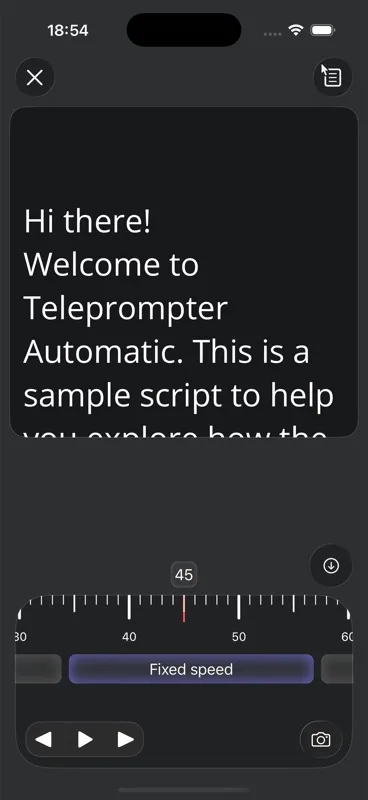
- Choose Fixed Speed, Words Per Minute, Timed, or Voice Scroll based on the chapter and your rehearsal.
- Make a short recording, stop, open Recordings, and listen to the saved M4A file before the full session.
Fixed Speed works when your delivery is steady and the script is already rehearsed. Words Per Minute helps you keep chapters near a planned narration pace. Timed mode is useful for a short section that must fit a target duration. Voice Scroll can follow spoken position and leave more room for pauses, but test it with the exact language, names, accent, microphone, and room before relying on it for a long chapter.
The scrolling and reader controls guide explains text size, cue position, pace, countdown, and playback. The separate Voice Scroll guide explains the speech-recognition permission and behavior behind speech-driven scrolling.
Find a narration pace that listeners can follow
Do not choose a speed only because it shortens the finished book. Audiobook pace comes from meaning: sentence structure, scene tension, humour, dialogue, lists, technical explanation, and the time a listener needs to understand a new idea.
Mark intentional pauses in the narration copy. Use a paragraph break for a normal thought change, extra space for a scene break, and a clear cue before a heading or quoted passage. Rehearse punctuation as sound rather than reading every comma with the same pause.
Keep your eyes a little ahead of your voice. Seeing the next phrase before you speak it helps you shape the sentence and reduces the flat delivery that happens when each word arrives as a surprise. If the reader forces you to chase the text, slow it down. If you keep waiting for the next line, increase the pace slightly or show more text.
For character dialogue, protect intelligibility first. A small change in rhythm, pitch, energy, or placement can distinguish a speaker without creating a voice that is difficult to sustain. Save a short reference clip and character note for every recurring voice so later chapters match the beginning.
Record a 60-second technical test
Never make Chapter 1 the technical test. Record about a minute that includes normal narration, a loud phrase, a quiet phrase, a difficult name, a breath, and a short silence. Use the exact microphone, stand, room, profile, phone position, and scroll mode planned for the session.
While recording, confirm that the live level reacts to your voice without staying flat. After stopping, listen on closed-back headphones and ordinary speakers. Check for distortion, harsh sibilance, plosives, mouth clicks, clothing noise, table vibration, notifications, room echo, and background hum. Also confirm that the correct microphone was used; a connected microphone is not proof that the app or operating system selected it.
Keep the test as the reference for the project. If you return another day, compare a new ten-second sample with the approved test before recording more chapters. Catching a changed microphone route or chair position early can save hours of inconsistent audio.
Record one chapter or section at a time
Open the prepared chapter, say the required heading, pause, and begin the text. Keep a consistent amount of room tone at the start and end according to your delivery plan. If the chapter is long, decide in advance where a natural section break can become a separate file if your distributor limits file length.
Use Pause for a drink, a brief noise, or a short reset when you want to continue the same take. Resume keeps the recorder and reader together. Stop at the end of the chapter and let the app finish saving the M4A before moving on. A clean stop creates a clear production boundary and makes the recording easier to name, review, share, and back up.
Use a stable naming pattern outside the app when you share files for editing, such as book-short-title-01-opening, book-short-title-02-chapter-01, and book-short-title-03-chapter-02. Avoid relying on memory or file creation time to reconstruct the order later.
Mark mistakes and rerecord complete sentences
When you make a mistake, do not restart the entire chapter automatically. Stop speaking, leave a clear pause, go back to the beginning of the sentence, and read the full sentence again. A complete pickup gives the editor natural words on both sides of the correction.
Keep a pickup log with chapter, approximate time, wrong text, correct text, and status. If you notice the mistake during the take, say a consistent private marker after a pause or simply leave a longer silence, then repeat. Remove every marker in editing. If you discover the problem during proofing, record pickups in the same room with the same microphone position, profile, voice condition, and distance.
A pickup should match performance as well as sound. Listen to the sentence before and after the error, then reproduce the pace, character voice, energy, and breath pattern. A technically clean replacement can still sound obvious if the emotional level changes.
Review every take with headphones
Saved audio appears in Recordings with its duration and waveform. Open the file, listen to the start, a middle section, and the end immediately after recording. The player lets you move through the take and jump backward or forward, which is useful for checking a noted line without replaying the whole chapter from the beginning.
Immediate review is only the first pass. Proof the complete audiobook against the final manuscript, ideally with a written error log. Listen for missing words, repeated lines, wrong names, inconsistent character voices, clicks, interruptions, abrupt edits, long gaps, and changes in room sound. The author or rights holder should also review the agreed checkpoint and final production before delivery.
Do not judge sound only from the waveform. A waveform can help you find silence, peaks, and section boundaries, but it cannot tell you whether a name is pronounced correctly or a sentence conveys the intended meaning.
Export the M4A recording and prepare the distribution master
Teleprompter Automatic saves audio-only takes as M4A files with AAC audio. Share the selected recording to your audio editor or production computer, keep an untouched source copy, and edit a working copy. Typical post-production includes removing mistakes, joining pickups, controlling unwanted noise, balancing tone and dynamics, setting spacing, and checking the entire chapter.
Your source recording may not be the file a distributor accepts. Requirements can change and differ by service. For example, the current ACX audio submission requirements call for one chapter or section per file, consistent mono or stereo across the book, 192 kbps or higher constant-bit-rate 44.1 kHz MP3, RMS between -23 dB and -18 dB, peaks below -3 dB, a noise floor no higher than -60 dB RMS, and one to five seconds of room tone at the beginning and end.
That means an M4A narration from the app is a production source, not a direct promise of ACX-ready delivery. Edit, measure, master, and encode the final chapter files for the current destination requirements. Reopen the distributor's official specification before submission rather than relying on a saved checklist from an older project.
Keep the voice and room consistent across recording days
Take a photo of the setup and write down the microphone, route, profile, stand height, distance, chair position, phone position, and room treatment. Mark stand positions with removable tape if the room must be packed away. Keep the approved test and compare it at the start of every session.
Record at similar times when the room and outside noise are predictable. Use the same warm-up passage, then listen before continuing. Schedule regular breaks, and stop if your voice feels strained instead of forcing the final pages of a chapter.
Back up completed chapters deliberately. The app can upload audio recordings through its cloud workflow when you are signed in and the relevant sync setting is enabled, but a local file does not become a verified backup merely because it exists. Check the recording status and keep a separate project copy before deleting anything. The cloud sync and recording storage guide explains local and cloud states.
Audiobook recording checklist
- Confirm the final manuscript and permission to record it.
- Create a chapter and deliverables list, including credits and sample.
- Prepare one readable narration script per chapter or section.
- Resolve pronunciations and recurring character voices before Chapter 1.
- Choose the quietest repeatable room and control reflections and noise.
- Fix the microphone, pop filter, phone, and chair in repeatable positions.
- Select Audio mode, the intended microphone route, and a tested profile.
- Choose a scroll mode and pace after reading the chapter aloud.
- Record and approve a technical reference sample before the full session.
- Record one chapter or planned section at a time.
- Log mistakes and rerecord full-sentence pickups.
- Review each take immediately, then proof the complete book against the manuscript.
- Keep untouched M4A source files and edit copies separately.
- Master and encode delivery files to the distributor's current requirements.
- Back up scripts, recordings, pickup logs, and final masters before deleting local files.
Common audiobook recording mistakes
- recording in a reflective room and trying to repair all room sound later
- changing microphone route, distance, profile, or chair position between chapters
- using one huge script for the whole book instead of manageable chapter files
- setting the reader faster than the narrator can understand the next phrase
- inventing character voices during recording without keeping reference notes
- restarting long chapters for every mistake instead of logging clean pickups
- checking only the waveform and skipping full manuscript proofing
- treating the app's M4A source as a finished distributor master without measuring it
- deleting local recordings before a cloud or project backup is confirmed
Frequently asked questions
Can I record an audiobook on my phone?
Yes. Teleprompter Automatic can record a voice take in M4A format on supported iPhone, iPad, and Android devices while the manuscript stays visible in the reader. Room sound, microphone placement, performance, proofing, and mastering still determine whether the result is ready for publication.
Which Audio profile is best for audiobook narration?
Start by testing Directional, which uses a focused mono recording profile suited to one centered voice. Compare the result with your actual microphone and distributor plan before recording the full book.
Should I use Voice Scroll for a long audiobook?
Voice Scroll can leave room for natural pauses because it follows spoken position, but test it with the exact manuscript language, names, accent, room, and microphone first. Fixed Speed or Words Per Minute may be more predictable for a rehearsed chapter.
Does Teleprompter Automatic export an ACX-ready MP3?
No. Audio mode records AAC audio in an M4A file. If ACX is your destination, share the recording to an audio editor, proof and master it, then encode and validate the final files against ACX's current requirements.
Should an audiobook be recorded as one long file?
Usually no. Record and manage chapters or planned sections separately. This makes rehearsal, pickups, proofing, backup, and delivery easier, and many distributors expect chapter- or section-based files.
How do I avoid losing my place while narrating?
Prepare shorter chapter scripts, use comfortable text size and cue position, keep your eyes slightly ahead of your voice, and choose a tested scroll mode. After a mistake, return to the beginning of the sentence rather than searching for a single word.
Related Teleprompter Automatic guides
- record audio while reading a script - Learn the exact Audio mode, microphone, profile, waveform, sharing, and sync controls.
- create and import scripts - Prepare chapter text before opening the reader.
- scrolling and reader controls - Set text size, cue position, pace, and playback behavior.
- Voice Scroll and speech recognition - Decide whether speech-driven scrolling fits your narration style.
- speech time calculator - Estimate finished chapter duration from word count and speaking pace.
- cloud sync and recording storage - Understand local, uploading, synced, and failed recording states.
- Teleprompter Automatic for content creators - Explore other scripted audio and video workflows.
- teleprompter for interviews and podcasts - Adapt the reader to conversational audio formats.