
An About Us video should help someone understand the people behind an organization: what they do, whom they help, and how they work. A teleprompter can keep those points in order while each speaker delivers them in their own voice.
This guide is for an organization-wide introduction. If your video needs to answer one question about a particular offer, use the landing page video guide instead.
Choose what the viewer needs to learn
Pick a primary viewer: perhaps a prospective customer, a potential hire, or someone deciding whether to contact the organization. Write down what that person should be able to answer after watching: Who are these people? What do they do? How do they work? You do not need to answer every sales, hiring, and support question in one video.
Gather details the team can verify: its name, work, intended customers or community, the roles of people on camera, and one concrete step in its process. Confirm dates, locations, qualifications, results, and numbers with the person responsible for each fact before putting them in the script. If a detail cannot be checked, leave it out.
Use a simple story order: who we are → whom we help → how we work → who the viewer will meet → what to do next. Choose a next action that fits where the video will appear, such as reading about the team or getting in touch.
Write lines a person would actually say
Give each speaker a job. One might introduce the organization; another might describe a real step in the work. Divide the script at natural changes of speaker or topic, and read each section aloud. Replace a sentence that is hard to say with simpler words before adjusting the teleprompter pace.
Hypothetical script example: “I’m Maya, and I’m part of the team at North Street Studio. We help small organizations plan their first instructional videos. Before we write, we ask what someone should be able to do after watching. Then we plan the words and shots together. If you’re considering a project, you can meet the team and tell us what you’re trying to explain.” North Street Studio is invented; this is not a claim about a real organization.
A process detail the team can show is more informative than an unsupported line such as “we always deliver the best quality.” Protect exact names and other verified facts, but let speakers use their own wording for less critical transitions. You can create and edit scripts in Teleprompter Automatic; the platform features overview describes its script and reader tools.
Match each spoken point to a visible shot
Make a short shot list with three columns: speaker, spoken point, and image that could clarify it. Put the introduction on camera so viewers can meet a person. For a process explanation, film an appropriate example of the work. Record a detailed demonstration separately if performing the task and addressing the camera at once makes either unclear.
- Opening: the person introducing the organization faces the camera.
- What you do: an example of the work supports the spoken description.
- How you work: a meaningful step, such as preparing a review or checking an item, makes the process visible.
- Closing: a speaker returns to give the viewer a relevant next action.
Before filming, check the frame for client documents, messages, names, or other identifying details that should not appear. Confirm that each person agrees to be filmed and is comfortable with their name, role, and assigned lines. If a planned shot cannot be shown appropriately, choose another example rather than using footage that does not match the words.
Set the reader for a natural introduction
Open the prepared script in Teleprompter Automatic and read its first section aloud. Choose fixed-speed scrolling and adjust the rate during rehearsal. Set the text size and reading position, and move or resize the reading area closer to the lens if needed. Check whether the speaker can follow the words without repeatedly looking far from the camera. Leave room for pauses between ideas; avoid changing speed halfway through a sentence.
Choose the front camera if the speaker needs to see their framing. The back camera may suit a setup where another person or a test take can help check the shot. Choose the camera and microphone you intend to use, and check that access is allowed. Record a short test, stop, and play it back. Is the picture clear and the speech audible? Does the script cover the speaker’s face? Does the pace leave room for a conversational introduction? If the script takes up too much of the camera view, reduce its window size and test again. The camera and recording settings guide details the test.
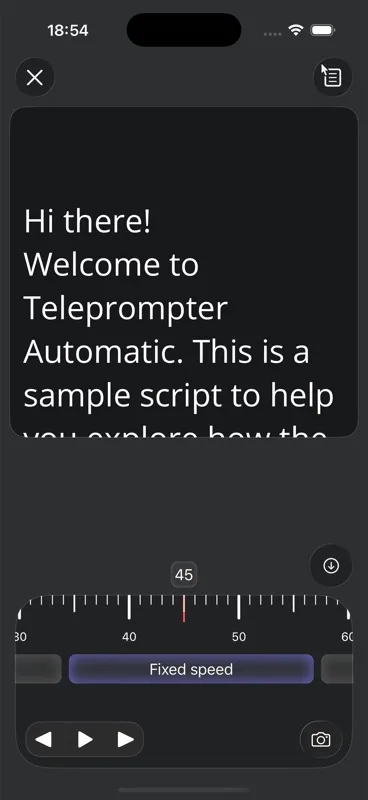
If the speaker needs time to settle after pressing record, use a countdown. Test that recording begins after the delay and that the first spoken word is captured; the recording countdown guide explains the setting. The pictured reader shows scroll mode, speed controls, playback buttons, and camera entry. Check the controls on the device you are using rather than assuming every screen is the same.
Record short sections and preserve genuine delivery
Teleprompter Automatic keeps the script in view while you record video. For each short section, open the script in reading or recording mode, tap Start recording or Record, and wait for any countdown to finish. Have the speaker take a breath before the line and leave a brief pause afterward. Stop recording when the take is complete. If they stumble over the same phrase twice, revise the phrase and rehearse it again instead of speeding up the scroll.
Keep essential names and facts accurate, but do not demand a word-perfect take of every transition. When several people speak, check that their sections tell a consistent story without making them repeat the same description.
Make another short camera-and-audio test when the speaker, camera position, or microphone changes. Review each take before moving on so you can catch a missing first word or an inaudible line while the setup is still in place. The recording and export guide covers checking access, testing, reviewing, and choosing which files to export or upload.
Review the story before choosing a final file
Put the selected speaker takes in story order and mark where each supporting shot would clarify the words. Do not add footage simply to fill a pause. On iPhone, iPad, and Android, Teleprompter Automatic can join compatible recordings into a longer video. Joining clips is not the same as placing a separate shot over a speaker’s continuing audio; if your sequence needs that treatment, check that your chosen editing workflow supports it. Check each join so a speaker change does not interrupt a sentence.
Watch the assembled video as a first-time visitor. Can you identify the organization, understand its work, and tell what to do next? Remove broad claims the video does not support. Check the background again for details that should not appear. Listen without watching to catch rushed names or uneven audio; then watch without sound to spot distracting eye movement or footage that does not fit the spoken point.
Ask someone who did not write the script what they learned. If their answer misses the intended message, revise the relevant section rather than adding another slogan. Finally, inspect the actual exported file, including its framing and sound. If using the Web recorder, the recording and export guide explains its output shapes: Fit preserves the full source frame, while Fill crops to cover the chosen shape. In that Web workflow, keep the local original until the new file has exported or uploaded successfully, then inspect the downloaded result.
About Us video questions
Should an About Us video include every team member?
No. Choose speakers who can explain the organization and its work clearly. Include other team members when their presence adds useful context and they agree to be filmed.
Should speakers read the script word for word?
Keep names and other verified facts accurate. Speakers can use natural wording for less critical lines if the meaning stays the same. Simplify sentences that remain difficult to say aloud.
What is the difference between an About Us video and a landing page video?
An About Us video introduces the organization, its people, and its way of working. A landing page video usually addresses a focused visitor question about a particular offer or action.