
A useful recruitment marketing video gives the right candidate one credible reason to consider a specific role, then shows where to learn more. A teleprompter app can keep the message accurate and the delivery steady without turning an employee, recruiter, or hiring manager into a stiff narrator.
Start with the role and audience, collect proof from people who know the work, write short spoken blocks, set the reader around the speaker's natural pace, and record small sections that are easy to retake. This guide covers that complete workflow while keeping the video distinct from a candidate video resume, a private candidate briefing, or a broad company-culture film.
Quick workflow for a recruitment marketing video
- Choose one open role, candidate group, or hiring question for the video.
- Write the one truthful promise the viewer should remember.
- Collect two or three concrete proof points from the approved job information and people who do the work.
- Build the script as a hook, role reality, proof, expectation, and next step.
- Move production cues onto separate lines so the speaker does not read them aloud.
- Create or import the clean script in Teleprompter Automatic and rehearse it at camera distance.
- Record a short setup test, then capture the message in focused blocks.
- Review every claim, name, visual detail, and next step before export.
This article owns the outward-facing hiring-campaign workflow: helping a potential applicant understand a role. Operational hiring updates, individual candidate instructions, and a general company-culture story deserve different scripts because their audiences and decisions are different.
Choose one candidate and one role promise
A recruitment video becomes vague when it tries to represent every team, benefit, office, and career path. Name the audience before drafting. You might be speaking to experienced support specialists who want more ownership, graduates who need to understand the first months of a role, or engineers who care about the kind of problems the team solves.
Then write one role promise that the approved facts can support. For example: This role gives a support specialist responsibility for guiding customers through complete setup projects. That is more useful than saying the company is exciting or the opportunity is unique. The promise tells the viewer what to listen for, and it gives the rest of the video something concrete to prove.
Keep a separate source note for the role title, location, work arrangement, schedule, qualifications, compensation wording, application deadline, and destination. If any detail is uncertain or likely to change, remove it from the recording or verify it immediately before publishing.
Collect proof before writing polished copy
Recruitment marketing should show role reality, not decorate a job description with adjectives. Ask a person who does the work, the hiring manager, or the recruiter for specific examples: what a normal first assignment looks like, who the new hire works with, what a useful outcome looks like, and what often surprises people about the role.
Turn those answers into proof that can be spoken or shown. A customer-support video might show a teammate preparing a training call. A workshop role might show the actual tools and safety equipment used during a task. A remote role might explain one real collaboration habit without exposing private screens, candidate information, customer data, or internal documents.
Do not ask an employee to endorse a claim they cannot verify. If the video mentions benefits, flexibility, career progression, hiring timelines, or workplace policies, match the wording to the current approved source. When the source changes, update the script before reusing the take.
Build the script as promise, proof, and next step
A compact recruitment marketing script can use five blocks:
- Hook: name the candidate problem or ambition the role addresses.
- Role reality: explain what the person would actually spend time doing.
- Proof: add one example from an employee, manager, project, environment, or workflow.
- Expectation: state one important condition or fit signal without hiding a limitation.
- Next step: tell the viewer where to read the current role details or submit an application.
For a support role, the hook might be: If you enjoy turning a confusing setup into a clear plan, this role is built around that moment. The proof could describe how a teammate owns a customer onboarding session from preparation through follow-up. The expectation might clarify that the work includes both live conversations and careful written documentation. The final line points to the current job page rather than repeating every requirement on camera.
This structure keeps the video useful even when it is short. It also prevents the teleprompter from becoming a spoken copy of the full job posting.
Write for an employee, recruiter, or hiring manager
Choose the speaker whose firsthand knowledge matches the claim. An employee can explain the daily work and what helped them become effective. A hiring manager can explain the team's problem and expectations. A recruiter can clarify the role, process, and next action. One person does not need to speak for every part of the organization.
Write the first draft in that person's natural vocabulary. Read it aloud together and replace phrases they would never say. Keep sentences short, put names and changeable details on their own lines, and mark words that need a deliberate pause. If a speaker needs only prompts, use cue lines instead of a word-for-word script.
When the draft begins in another document, use the create and import scripts workflow to move the approved recording version into Teleprompter Automatic. Keep the research notes and the on-camera script separate so private context cannot scroll into the take.
Separate spoken lines from production cues
Recruitment videos often combine a talking head with workplace details, employee actions, or short inserts. Do not bury those directions inside the paragraph the speaker reads. Put each silent instruction on its own line and use a consistent label:
- B-ROLL: the team, tool, environment, or task the editor should show
- PAUSE: a clean break before a cut or emphasis
- NAME: a role title or person reference that must be checked
- VERIFY: a changeable claim that needs final confirmation
- PICKUP: the start of a block that can be re-recorded separately
These labels are writing conventions, not automatic app commands. Rehearse which lines stay silent, remove any internal note that should not appear to the speaker, and leave enough blank space to recognize a cue without losing eye contact.
Set the reader for natural delivery
Place the mounted phone near eye level and rehearse from the real camera distance. Increase text size until the speaker can read without narrowing their eyes, keep each line short enough to scan near the lens, and choose a cue position that does not pull attention far across the screen.
Fixed-speed or words-per-minute scrolling can work for a prepared hook and closing. Timed scrolling is useful only when the duration and pauses have been rehearsed. Speech-driven scrolling can leave more room for natural pauses, but test it with the exact speaker, room, microphone, accent, and role terminology before depending on it for the final take.
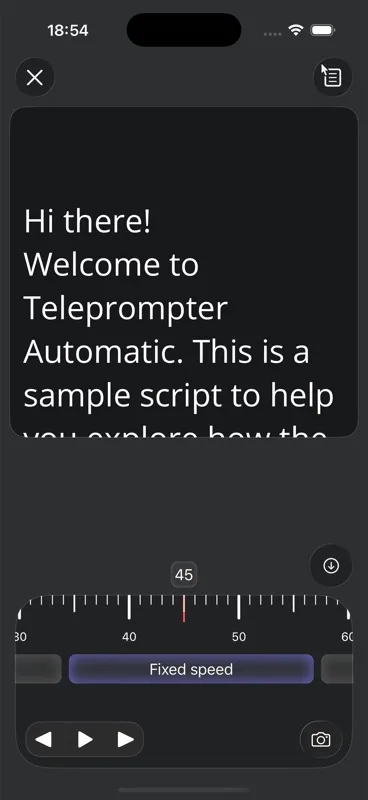
The scrolling and reader controls guide explains the available pacing and display settings. Use the speech time calculator for an initial estimate, then add time for pauses, visual inserts, and the final call to action.
Record a complete setup test
Before the final session, record one short test with the real speaker, script, camera, microphone, lighting, background, and wardrobe. Review the test once for eye line, once for audio, and once for message credibility. A camera preview alone cannot show whether the teleprompter pace makes the speaker rush or whether a sentence sounds unnatural when spoken.
- Keep the phone screen facing the speaker and close enough to the lens for a natural eye line.
- Check that the role environment is believable but free of private screens, badges, documents, candidate names, and customer information.
- Listen for heating, traffic, office conversation, or equipment noise that competes with the voice.
- Confirm that clothing patterns, glasses, windows, and monitors do not create distracting reflections.
- Verify that any tool, workplace activity, or protective equipment is shown accurately.
- Make sure the speaker can finish each proof block before the next line arrives.
The camera and recording settings guide covers camera, microphone, countdown, grid, mirror, and capture checks before a long take.
Use focused blocks and pickups
Divide the script at natural edit points: hook, role reality, employee proof, expectation, and next step. Leave a short silent pause before and after each block. If the speaker misses one name or line, restart from the previous bridge instead of repeating the entire video.
Keep camera position, lighting, posture, and speaking energy consistent between pickups. Mark changeable claims as their own block so they can be replaced without discarding the evergreen parts of the recording. If a producer needs to keep the mounted phone untouched, Web Remote control can manage a paired reader from another browser device.
Focused pickups make accuracy easier, but they should not create a frantic edit. Leave enough time for the viewer to understand each idea and enough room for the employee's real voice to come through.
Plan useful workplace visuals
Use a workplace insert only when it proves something the narration says. If the script mentions collaboration, show the kind of shared task involved rather than a generic group smiling at a table. If it mentions equipment, show the real setup without exposing confidential material. If the role is mainly conversational, a clear talking-head recording may be stronger than decorative footage.
Create a simple shot list beside the script: speaker, task, environment, close detail, and final next step. Mark whether each shot needs the employee, a manager, or no person at all. Record enough steady time before and after the useful action so the editor has a clean place to cut.
Avoid using a beautiful office shot to imply a location, perk, or working arrangement that does not apply to the advertised role. The spoken message and the visible environment should tell the same story.
Review the video as a candidate would
Watch the first review without sound. Can a viewer identify the speaker, the work, and the next step from the visuals? Listen to the second review without concentrating on the picture. Does the script explain a real role, or could the same words advertise almost any job?
On the final review, verify the role title, names, facts, on-screen details, captions, pronunciation, and destination. Check that the video does not promise an interview, outcome, schedule, benefit, or workplace condition that the approved role information does not support. Make the application step easy to understand without reading tracking details or internal instructions aloud.
Ask the employee and the person responsible for the role to review the exact cut they appear in or own. This is a practical accuracy check: the person on camera should recognize their message, and the hiring team should recognize the role being offered.
Export the approved version and keep the source script
When the message is accurate, use the recording and export workflow to save the finished take. Prepare the crop, duration, captions, and file for the real publishing destination rather than assuming one version fits every job page or social feed.
Keep the approved script, source facts, shot list, and final video together. If the role details change, update the relevant block and record a new pickup instead of continuing to circulate an outdated claim. If another role needs a video, reuse the structure but collect new proof; changing only the job title produces generic recruitment marketing.
Recruitment marketing video script template
- Candidate hook: name the problem, craft, or responsibility that should feel familiar to the right person.
- Role promise: state the one meaningful reason to keep watching.
- Role reality: describe the actual work in plain language.
- Employee or manager proof: give one concrete example from the team or workflow.
- Important expectation: clarify a condition, responsibility, or fit signal.
- Human close: summarize why the work matters without generic superlatives.
- Next step: direct the viewer to the current role details or application.
For a customer onboarding role, the script might open with the satisfaction of turning a complex setup into a clear first week, show how a teammate prepares and leads one onboarding session, explain that written follow-up is part of the work, and invite the viewer to review the current responsibilities. The proof belongs to the role; the teleprompter keeps the explanation concise.
Common recruitment video mistakes
- trying to represent the entire company instead of one role and candidate need
- copying the full job description into the teleprompter
- using words such as amazing, fast-growing, or unique without visible proof
- asking one speaker to explain work they do not know firsthand
- mixing private research notes with the on-camera script
- showing candidate names, internal screens, badges, or customer information in the background
- letting a fixed scroll pace push the speaker through natural pauses
- recording every retake from the beginning
- leaving a changeable role detail inside an otherwise evergreen take
- publishing without checking the exact role facts and next step
Related Teleprompter Automatic guides
- teleprompter for content creators - Connect recruitment videos to the broader prepared-recording workflow.
- create and import scripts - Move the approved spoken version into the app.
- scrolling and reader controls - Tune text size, cue position, and pacing for the speaker.
- speech time calculator - Estimate narration before adding pauses and workplace footage.
- camera and recording settings - Check framing, microphone, countdown, and capture options.
- Web Remote control - Keep the mounted reader fixed while another person controls playback.
- record and export videos - Review and save the approved recruitment take.
- video testimonial recording workflow - Use a consent-sensitive story format when an employee or customer experience is the primary proof.