
Customer FAQs make strong short videos when each clip answers one real question, removes private details, and gives the viewer a clear next action. A teleprompter helps the speaker keep the answer accurate without memorizing support wording or drifting into a long explanation.
The goal is not to turn every help article into a video. Use video where voice, pacing, screen context, or a human explanation can reduce friction: a setup step customers repeat, a common pre-sale concern, a product handoff, an onboarding reminder, or a support answer that sounds warmer when spoken.
Quick workflow for FAQ videos
- Collect repeated questions from support, sales, onboarding, or community conversations.
- Remove names, account details, private screenshots, purchase identifiers, and any customer-specific facts.
- Choose one question and one viewer outcome for each short clip.
- Rewrite the answer as spoken language instead of copying the original help text.
- Split the script into short teleprompter blocks with one idea per line.
- Estimate the speaking time and trim anything that does not help the answer.
- Open the script in Teleprompter Automatic and set a comfortable reader pace.
- Record a short test, then review eye line, audio, framing, and whether the answer is still accurate.
- Export the approved take and keep the script with the original source answer for future updates.
Choose FAQs that deserve a video
Start with questions that show up repeatedly and benefit from a human explanation. Good candidates include setup blockers, account or workflow confusion, questions that need tone, and answers where the first sentence matters because users are frustrated or comparing options.
Skip questions that are better as a searchable table, policy text, legal notice, detailed troubleshooting tree, or private support reply. If the answer changes often, video may become stale faster than a help article. When the answer depends on a user's account, subscription, invoice, device, or recording, keep the video general and direct people to support for personal details.
Turn the answer into one promise and one action
Before writing, reduce the FAQ to a simple structure: what the viewer wants to know, what is true, what they should do next, and what limitation they should understand. A short video should not try to cover every exception from the help center.
A useful formula is: acknowledge the question, give the direct answer, explain the reason in plain language, show or describe the next step, then close with the path to more detail. If the video is for a support page, the next step may be a help guide. If it is for sales or onboarding, the next step may be trying the workflow, checking a setting, or sending the video to a teammate.
Build a spoken script from the FAQ
FAQ text is usually written for scanning. Video scripts need shorter sentences, cleaner transitions, and fewer nested conditions. Keep the first line direct: “If your recording has no sound, check microphone permission first” is easier to follow than a long setup about possible device states.
If you are starting from notes rather than a polished answer, the AI video script generator can help turn a rough idea into a spoken draft. Treat the output as a draft only: check it against the source answer, remove unsupported claims, and rewrite any sentence that a real support person would not say aloud.
Use plain labels in the script when they help the recording: PAUSE, SHOW SETTING, SCREEN RECORDING, REPEAT KEY STEP, or CTA. Keep those notes visually separate so the speaker does not read them by accident.
Protect customer privacy before recording
Never paste a customer's private message straight into the teleprompter. Remove names, emails, phone numbers, company details, purchase IDs, device identifiers, ticket numbers, recordings, screenshots, billing details, and anything that could identify a person or account. Rewrite the question as a generic user scenario.
Also check whether the answer contains internal process language. Public videos should explain what the customer can do and what to expect, not how the team routes tickets, manages campaigns, stores attribution, or handles unpublished operational procedures.
Prepare the script in Teleprompter Automatic
Create one script per FAQ clip or keep a folder for a repeatable FAQ series. The script creation and import workflow is useful when the answer starts in a document, support draft, or text note.
Keep the visible teleprompter copy clean. Put research links, customer context, and internal notes outside the reader. Short paragraphs help the speaker recover the next line after looking at the camera, pointing to a screen, or pausing for emphasis.
Use the speech time calculator before recording if the answer must fit a short placement. If the estimate is too long, cut background first, then split the answer into two videos when the user intent genuinely needs both parts.
Set the reader for a helpful support answer
FAQ videos usually work better at a calm pace than at a fast promotional pace. Start with readable text, comfortable line spacing, and a scroll mode that matches the script: fixed speed for a rehearsed answer, words-per-minute pacing for a target duration, timed scrolling for a strict clip length, or Voice Scroll only after testing the exact room and wording.
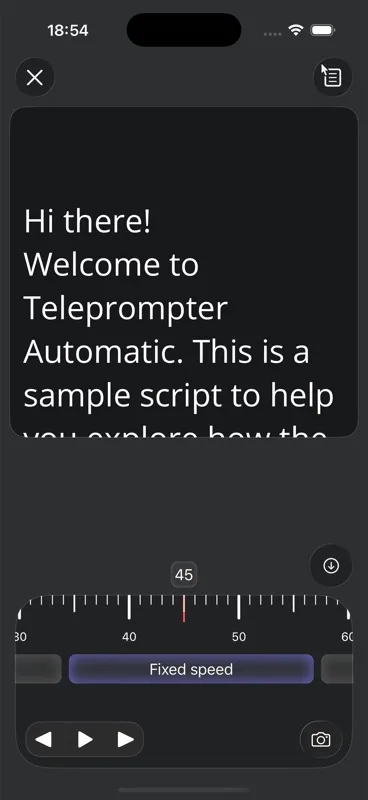
The scrolling and reader controls guide explains pace, text size, cue position, mirror behavior, and countdown. Test the settings while speaking at the same distance and tone you will use in the final take.
Record a short test before the real answer
Record 10 to 20 seconds before the full clip. Check whether the opening sounds direct, whether the answer begins quickly enough, and whether the text position keeps the eyes near the lens. The test should include one pause or transition, because many FAQ videos fail when the speaker returns to the script after a visual cue.
Use the camera and recording settings guide to verify camera, microphone, countdown, grid, mirror, and framing. If the phone is mounted out of reach, Web Remote control can help manage supported reader and recording actions from another browser device.
Record a reusable batch without sounding copied
A batch is efficient only when each video still feels like a real answer. Group questions by topic, record the cleanest setup once, and keep the script format consistent. Then adjust the first sentence of each clip so the viewer hears the exact problem they came for.
Do not read the same generic intro every time. If ten clips begin with “Today we are going to talk about,” the series will feel slow. Start close to the question, then use consistent endings for the next action: open a guide, check a setting, try a short test, contact support, or share the answer with the customer.
Adapt each video to where customers will see it
A support-center video can move more slowly and mention the related help guide. A sales follow-up should answer the concern quickly and avoid support-ticket language. An onboarding clip can show one next step and stop before it becomes a full tutorial. A social clip may need a shorter hook, but the answer still has to stay accurate.
Decide the destination before recording so the framing, script length, captions, and final file make sense. Use the record and export workflow when the approved take is ready to save, export, or continue into a publishing process.
Review accuracy before publishing
Watch the video once as a customer, then once as the person responsible for the answer. Check that the promise, limitation, button name, setting name, and next step still match the current product or support article. If the recording mentions a policy, plan, price, platform behavior, or troubleshooting result, verify it from the source before publishing.
Captions and on-screen text need the same review. A caption typo in a product step can send users to the wrong place. Keep the final script, approved video, and source answer together so updates are easier when the product changes.
FAQ-to-video script template
- Question: Say the customer's question in one sentence without private details.
- Direct answer: Give the shortest accurate answer first.
- Why it happens or when it applies: Add one useful reason or boundary.
- Next step: Tell the viewer what to check, open, try, or send.
- Where to continue: Point to the relevant help guide, product workflow, or support route.
For example, a support answer about microphone problems can begin with the permission check, mention that other apps can hold the microphone, show the short recording test, then send the viewer to the full permissions guide only if the quick check does not solve it.
Common FAQ video mistakes
- turning one broad help article into a long video instead of answering one question
- reading private customer wording or support-ticket details on camera
- starting with a brand intro before answering the actual question
- copying written FAQ paragraphs without rewriting them for speech
- setting the teleprompter pace while reading silently instead of speaking aloud
- recording a full batch before reviewing the first sample take
- making platform, pricing, policy, or feature claims without checking the current source
- publishing captions that do not match the spoken answer or product step
- using the same opening and closing line so every clip feels automated
Related Teleprompter Automatic guides
- teleprompter for content creators - Connect FAQ videos to the broader scripted recording workflow.
- AI video script generator - Draft a spoken answer from a rough support note, then verify it.
- create and import scripts - Move a cleaned FAQ script into the app.
- speech time calculator - Keep short support answers within a realistic speaking length.
- scrolling and reader controls - Tune pace and readability before recording.
- camera and recording settings - Check sound, framing, countdown, and recording setup.
- Web Remote control - Control a mounted phone without touching it during the take.
- record and export videos - Review and save the approved FAQ clip.
- personalized video messages at scale - Plan adjacent one-to-one video workflows without mixing them into public FAQs.