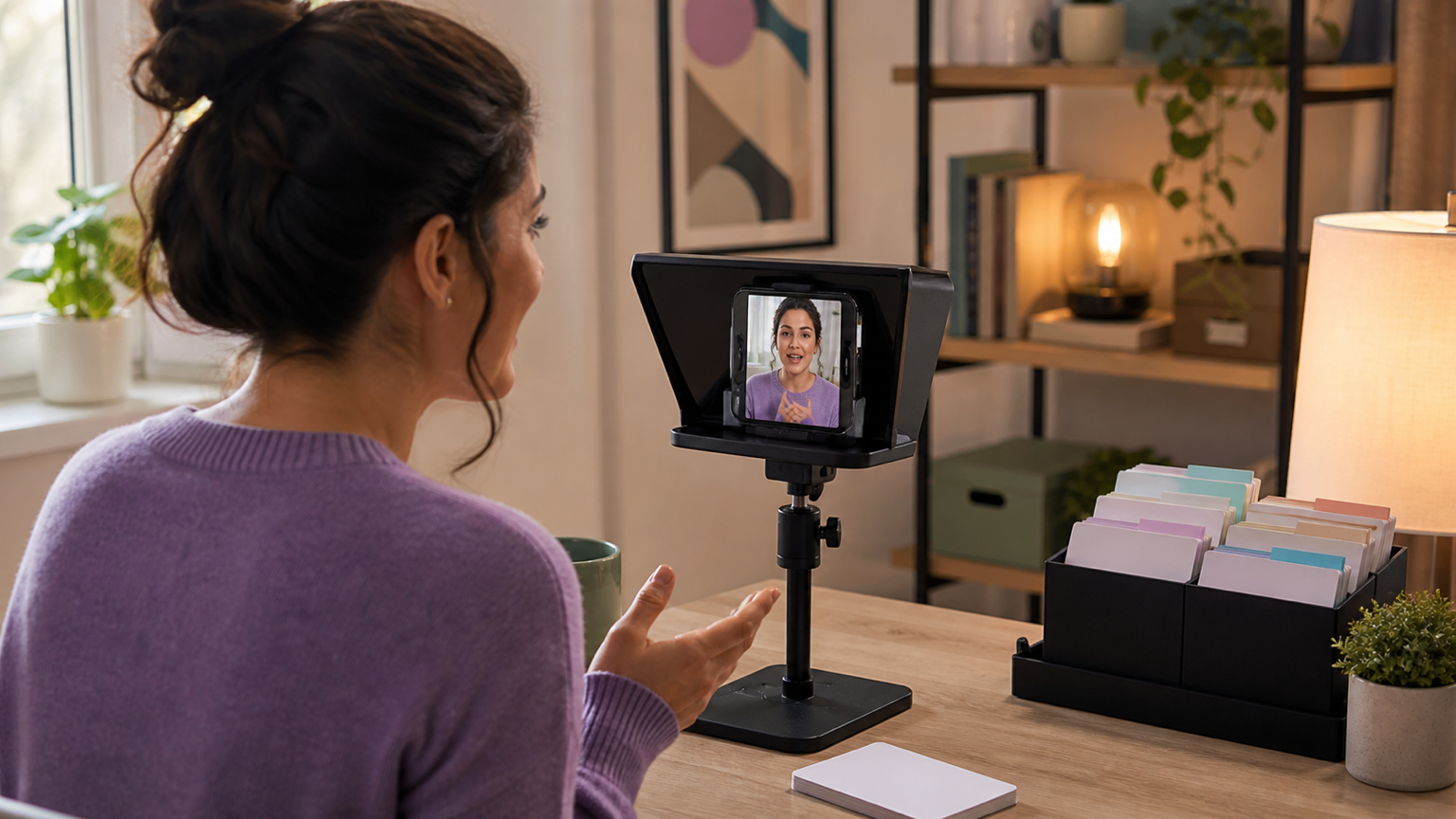
Personalized video stops feeling personal when the production system treats every recipient like one more row in a list. A teleprompter can prevent that problem if it carries the repeatable parts of the message while leaving space for a truthful, recipient-specific opening, example, and next step.
In this guide, "at scale" means a repeatable recording and review workflow. It does not mean pretending an automated message was recorded from a personal relationship. The practical goal is to prepare one reliable script structure, create a clean version for each recipient, record in controlled batches, and verify every file before it leaves your hands.
Quick answer: personalize the script before you press record
Start with one master script. Mark the lines that stay the same, the lines that change by audience segment, and the details that must change for one person. Then create a recording-ready version for each recipient, open it in the teleprompter, record a short batch, and check the name, context, promise, and call to action in every finished video.
The teleprompter should reduce memory work, not manufacture familiarity. Keep the stable explanation in the reader so you can spend your attention on eye contact and tone. Personalize only with details you can verify and would be comfortable saying directly to the recipient.
Decide what makes the message genuinely personal
A first name is useful, but it is not enough on its own. A personalized video should answer three questions for the viewer: why did you choose me, why does this matter now, and what should I do next?
Choose one specific context that you can support. It might be a previous conversation, a request the person made, a public project they shared, a customer milestone, or the stage of an agreed onboarding process. Avoid sensitive, inferred, or surprising details. If the context would make the recipient wonder how you found it, leave it out.
Write the purpose in one sentence before building the batch. For example: "Welcome each new customer and confirm their next setup step" is clearer than "make onboarding videos." A precise purpose keeps the reusable lines useful and shows which details really need to change.
Build a three-layer master script
A scalable script is easier to maintain when it has three layers:
- Shared core: the explanation, demonstration, or offer that is true for every recipient in the batch.
- Segment block: one short section for a role, use case, customer stage, or other relevant group.
- Individual block: the recipient's name, a verified context line, and a specific next action.
Keep the shared core concise. If most of the video could be sent unchanged to anyone, the individual block needs to earn its place by being relevant rather than decorative. If most of the script changes for every person, you may not have one scalable campaign; you may have several smaller message types.
A practical order is greeting, reason for recording, one useful point, next step, and close. That order is simple enough to repeat but still gives the recipient a reason to keep watching after hearing their name.
Mark variable fields so mistakes are easy to spot
Use consistent placeholders while drafting, such as [First name], [Context], [Relevant point], and [Next step]. Put each variable on its own line. This makes the recording version easier to scan and reduces the chance that a previous recipient's detail remains buried in a paragraph.
Read every replacement aloud before the session. Names, company terms, product names, and dates can change your pacing. Add a pronunciation cue when needed, but remove internal notes that could be spoken accidentally. The final reader version should contain only the words and short performance cues you need on camera.
Keep unstable facts out of the reusable core. Availability, prices, deadlines, and account-specific status can change between drafting and sending. If one of those details matters, verify it for that recipient immediately before recording or move it into the accompanying written message.
Create one clean recording version for each recipient
Teleprompter Automatic supports script libraries, folders, editing, import, reader controls, camera recording, and export workflows across its supported mobile experiences. Use the create and import scripts workflow to move the cleaned message into the app instead of reading from a contact sheet or crowded planning document.
Keep the master script separate from the recording copies. Organize the copies by campaign or message type, then use a queue label that your team can match safely to the intended recipient. Do not place private contact records, inboxes, customer dashboards, or full lists in the camera frame.
Before opening the reader, compare the recording copy with the source record. Confirm the name, pronunciation, context, relevant point, and next step. This is the cheapest moment to catch a mismatch.
Lock the recording setup before personalizing delivery
Use one camera position, microphone setup, background, light, and framing for the batch. Record a 20-second test with the real script and watch it for eye line, sound, and visible private information. The camera and recording settings guide covers the setup checks available in Teleprompter Automatic.
Then tune the reader once with the scrolling and reader controls. Choose readable text, comfortable spacing, a cue position near the lens, and a pace that lets you pause around the personalized lines. Fixed-speed scrolling is predictable for tightly structured messages; other modes can help when delivery needs more variation, but test the exact script before relying on them for a batch.
If every message should land near the same duration, use the speech time calculator on the master script and on any version with a longer personalized block. Cut repeated setup before you speed up your voice.
Record in small batches without losing the recipient
Start with a small group that you can review immediately. A simple queue can use three states: prepared, recorded, and checked. Move a message forward only after the finished file has been matched to the correct recipient.
Before each take, pause and read the recipient card silently. Say the opening once without scrolling if that helps it feel direct, then start the shared core. After the close, stop before opening the next script. A few seconds of separation are easier to trim and safer than rushing from one name into another.
Short breaks protect delivery quality. If the greetings begin to sound identical or you stop noticing names, end the batch and review it. Scaling the process is useful only while each recipient can still believe the message was meant for them.
When the phone needs to stay mounted, Web Remote control can help with playback or recording controls from another paired browser device. Keep the control device and its notifications outside the camera frame.
Use the teleprompter without sounding copied
Write the shared lines for speech, not for a document. Use short sentences, contractions, and one idea per line. Add simple cues such as [pause] or [show item] only when they help the take.
Give the personalized lines more space than the shared core. Look toward the lens when saying the person's name and the reason for the message. Let the pace change slightly around the individual detail. Perfectly identical timing across every video can make a real recording feel generated even when it is not.
If a sentence feels unnatural in three consecutive takes, rewrite the sentence. Do not solve a writing problem by forcing your delivery. The teleprompter is most useful when it holds a script that already sounds like you.
Review every video before it is sent
Watch the beginning and closing of every file, then spot-check the shared middle for technical quality. Confirm:
- the video opens with the correct name and pronunciation
- the context belongs to this recipient
- the shared statement is still accurate
- the next step matches the intended action
- no previous recipient is mentioned
- no private notes, notifications, or records are visible
- the file is attached or uploaded to the correct recipient record
If the take contains the wrong name or context, record it again. Editing around an identity mistake is more fragile than replacing a short message. When the take is correct, follow the record and export videos workflow and keep the approved script with the final file.
Protect trust while the workflow grows
Do not imply that you watched, read, used, or researched something you did not. Do not invent a shared connection, customer result, or time-sensitive reason for contacting someone. Honest context may be modest, but it is safer and usually easier to deliver naturally.
Use only the personal information needed for the message. Keep full contact lists and account records in the system that owns them, and move only the approved spoken details into the recording copy. Follow the consent, outreach, employment, and privacy rules that apply to your organization and the recipient's location.
Personalized video should give the viewer a clearer, more human explanation. It should not hide who is sending the message or pressure the viewer with false familiarity.
A reusable personalized video script template
Use this as a starting structure, then rewrite it in your own voice:
Hi [First name].
[Specific, truthful context].
I recorded this because [reason relevant to the recipient].
[One useful observation, explanation, or step].
If [goal or problem] is relevant, [one clear next action].
Thanks, [your name].
For a customer welcome, the context might be the setup stage and the next action might be one account task. For a sales message, the context might be a public business change and the next action might be a short conversation. For a community or recruiting message, it might be a contribution or experience the recipient chose to share publicly. In every case, keep the claim verifiable and the request proportionate.
Common mistakes that make scaled video feel impersonal
- changing only the first name while leaving the rest of the message generic
- keeping old recipient details inside a long paragraph
- recording from a contact list that is visible on camera
- using a scroll speed that rushes names and personal context
- recording too many takes before reviewing the first few
- inventing familiarity or using sensitive details to get attention
- sending files before matching each take to the correct recipient
Related Teleprompter Automatic guides
- Teleprompter Automatic for content creators - Connects personalized messages to the broader scripted recording workflow.
- create and import scripts - Move clean recipient-ready copy into the app.
- scrolling and reader controls - Tune the reader for names, pauses, and direct eye contact.
- speech time calculator - Keep message variants close to the intended length.
- camera and recording settings - Lock framing and sound before starting a batch.
- Web Remote control - Control a mounted phone from another paired browser device.
- record and export videos - Review and save the approved take for each recipient.