
A compliance-friendly training video starts with a current approved source, keeps required wording intact, and leaves a clear record of what was reviewed. A teleprompter helps the presenter deliver that controlled script consistently, but it does not decide what the rule should say or make the finished video legally compliant.
Use this workflow for employee training, safety reminders, privacy awareness, code-of-conduct updates, regulated procedures, and other lessons where accuracy and traceability matter. Your organization, subject owner, and qualified advisers remain responsible for the actual requirements.
Quick workflow for a controlled training video
- Name the audience, required outcome, and rule or procedure the video covers.
- Choose one current approved source and record its owner, version, and review date.
- Map each required point into a short spoken script without changing its meaning.
- Remove private data and replace real incidents with approved fictional examples.
- Separate presenter words from production cues, demonstrations, and on-screen labels.
- Route the script through the responsible content and policy reviewers before recording.
- Load the approved version into Teleprompter Automatic and rehearse it at a calm pace.
- Record a short test, then capture the full take without improvising required wording.
- Review narration, visuals, captions, and the final exported file against the approved script.
- Store the release version with its source, approvals, publication date, and replacement trigger.
Define what “compliance-friendly” means for the project
Do not use the phrase as a certification or guarantee. For production purposes, it should describe a disciplined process: the lesson is based on an identified source, required statements are reviewed, private details are excluded, the recorded take matches the approved script, and the released version can be traced back to its inputs.
The video is only one part of a training system. Completion records, learner assessments, retention schedules, acknowledgements, accessibility requirements, and jurisdiction-specific obligations may belong in a learning platform or another controlled process. Keep those responsibilities explicit instead of asking the recording app to stand in for them.
Start with one current source of truth
Choose the document or responsible owner that controls the lesson: an approved policy, procedure, safety instruction, product manual, regulatory notice, or subject-matter brief. Record the source title, version or effective date, owner, and the date you checked it. If two sources conflict, pause the video and resolve the conflict before writing.
Avoid building the script from memory, old slides, a previous recording, or scattered chat messages. Those materials can help explain the background, but the required statements should trace to the current source. If the source changes often, plan a shorter video with a clear review date so replacement is easier.
Give each video one observable training outcome
Write a sentence that begins, “After this video, the learner can...” and finish it with an action: identify a risk, choose the correct next step, complete a procedure in order, recognize when to stop, or find the current policy. A broad topic such as “data protection” or “workplace safety” is not yet a usable outcome.
One outcome keeps the script reviewable. If the lesson needs several decisions, exceptions, and demonstrations, divide it into a short series. Smaller videos are easier to update when one rule changes, and reviewers can approve the affected part without rechecking unrelated material.
Map required points before polishing the script
Create a simple requirement map with four columns: source section, required meaning, spoken line, and visual evidence. This makes omissions visible before the language becomes smooth enough to hide them. Mark any sentence that must remain exact, any term that needs a definition, and any condition that changes what the learner should do.
Then arrange the approved points into a spoken sequence: outcome, context, required action, exception or stop condition, realistic example, recap, and where to find the current source. Keep advice and optional tips clearly separate from mandatory steps. Words such as must, should, and may can carry different meanings; do not swap them merely to make the line sound friendlier.
Write for speech without weakening the requirement
Break long policy sentences into shorter spoken lines, but preserve the actor, action, condition, and consequence. Replace document-style transitions with natural speech only after the meaning has been checked. Define an unfamiliar term before using it and repeat the important noun when a pronoun could create ambiguity.
Keep production cues on separate lines, such as SHOW STEP TWO, PAUSE FOR EXAMPLE, or DISPLAY CONTACT ROUTE. These are notes for the presenter or editor, not automatic commands. The script creation and import workflow can help move the approved copy into a clean reader document without bringing private research notes onto the screen.
Protect people and confidential information
Do not paste a real incident report, support ticket, employee message, customer record, medical detail, payment record, account identifier, or internal investigation into the teleprompter. Replace it with a fictional example approved for training. Remove names, emails, faces, signatures, device identifiers, private screenshots, and background details that could identify a person or reveal restricted information.
Review physical objects and screens in the frame as carefully as the script. A whiteboard, badge, document tab, browser notification, or reflected monitor can disclose information even when the narration is safe. Use neutral demonstration data and close unrelated apps before the test take.
Control the script version before recording
Give the approved script a stable identifier, version, owner, and approval date outside the spoken text. Freeze edits once recording begins. If a required sentence changes, create a new version and route it through review instead of silently updating the reader during production.
At the start of the session, confirm the script identifier against the recording brief. You can record a short production slate as a separate clip or say the identifier before the real take and trim it later. The purpose is to prevent a polished recording from being matched to the wrong draft.
Prepare the teleprompter for controlled delivery
Load only the approved speaking text and the minimum necessary cues. Use short paragraphs, comfortable text size, and enough line spacing to keep the presenter from skipping a condition. Choose a scroll mode that fits the script and the room: fixed speed for a rehearsed delivery, words-per-minute pacing for a stable target, timed scrolling for a planned duration, or Voice Scroll after testing the exact wording and environment.
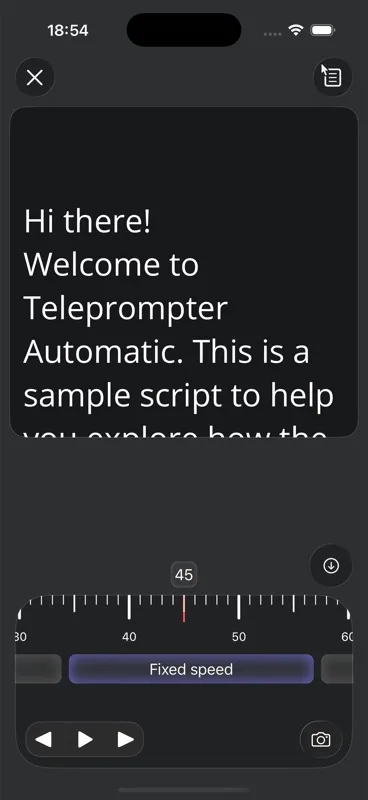
The teleprompter scrolling and reader controls guide explains pace, cue position, text size, mirror behavior, and countdown. Rehearse the densest requirement, the longest conditional sentence, and every transition to a demonstration before recording the full lesson.
Record without turning the script into a performance trap
A controlled script should still sound like a person teaching. Ask the presenter to understand the reason for each line, look toward the lens, and use deliberate pauses. Do not add examples, promises, exceptions, or personal interpretations during the take unless the revised wording returns to review.
Record 15 to 30 seconds first. Check eye line, audio, framing, text pace, and whether the presenter can finish each required statement without rushing. Use the camera and recording settings guide for camera, microphone, countdown, grid, mirror, and setup checks.
Plan visuals and accessibility with the script
Every visual should have a training job. Show the exact approved action, label, decision point, or safe example when the narration names it. Avoid decorative footage that could imply a different procedure. Keep critical labels large enough to read and leave time for the learner to inspect them.
Prepare captions from the final approved narration, then review terminology, names, numbers, negations, and sentence timing. Automatic output can be a starting point, not the final authority. The subtitle workflow explains the product steps; your release review should still compare visible captions with the approved script and the spoken take.
Review the finished video in four passes
- Source pass: Compare every required statement, condition, definition, and next step with the approved source.
- Picture pass: Check demonstrations, labels, private details, framing, and whether visuals appear at the correct moment.
- Sound and caption pass: Verify narration, pronunciation, audio clarity, caption accuracy, and enough time to follow the lesson.
- Release pass: Confirm the exported file, script identifier, approvals, publication location, owner, and review or replacement date.
Review the actual exported file, not only the editor preview. Follow the recording and export workflow when the take is ready, then play the saved result from beginning to end before release.
Plan updates before the video becomes stale
Record what should trigger a review: a source revision, product or process change, new contact route, changed terminology, updated visual, reported misunderstanding, or scheduled review date. Keep the source file, approved script, final video, caption file, and release record connected by the same identifier.
When a requirement changes, withdraw or replace the old video where practical and make the current version easy for learners to find. Do not rely on the publication date alone; an older video may still circulate in bookmarks, course exports, shared drives, or messages.
Reusable production brief
- Audience: Who must understand or perform the task?
- Outcome: What can the learner identify, choose, or do afterward?
- Source: Which approved document, version, owner, and date control the lesson?
- Required points: Which meanings or exact statements must appear?
- Boundaries: What is guidance, what is mandatory, and what is outside scope?
- Privacy: Which examples, screens, objects, and identities must be removed or fictionalized?
- Visual proof: What should appear on screen for each important line?
- Accessibility: Which captions, labels, pacing, contrast, and alternate formats need review?
- Approval: Who checks subject accuracy, policy meaning, privacy, and the final media?
- Release record: Which identifier, publication location, owner, and replacement trigger will be stored?
Common mistakes to avoid
- treating the word “compliant” as a guarantee without defining the actual standard
- writing from memory instead of one current approved source
- covering several training outcomes in one long recording
- polishing required wording before checking omissions and changed meaning
- mixing mandatory steps with optional advice
- using real employee, customer, patient, or incident details in examples
- recording from an unapproved draft or changing it during the session
- improvising an exception that is not in the reviewed script
- checking narration while ignoring screens, reflections, captions, and labels
- reviewing the editor preview but not the exported file
- publishing without a version identifier, owner, or replacement trigger
- expecting a teleprompter or video file to replace training records and assessments
Related Teleprompter Automatic guides
- training video script generator workflow - Build a learner-focused draft after the approved facts and outcome are clear.
- policy update guide - Record a concise announcement when the task is communication rather than formal training.
- create and import scripts - Prepare the controlled text for rehearsal.
- scrolling and reader controls - Tune readability and delivery pace.
- camera and recording settings - Check the recording setup before the full take.
- add subtitles to video - Prepare and review visible captions.
- record and export videos - Review and save the approved take.
- teleprompter for presentations - Connect controlled training delivery to broader workplace presentation workflows.