
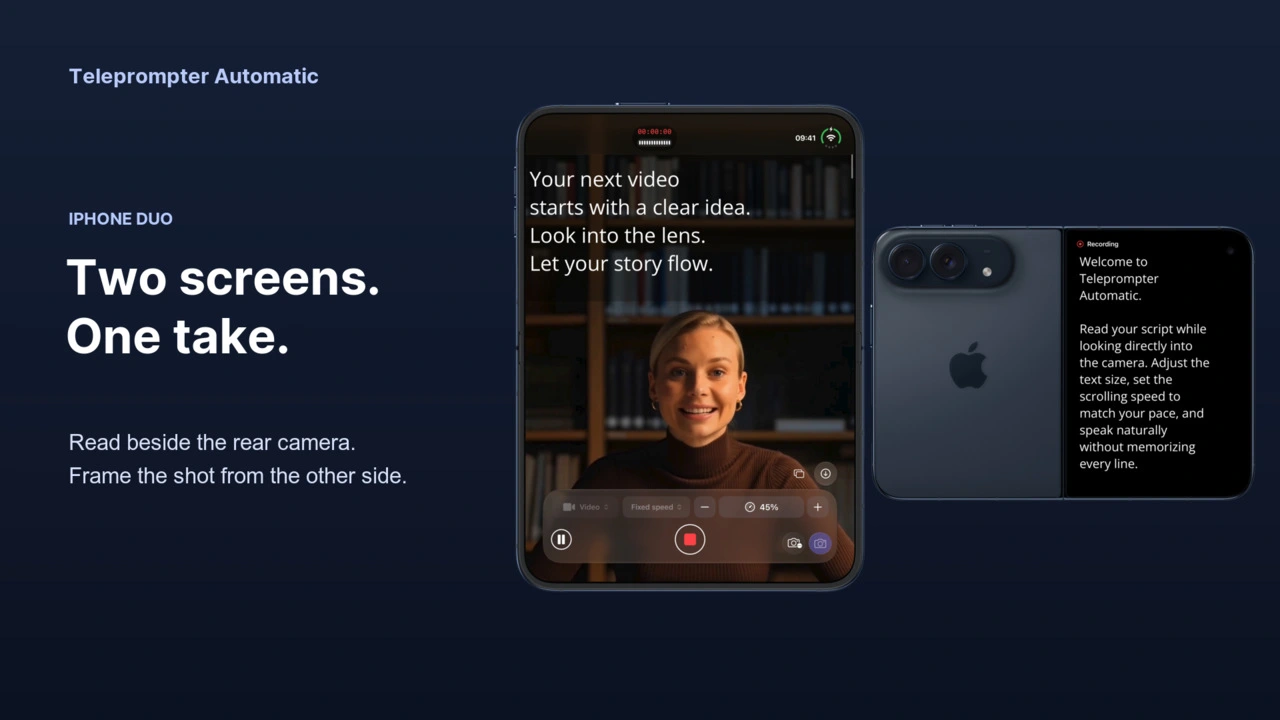
You’re about to record a short interview. The presenter knows the opening line, then loses their place halfway through the answer. You can move the script closer to the camera, or you can send it to the side of the phone they already face. On an unfolded iPhone Duo, Teleprompter Automatic puts the script on the outer display alongside the rear camera. The operator can frame and manage the same take from the inner display.
That was one part of adapting the teleprompter for iPhone Duo. The same script also has to work on a folded phone, on the larger inner display and with the phone propped open on a desk. Here’s what we changed, what you see in each position and how to choose a setup for your next recording.
One take from both sides of iPhone Duo
Imagine a colleague filming you for a two-minute customer story. They’re watching the framing and listening for a clean answer. You’re trying to remember three specific details while speaking naturally. Director Mode gives each of you a view suited to that job.
What the presenter sees on the outer screen
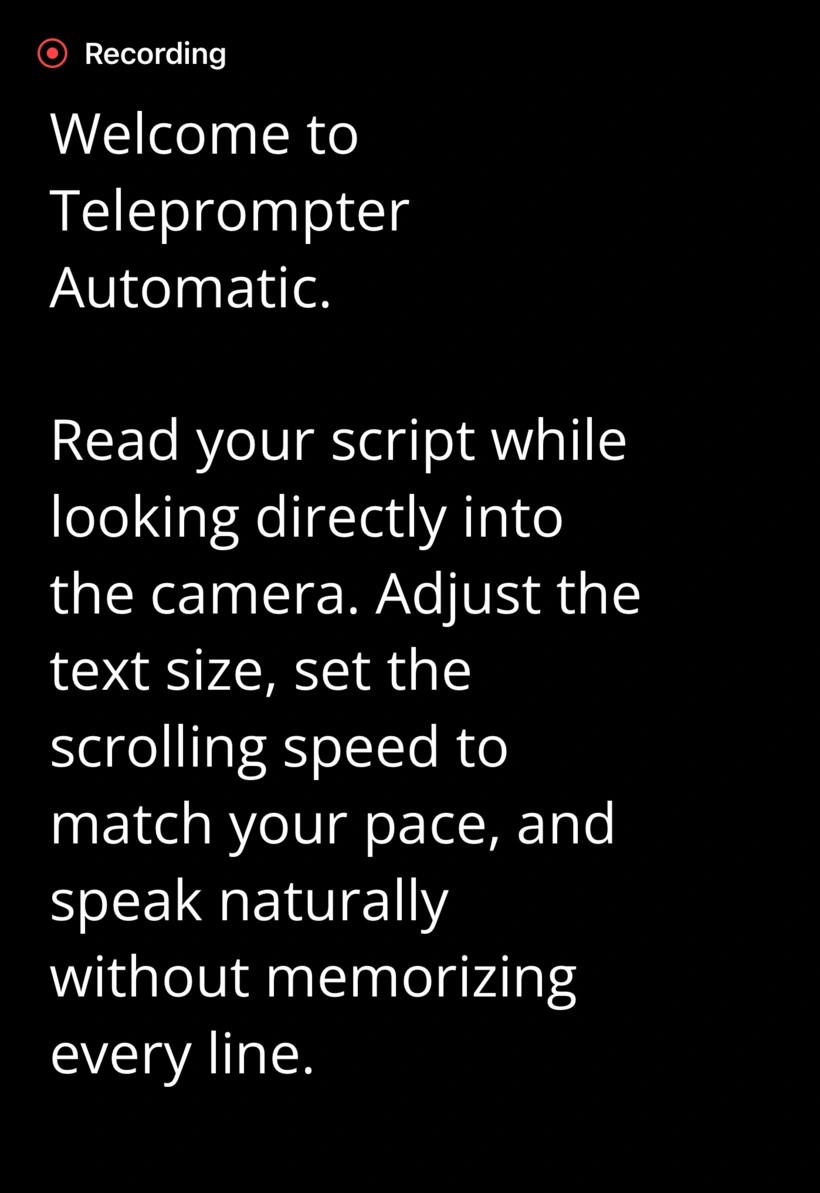
Unfold iPhone Duo and select the rear camera in the Video reader. With Director Mode enabled, the outer display shows the scrolling script and the recording status. It faces the same way as the rear camera, so the text stays in view on the side of the phone you’re already looking at. Keep the phone at eye level and set the text size from your actual speaking distance. Try a short opening line and check the result before settling on a font size.
What the operator sees on the inner screen
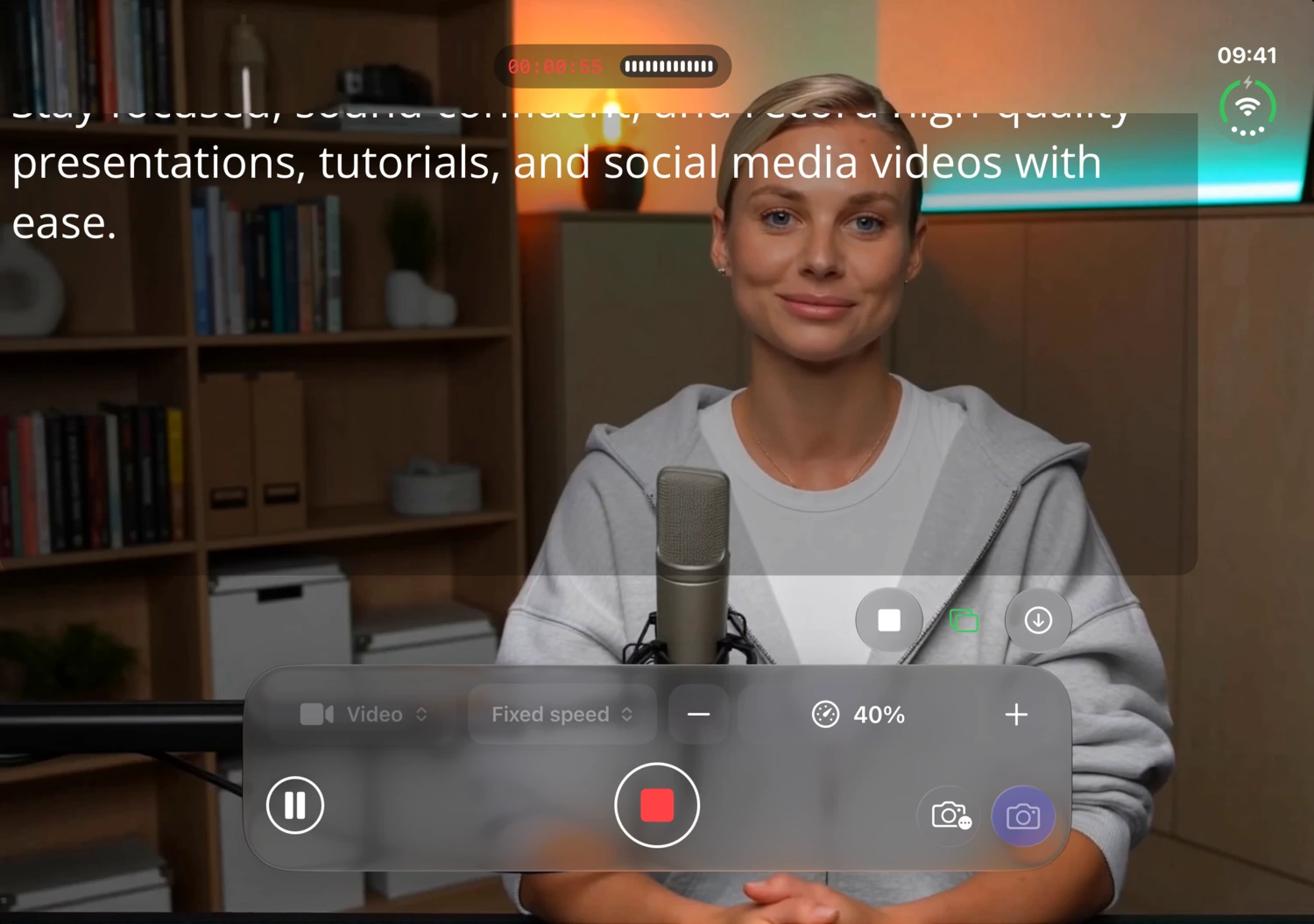
The operator keeps the camera preview, the script and the recording controls on the inner display. They can check how much room is above the presenter’s head and follow the sentence being read. They can also send cues such as Slower, Pause or One more take to the outer display. These are messages for the presenter. The operator uses the regular controls to change the pace or stop the recording.
We made the two screens follow the same passage even when they wrap the words differently. For example, “We delivered the first version on Friday” might fit on one line for the operator and take up three lines for the presenter. Both need to know where the speaker is in the sentence. That shared position matters as much when you select a fixed pace as it does when you use Voice Scroll. See how Voice Scroll follows your script.
Reading on the outer display and the larger inner display
A folded iPhone Duo is a compact place to rehearse a script or frame a quick solo video. Short paragraphs make it easier to glance down and find your place again. With the device open, you have room to see more of the script and preview together. That is useful when a lesson has several sections, when you’re checking a long introduction or when you want to set the pace before recording.
Changing the width also changes how much text fits on a line. If a speaker pauses on the words “here’s the example,” opening the phone can move that phrase several lines up or down in the new layout. We made the reader carry the text position across the change. The line can wrap differently while you stay with the passage you were reading. Try it during rehearsal by pausing midway through a paragraph, opening the phone and picking up from where you stopped.
Screen space and reading comfort are separate choices. On the larger display, you can use a comfortable type size and still see the next phrase coming. If you notice your eyes sweeping across a long line during playback, shorten the lines or adjust the reading area near the lens. Read two sentences aloud at the distance you plan to record from. Adjust the teleprompter reader controls before the next test.
Tabletop mode gives the script and controls their own space
Try this for a lesson or an update recorded from your desk. Place iPhone Duo on a stable surface and open it partway into the tabletop position. In the Video reader, the script and camera preview share the upper area while the main controls sit below the fold. You can check your framing, then reach the record button without putting your hand in front of the text.
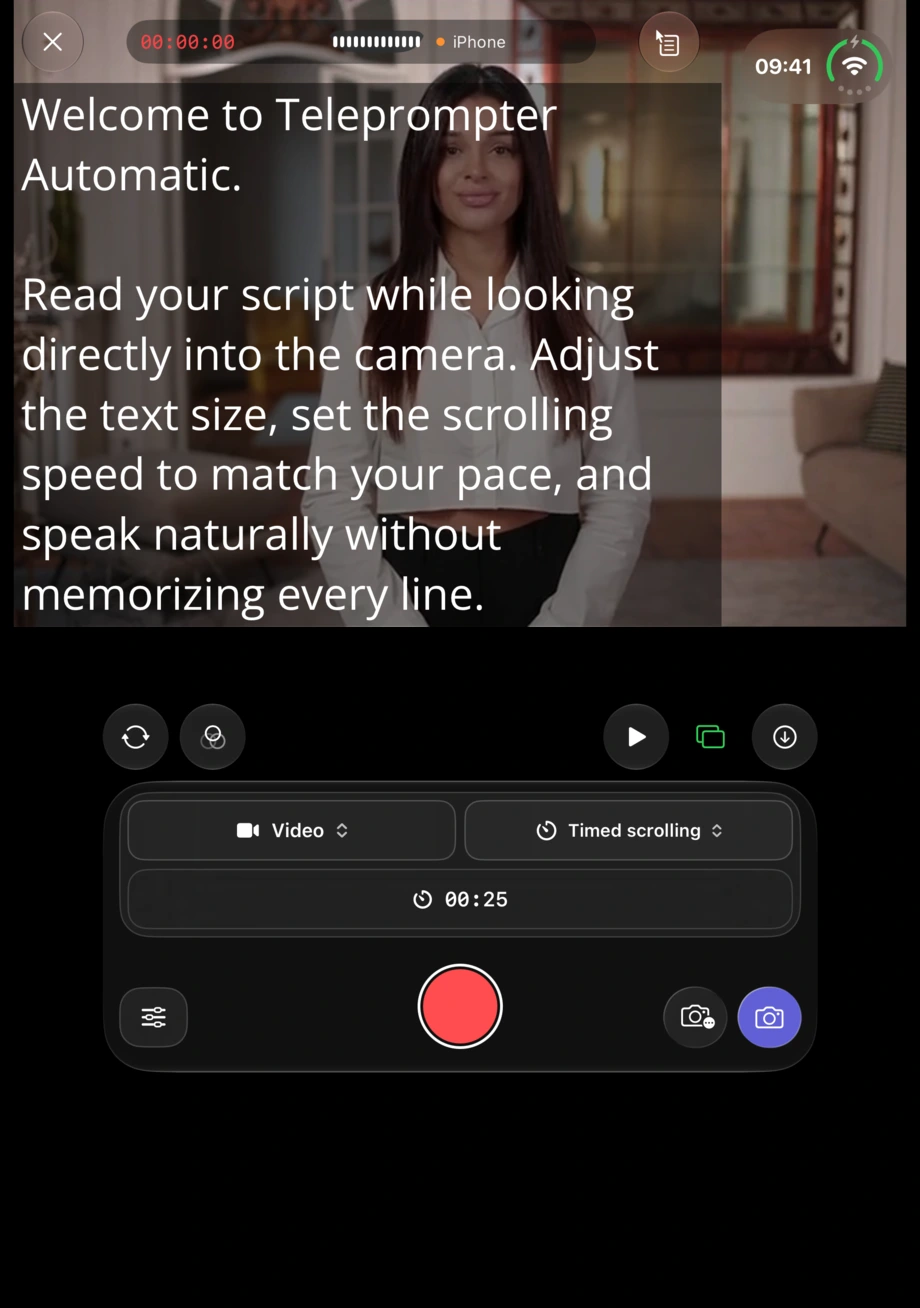
Tabletop divides the inner display across the fold. Director Mode uses the displays on opposite sides of the unfolded phone. Choose tabletop when your setup calls for a desk and reachable controls. Choose Director Mode when you want the rear camera facing the speaker with the script visible on that same side. In the upright, partly folded book position, the reader can use the two sides of the fold side by side. See the iPhone Duo positions Apple describes.
Set up your first take
When you’re recording on your own
- Open your script and select Video. Pick a stable position where you can see the preview and controls while you get ready. Tabletop is a useful starting point for a desk-level setup.
- Frame yourself at the height and distance you’ll actually use. Start with two or three short paragraphs and increase the type size until you can look up and find the next phrase easily.
- Read the first two sentences aloud. Try a steady pace for a timed introduction or Voice Scroll if you want the text to follow the words you say. If you’re using the rear camera with Director Mode, check the outer screen before starting a full take.
- Record ten seconds and play it back. Check your gaze in the first sentence, leave room for a pause and listen to the actual recording before adjusting the pace or microphone. See the camera and recording settings guide.
When someone else is operating the camera
- Unfold iPhone Duo, open the script in Video and select the rear camera. Enable Director Mode once the rear camera is available.
- Check both sides before recording. The operator confirms the frame and the presenter confirms that the opening phrase is readable from their mark.
- Agree on one cue for the first test. For example, the operator can send Slower when the presenter starts rushing through the closing line.
- Record one complete sentence, stop and review the take together. Director Mode displays the script and cues while you work. The saved recording shows the camera footage. Use the recording and export guide when the take is ready to share.
Start with the setup that matches the job. Use the folded phone for a quick rehearsal, open it on a desk for a solo explanation, or give the presenter and operator their own views for an interview. Keep the first script short so you can spend that first take checking the framing, pace and sound. Explore Teleprompter Automatic for iPhone.