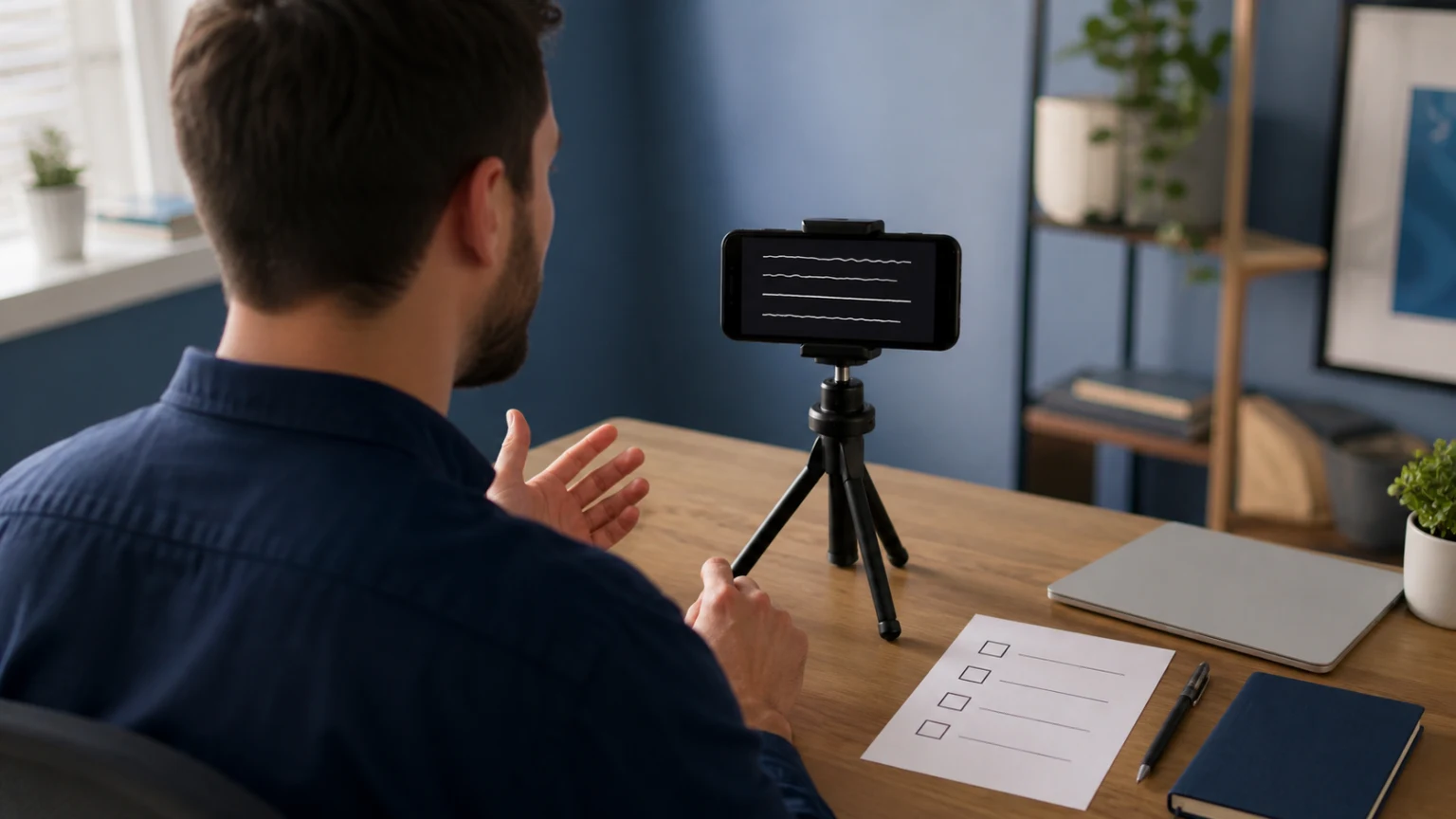
A useful async video update tells a remote teammate what changed, what is blocked, and what to do next without needing you in the room. A teleprompter helps you deliver that message in a clear order while keeping dates, responsibilities, and the final request precise.
Start by deciding whether the update needs video, use the four-part script below, rehearse it aloud, and record a short test before the full take. Then share the video with a written summary and a specific response deadline. Teleprompter Automatic can support the script and recording work; you share the finished update through the communication channel your team already uses.
Choose video when tone or explanation adds value
Async means teammates can watch and respond at different times. A short video can help explain why a plan changed, introduce a handover, or give context to a result. It works especially well when your voice makes uncertainty, priorities, or a tradeoff easier to understand.
If the update is simply “the document is ready,” a written message and link may be enough. If people must negotiate an unclear decision immediately, arrange a conversation. Recording every small change can give colleagues more to watch without making their work easier.
Keep one audience and one purpose per clip. A weekly progress note for your immediate team needs different context from a handover to someone joining the project. State the project and reporting period at the beginning so a viewer opening the video later can place it correctly.
Build the update around four questions
Write the answer to each question before adding an introduction. This keeps the message focused on information someone can use.
- What changed? Name the outcome since the last update. “The first workshop outline is ready” is more useful than a list of every meeting you attended.
- What is blocked or uncertain? Explain the dependency and its practical effect. Separate a confirmed problem from a risk that might happen.
- What happens next? Name the next deliverable and who owns it. Give enough context for another person to continue the work.
- What response do you need? Ask one clear question, identify the person or role who can answer, and give a date, time, time zone, and response location.
If no response is needed, say so. “For awareness; no action needed” prevents colleagues from guessing whether silence is acceptable. If a reply is needed, avoid “by tomorrow” or “end of day”: viewers may be in another time zone or see the recording a day later.
As a starting exercise, give yourself 60 to 90 seconds for one routine update. This is an editorial constraint, not a rule for every team. If the message needs several unrelated decisions, split it into separate updates or put the detailed background in a document.
Use this sample script as a starting point
The following is a fictional workshop-planning example. Replace the details with facts you have checked and remove any section your audience does not need.
Here is the Project Atlas workshop update for September 9.
The first outline is ready. We have agreed on the three exercises, and the sample worksheet is attached to this message. That means reviewers can now check the participant experience.
The remaining decision is the guest speaker slot. Until we confirm it, the opening section is provisional; the exercises can still be reviewed.
I will prepare the facilitator notes after that decision. Jordan, please confirm which speaker slot we should use by September 10 at 14:00 UTC. Reply in this message thread so everyone can see the answer.
Everyone else: please flag unclear exercise instructions in the worksheet. I will post the revised outline on September 11.
The script separates completed work from a pending decision, explains what can continue, and assigns a specific response. It also tells viewers where to find the supporting material. When adapting it, replace the dates together; do not update the opening and leave an old deadline at the end.
For a reusable blank version, keep these four prompts in your notes: Since the last update, [outcome]. The remaining uncertainty is [dependency and effect]. Next, [owner and deliverable]. Please [action] by [date, time, time zone] in [response location].
Rehearse the script in the browser reader
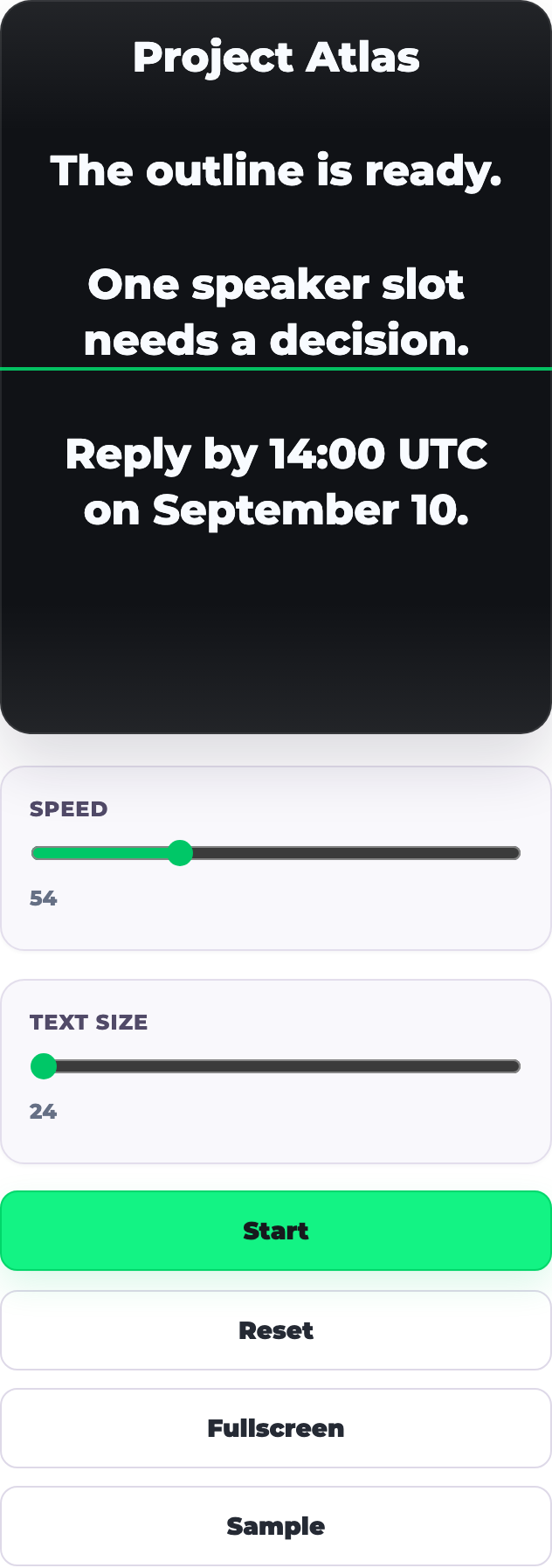
Open the online teleprompter and paste a practice version of your update into the script field. Use short paragraphs so you can pause between the outcome, blocker, next step, and request. Set a readable text size, start the text scrolling, and adjust speed while speaking aloud. Pause or reset when you want another pass.
The screenshot shows a shortened fictional update in the current English browser reader. The visible speed and text-size controls let you test delivery before recording. The speed value is a scrolling setting; it is not a promise of that many spoken words per minute.
Listen for phrases that are easy to misread. Replace long strings of project jargon with the term your audience recognizes. Put a critical date or number on its own line. If you keep stumbling over a sentence, rewrite it before increasing scroll speed.
The speech time calculator can help estimate the length of a draft. Your spoken rehearsal is the final timing check because pauses, emphasis, and explanations change the result. The browser reader is useful for practice; use your chosen recording workflow for the finished video.
Record one clear take with a stable setup
Teleprompter Automatic on iPhone and Android supports scripts, scrolling text, and camera recording. Prepare the final version using the script creation and import guide, then follow the recording and export guide for your device. Keep collaboration and delivery in your usual team tools.
Place the phone on a stable support and keep the reading area close to the lens. Use a quiet spot and a repeatable camera position. Record the opening and final request as a short test: those two moments reveal whether your eye line, sound, and pacing are clear enough.
Play the test back before recording the whole update. You should hear the request without turning the volume up excessively and understand the deadline on the first listen. If the take feels hurried, cut background detail or slow down. Do not race the text to fit an arbitrary duration.
Speak as if one colleague is listening. A small pause after a result or request is useful; repeated restarts to remove every natural breath usually add effort without improving the message. If you say a wrong name, number, or deadline, record that section again and verify the final exported file.
Pair the video with a written handover
Give colleagues a way to understand the action without playing the whole clip. Alongside the video, include a short title, reporting date, one-sentence summary, supporting link, and the response you need.
- Title: Project Atlas — workshop outline update — September 9.
- Summary: The outline is ready for review; the speaker slot still needs confirmation.
- Action: Jordan to confirm the slot by September 10, 14:00 UTC, in this thread.
- Reference: Link to the worksheet or current project note in your team workspace.
Check that the intended viewers can open both the recording and supporting material. Keep sensitive details out of the spoken script, visible background, and supporting images unless they are appropriate for that audience and channel. A written script can be a starting point for a transcript, but update it if you changed the wording during the take.
If you add captions, check names, numbers, negations, and deadlines against the recording. Correct captions and a concise written action help people who cannot listen at that moment or who prefer reading.
Keep recurring updates current and easy to follow
Reuse the four questions each week, then replace the facts. Give each script a title containing the project and reporting date so you can distinguish the current update from an older take. Reusing a structure is useful; carrying forward stale status is not.
Before sharing, make four quick checks: the outcome is specific, the uncertainty is honest, the next owner is named, and the requested response has a clear deadline. Remove any spoken reference to a link or attachment you have not included.
When a decision changes after publication, add a dated correction in the same conversation and update the written summary. Replace the video when its main instruction would otherwise mislead viewers. Keep one obvious place for replies so answers do not become scattered across several conversations.
Try the format with your next team update
Choose one real outcome, one dependency, and one next action. Read the draft aloud, record a test, and check whether a colleague could act on it without asking what you meant. That is a more useful standard than sounding perfectly polished.
For broader recording habits, explore Teleprompter Automatic for content creators. If you are preparing for a conversation with immediate questions, use the live meeting notes guide instead of scripting every possible reply.