Manage your Teleprompter Automatic subscription on the platform where the purchase was originally made. App Store purchases are managed in your Apple account, Google Play purchases are managed in Google Play, and web purchases are managed in the Teleprompter Automatic dashboard.
Find where you subscribed
- If you subscribed on iPhone or iPad, check your Apple subscriptions.
- If you subscribed on Android, check Google Play subscriptions.
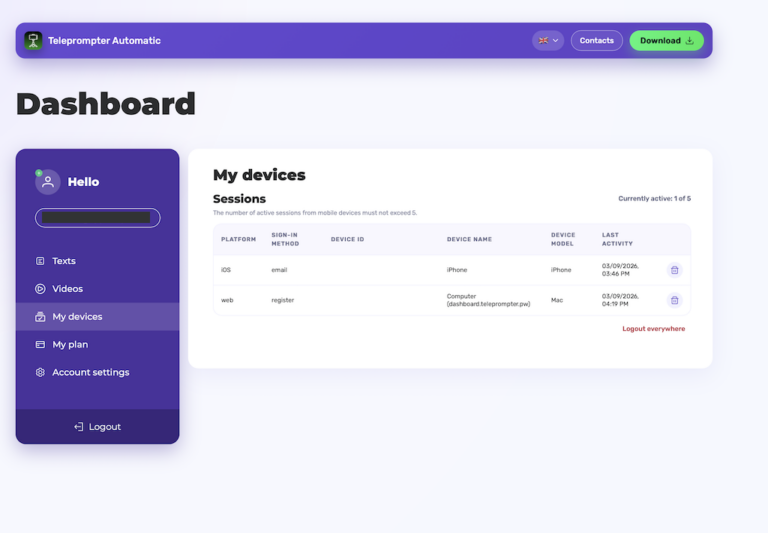
- If you subscribed on Web, open your account and use My plan.
Manage an App Store subscription
- Open iOS Settings.
- Tap your Apple ID.
- Open Subscriptions.
- Select Teleprompter Automatic.
- Change or cancel the subscription from Apple settings.
Manage a Google Play subscription
- Open Google Play.
- Open your profile menu.
- Choose Payments and subscriptions.
- Open Subscriptions.
- Select Teleprompter Automatic and manage the plan there.
Manage a web subscription
- Open the Teleprompter Automatic dashboard.
- Sign in with the account used for purchase.
- Open My plan.
- Use the available subscription or billing portal action.
Important notes
Canceling a subscription usually leaves premium access active until the current paid period ends. If premium access is missing after a device change, try restore purchases. For payment questions, read billing and payment questions.
Before changing a plan
Check whether you need cancellation, renewal, or only a payment-method update. If you only want to use Teleprompter Automatic on another device, do not cancel first; sign in with the same account and restore access if needed.
After cancellation
Keep the receipt from the purchase platform until you confirm the subscription state. If the app still shows premium during the paid period, that can be expected. If the plan disappears earlier than expected, collect the platform, account email, and renewal date before contacting support.