
A product update has two different jobs: tell people what they can rely on now, and explain what may happen next without making a plan sound like a promise. A feature walkthrough has a third job: show an action clearly enough that viewers can follow it. One long script rarely serves all three.
This guide covers choosing accurate claims, separating on-camera lines from demonstration cues, rehearsing, and reviewing the recording before sharing it. For a broader approach to scripted talks and updates, see Teleprompter for presentations.
Decide what this video can actually announce
Start with the audience and the decision they need to make. An internal roadmap update might explain a changed priority and who will receive a follow-up. A customer-facing update might explain an available feature and where to learn more. Do not reuse the same script for both without checking which details each audience should hear.
Make a small source table before drafting:
- Available now: Confirm the release state, intended audience, and exact behavior against current, approved product materials.
- Planned or being explored: State the status plainly. Remove dates, availability claims, and guarantees the team has not confirmed for this audience.
- Needs a demonstration: Identify the one action viewers should see, plus any prerequisites or limitations they must understand.
- Needs a follow-up: Name an owner or information source you can actually provide rather than improvising an answer on camera.
If a claim changes between drafting and filming, update the script before recording. An accurate update is more useful than a confident take built around an outdated plan.
Write spoken lines and demonstration cues separately
Use short spoken sections: why this matters, what is confirmed, what remains uncertain, and what the viewer should do next. Keep screen actions in separate filming notes. That prevents a cue such as “open the settings panel” from becoming an accidental spoken instruction.
Hypothetical example—not a Teleprompter Automatic product announcement:
“We’ve made the review queue easier to scan. In this walkthrough, I’ll show where to find the new filter and how to clear it. This update is available to the group named in the release notes. We’re still evaluating the next set of queue changes, so I don’t have a date to share for those.”
Filming notes for that example might read: “Show the approved test account; open the review queue; select the new filter; pause on the result; clear the filter.” Verify the feature name, access conditions, and steps against the real release before using any of those lines.
For a roadmap-only video, replace interface actions with a verbal transition: what changed in priority, why, what is still undecided, and where viewers can find a confirmed follow-up. If the video is primarily a demonstration, use the shot-planning approach in the product demo video guide.
Prepare the script for a natural on-camera read
Move only spoken lines into the reader. Keep each thought short enough to say while looking near the lens, and mark a pause before a change of topic or demonstration. Rewrite planning-document headings and bullets as sentences you would say aloud. The script creation and import guide covers preparing text in Teleprompter Automatic.
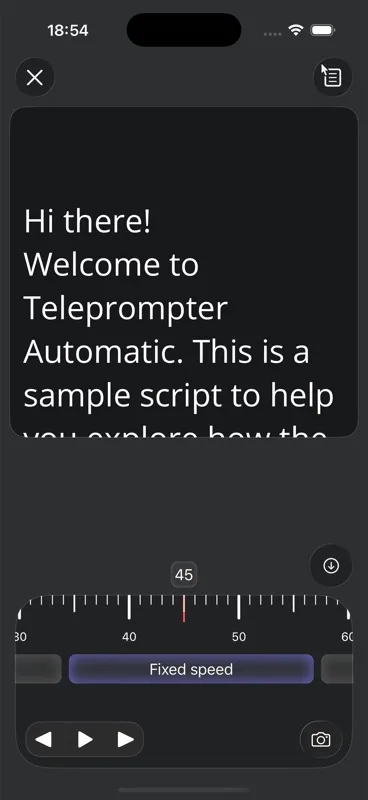
Choose a comfortable reader pace during rehearsal, not from estimated duration alone. Teleprompter Automatic offers fixed-speed, timed, and words-per-minute scrolling; Voice Scroll follows speech on supported mobile devices. Move and size the reading area near the lens, then speak a complete section aloud. Check whether your eyes move noticeably or the text advances before you finish a thought. See scrolling and reader controls for the available settings.
For a roadmap statement with careful qualifiers, pause after “available now,” “planned,” or “not yet decided” so those distinctions remain audible. For a walkthrough, stop reading while performing an action; resume with a short explanation of what viewers should notice.
Record the explanation and walkthrough deliberately
Make a short test before the full take. In Teleprompter Automatic, open the script, check the camera and microphone, record a brief sample, and play it back. Confirm that your voice is audible, your face is framed as intended, and the script does not cover your face. The camera and recording settings guide explains this test workflow.
For a software walkthrough, do not assume the phone’s camera recording captures another product’s screen. Plan screen capture separately if you need it. Use demonstration data approved for the intended audience, and decide where the on-camera introduction, captured actions, and closing explanation will join in your editing workflow. Record spoken sections in manageable blocks, leaving a pause at each transition.
If you make an on-camera recording in Teleprompter Automatic, review the local take before choosing an export or cloud upload. MP4 export depends on browser or platform support; uploading is a separate choice. The recording and export guide covers those options. Check the resulting file rather than assuming the last take is the final one.
Review the video as a viewer—and against the approved update
Watch the complete video once without the script. Can a viewer tell what is available now, what remains a plan, and what action to take? Then compare every feature name, date, eligibility statement, and demonstrated step against the approved source. Check that the on-screen action matches the narration and that no account names, messages, or other personal data appear in the demonstration.
If an answer is uncertain, replace the sentence with a narrower, verified statement or remove it. If the walkthrough has become too long, keep the on-camera update focused on the change and move detailed steps into a separate demonstration. Finish with one useful next action—such as reading the release notes, trying an available feature, or waiting for a confirmed follow-up—rather than several competing requests.
Questions about product update videos
Should a roadmap update and feature walkthrough be one video?
Combine them when the demonstrated feature directly explains the update and both sections serve the same audience. Separate them when the roadmap needs careful discussion of uncertainty or the walkthrough needs detailed, repeatable steps.
How do I mention an upcoming feature without promising a release date?
State its current status in approved language, explain what remains undecided, and omit a date unless one has been confirmed for that audience. Review the line again immediately before recording.
Should I put every demonstration step in the teleprompter?
No. Keep spoken explanations in the reader and detailed screen actions in separate filming notes. Pause while performing actions, then explain what viewers should notice.