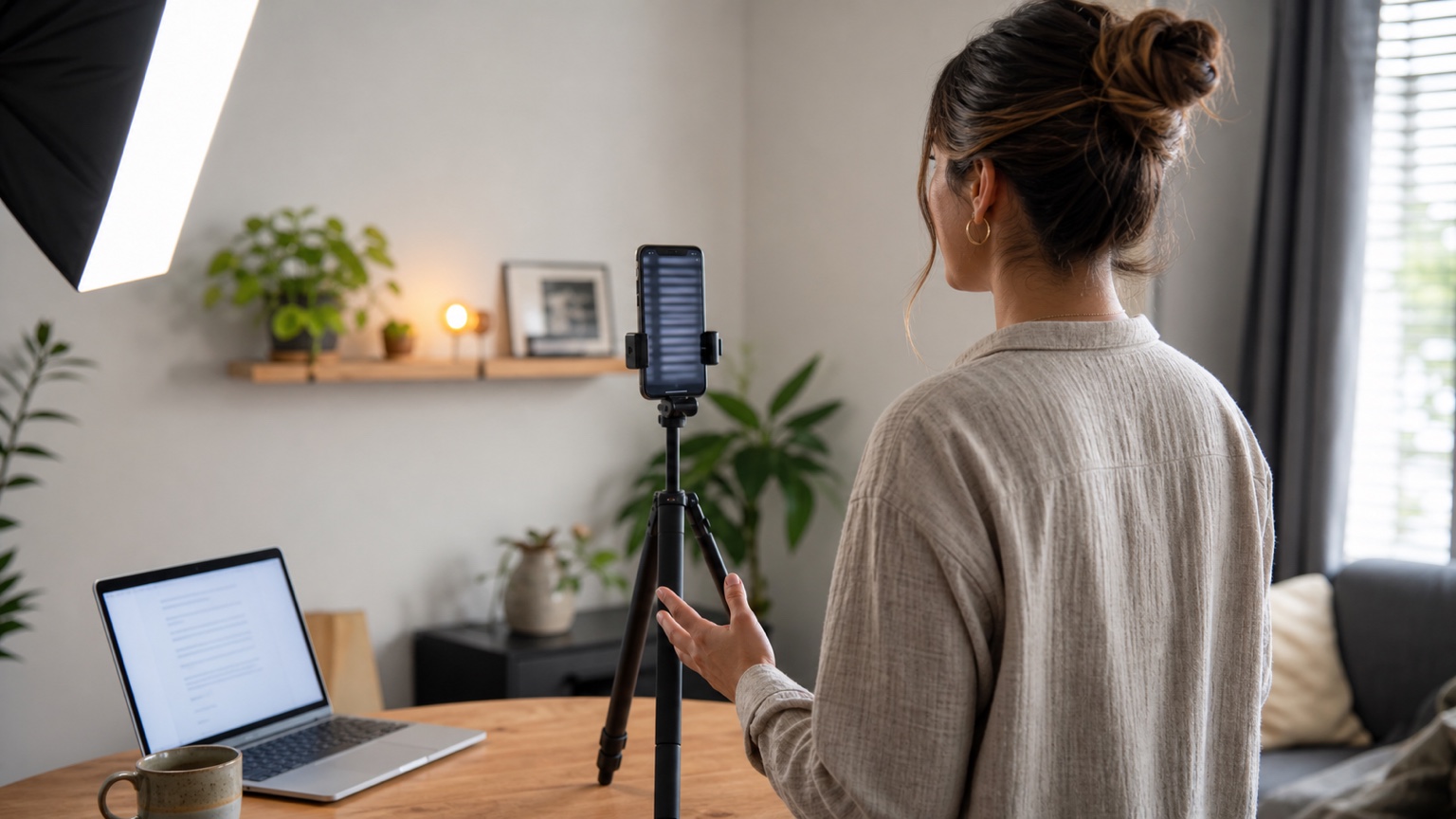
The Pixel 11 teleprompter is a useful fast path when you want to open the Pixel Camera, read a short script, and record without building a separate production setup. Google describes it as part of Creator Suite on Pixel 11 and later, with text that follows along as you speak. A dedicated teleprompter app serves a different need: keeping reusable scripts, choosing how the text should move, rehearsing consistently, and carrying the same project into recording and editing.
The practical question is not whether one tool replaces the other. It is where this video's script should live. Use the built-in prompt when the camera is the center of a quick one-off clip. Use Teleprompter Automatic for Android when the script is an asset you expect to import, revise, organize, pace, record, or reuse.
The short answer: choose the job before the tool
- Quick update or spontaneous clip: start with the Pixel 11 Creator Suite teleprompter. Its main advantage is that it is already inside the camera workflow.
- Recurring series, lesson, pitch, or client video: start with a dedicated app so the approved script, pacing choice, rehearsal, and next revision stay together.
- Not sure yet: make a 20-second test in the workflow you are considering. Check eye line, pace, audio, framing, and how easy it will be to update the script before committing to the full take.
This job-first rule avoids two common mistakes: forcing a short clip through an oversized workflow, or discovering halfway through a reusable project that the script and pacing controls are too limited for the way you work.
Turn on the teleprompter in Pixel 11 Creator Suite
Google's current Pixel Camera Help gives this setup path:
- Open the Camera app.
- Switch to Video.
- Open Settings.
- Choose Creator.
- Turn on Teleprompter.
Creator settings also include options such as saving to a project, an audio visualizer, speech enhancement, and a social-media grid. Google's Pixel 11 overview says the on-screen teleprompter moves dynamically as you talk. Creator projects can collect clips for review and rearrangement; Google says saving to a project requires a signed-in account and Auto-Backup, and the project is stored as a private Google Photos album.
Menu names can move as Camera updates. If the Creator section is missing, confirm that the device is a Pixel 11 or later, update Pixel Camera, and check the same path again before relying on instructions from an older screenshot.
Separate confirmed behavior from assumptions
A new device feature attracts confident claims faster than its documentation matures. For this guide, the safe baseline is deliberately narrow.
Google currently confirms:
- Creator Suite is available on Pixel 11 and later.
- The teleprompter is enabled inside the Video mode's Creator settings.
- The prompt follows along as the speaker talks.
- Creator Suite includes related capture and project tools described in Google's help and launch material.
Google's public help does not currently provide a complete specification for:
- every supported camera and lens combination;
- all script-entry, import, and multi-script organization behavior;
- a full list of fixed, timed, words-per-minute, manual, mirror, or display controls;
- every limit that may vary with Camera, Android, region, or device updates.
An omitted detail is not proof that the phone cannot do it. If a particular camera, orientation, script length, pacing control, or export behavior is essential, verify that exact combination on your Pixel before the real recording. This is more reliable than treating an early review as a permanent product specification.
Use the built-in prompt when speed matters most
The native Pixel workflow makes sense when the script is short, the recording is disposable or easy to repeat, and you want to stay inside the Camera app. A simple sequence is enough:
- Reduce the idea to one opening, two or three points, and one closing line.
- Format it as short spoken sentences rather than a dense paragraph.
- Enable the Creator Suite teleprompter and choose the final orientation and framing.
- Read the opening aloud once to learn how the speech-following movement responds to your pauses and corrections.
- Record a short test, watch the saved file, then make the full take.
This is a good fit for a quick product note, a travel update, a short social explanation, or a message that will not need a maintained script library. The native tool's value is low friction: the prompt and Pixel Camera capture live in the same immediate task.
Use a dedicated app when the script is a reusable asset
A script becomes a production asset when other people review it, source material arrives as a document, the video belongs to a series, or you expect another version next week. In that situation, script ownership matters more than opening the camera one tap faster.
Teleprompter Automatic can create and organize scripts and folders, and its Android workflow supports importing common text and office-document formats. The create and import scripts guide shows how to bring a prepared draft into the app without rebuilding it from memory. Keep a clean master, duplicate or revise the working version, and preserve the delivery notes that make the next episode easier.
The app can also record video while the prompt remains visible, with camera, microphone, grid, mirror, and countdown choices where the device supports them. Editing and export tools let the same workflow continue after the take. Some advanced features can depend on platform, plan, network, service availability, camera hardware, or codec support, so verify the current combination on the Pixel you will use.
Pick a pacing model that matches the delivery
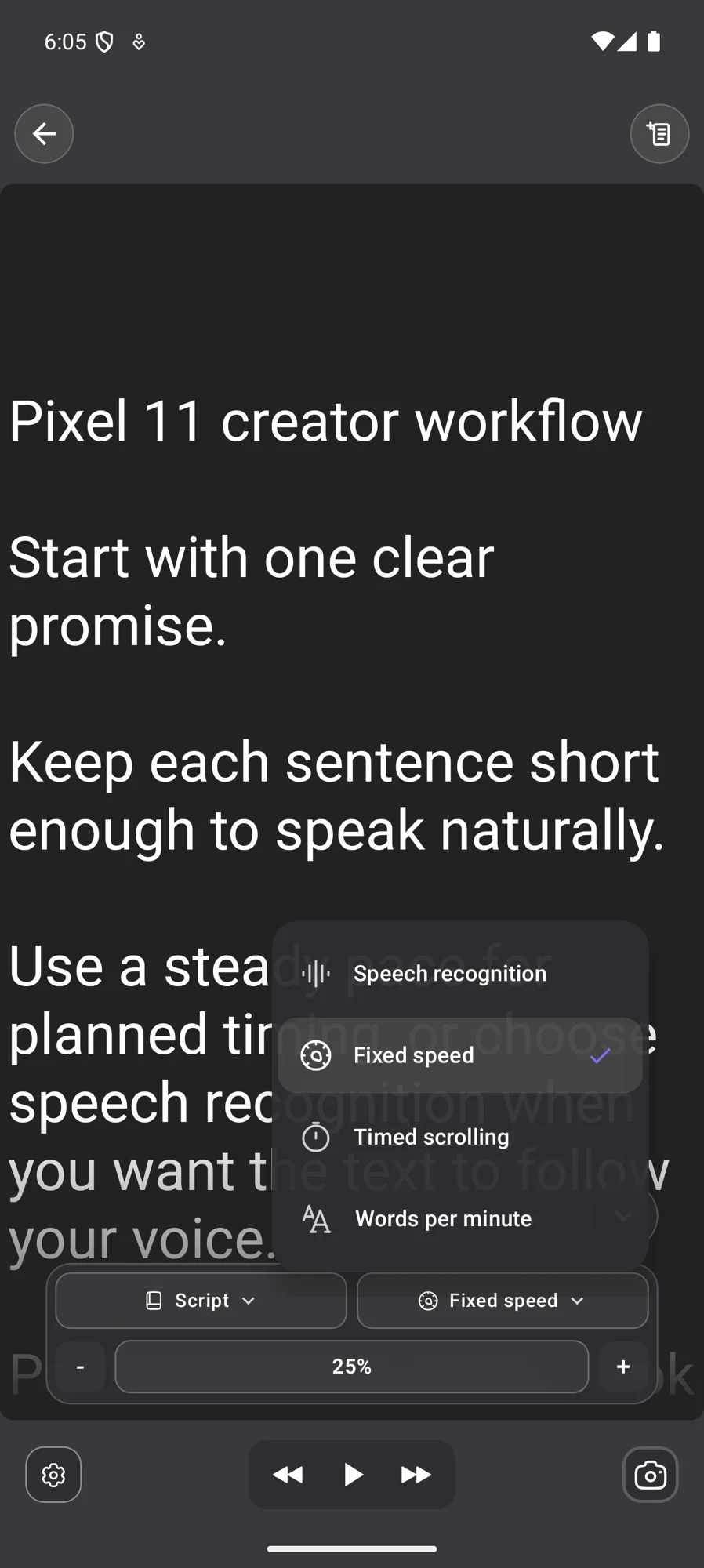
Voice-following is valuable when natural pauses matter, but it is not the only useful way to move a script. Teleprompter Automatic's current Android reader presents four distinct choices:
- Speech recognition: use when the text should respond to the words you say and your timing varies from take to take.
- Fixed speed: use for a predictable continuous move that you can tune during rehearsal.
- Timed scrolling: use when the complete script must reach the end near a chosen duration.
- Words per minute: use when you plan delivery around a known speaking rate.
The best mode is the one that survives a spoken rehearsal. Read the hardest paragraph aloud, pause where the viewer needs time, and check whether you are following the text or the text is supporting you. The detailed scrolling and reader controls guide covers text size, cue position, mirror behavior, and pacing; the voice scrolling and speech recognition guide goes deeper when speech-following is the priority.
Build a repeatable Pixel 11 recording workflow
For a recurring video, use the same sequence each time rather than choosing settings while the camera is already rolling.
- Prepare the source. Start from the approved outline or import the current document. Remove stage directions and private notes that should not appear in the reader.
- Write for speech. Use short paragraphs, plain words, and visible breaks before names, numbers, or actions.
- Choose pacing. Test speech recognition, fixed speed, timed scrolling, or words per minute against the actual delivery instead of silent reading.
- Set the reader. Adjust size, line spacing, alignment, and cue position so the eyes stay near the lens without straining.
- Prepare capture. Choose the intended camera, microphone, orientation, supported format, grid, mirror behavior, and countdown. The camera and recording settings guide provides the full preflight.
- Record a short test. Include the opening, a difficult middle line, a pause, and the closing. Review the saved file rather than trusting only the preview.
- Make the take. Change one variable at a time if the first attempt misses pace, eye line, or audio.
- Review and reuse. Continue with the record and export videos workflow, then keep the cleaned script and tested settings for the next version.
This sequence is intentionally independent of a single phone generation. The Pixel 11 is the recording device today; the script structure, pacing decision, and preflight remain useful when the project moves to another supported Android device.
Use both approaches across the same content calendar
You do not need one permanent answer for every video. A creator can use the Pixel 11 teleprompter for a same-day update and Teleprompter Automatic for a weekly series with approved scripts. The distinction is the production cost of losing the script state.
- Native-camera lane: short, low-risk clips that can be rewritten and repeated quickly.
- Dedicated-app lane: scripts that need import, organization, alternate pacing, repeatable reader settings, in-app recording, editing, or later reuse.
- Test lane: new formats where you record the same 20 seconds in both workflows and choose from the saved results.
Keep each individual take in one lane. Switching tools immediately before recording introduces new text wrapping, eye line, speed, camera, and audio variables at the moment you want fewer surprises.
Run a one-minute preflight before the full take
- Confirm the final script version and remove notes that should not be spoken.
- Check portrait or landscape framing and put the lens at a natural eye level.
- Read the opening at full voice and watch how the selected scroll mode handles pauses.
- Verify camera, microphone, countdown, grid, and mirror behavior in the chosen workflow.
- Record 20 seconds, then listen with headphones and watch the eyes rather than the words.
- Check the saved file for focus, exposure, clipping, text-driven eye movement, and an abrupt ending.
If the test works, leave the settings alone and record. If it fails, change only the largest problem first. A slower prompt cannot repair poor audio, and a sharper camera cannot repair a script that is difficult to say.
Which Pixel 11 teleprompter setup should you choose today?
- If you need the fastest route from a short script to Pixel Camera, start with Creator Suite.
- If you need a reusable script library or document import, start with Teleprompter Automatic.
- If delivery must hit a planned duration or words-per-minute pace, test a dedicated pacing mode.
- If natural pauses vary, test the speech-following option in the workflow you plan to record with.
- If a specific camera or orientation is non-negotiable, verify it in a saved test before writing the whole production around it.
- If editing and export belong in the same mobile session, plan those steps before the first take.
The right choice is the smallest workflow that preserves what matters. For a one-off clip, that may be the Pixel's native prompt. For a series, course, sales video, tutorial, or repeatable creator format, the script and tested delivery settings are often worth keeping in a dedicated workspace.
Common mistakes to avoid
- treating early third-party claims as a permanent Pixel specification
- assuming an undocumented control is either definitely present or definitely absent
- writing one dense paragraph instead of spoken lines
- choosing scroll speed by silent reading
- changing the script, pacing, camera, and microphone together after a failed test
- publishing a take without checking the saved audio and eye line
- using a one-off native script for a recurring series without keeping an approved master
- building a large production workflow for a clip that only needs three clear sentences
Pixel 11 teleprompter questions
Does the Pixel 11 have a built-in teleprompter?
Yes. Google documents an on-screen teleprompter in Pixel 11 Creator Suite and says the text follows along as you speak.
How do I turn on the Pixel 11 teleprompter?
Open Pixel Camera, switch to Video, open Settings, choose Creator, and enable Teleprompter. Update Pixel Camera if the documented Creator menu is missing.
Does the Pixel 11 teleprompter follow my voice?
Google says it follows along as you speak. Test a difficult paragraph and several pauses before the real take so you know how the current version responds to your delivery.
Does the Pixel 11 teleprompter work with every camera?
Google's public Creator Suite help reviewed for this guide does not specify complete camera and lens coverage. Verify the exact front or rear camera, lens, orientation, and recording mode you need on the current device.
Why use a separate teleprompter app on Pixel 11?
A dedicated app is useful when you need reusable scripts, document import, folders, alternate pacing modes, repeatable reader settings, in-app recording, or a continued editing and export workflow.
Which Teleprompter Automatic scroll modes are available on Android?
The current Android reader presents Speech recognition, Fixed speed, Timed scrolling, and Words per minute. Availability of advanced functions can depend on the current platform and plan.
Do Pixel Creator projects use Google Photos?
Google says Save to a project requires sign-in and Auto-Backup, and that saved creator projects are stored as private Google Photos albums.
Related Teleprompter Automatic guides
- Teleprompter Automatic for Android - See the current mobile script, reader, recording, and editing workflow.
- create and import scripts - Prepare reusable text from common document formats.
- scrolling and reader controls - Set pacing, text layout, cue position, and mirror behavior.
- voice scrolling and speech recognition - Configure and test speech-following delivery.
- camera and recording settings - Check the camera, microphone, format, grid, countdown, and test take.
- record and export videos - Continue from the approved rehearsal to the finished file.