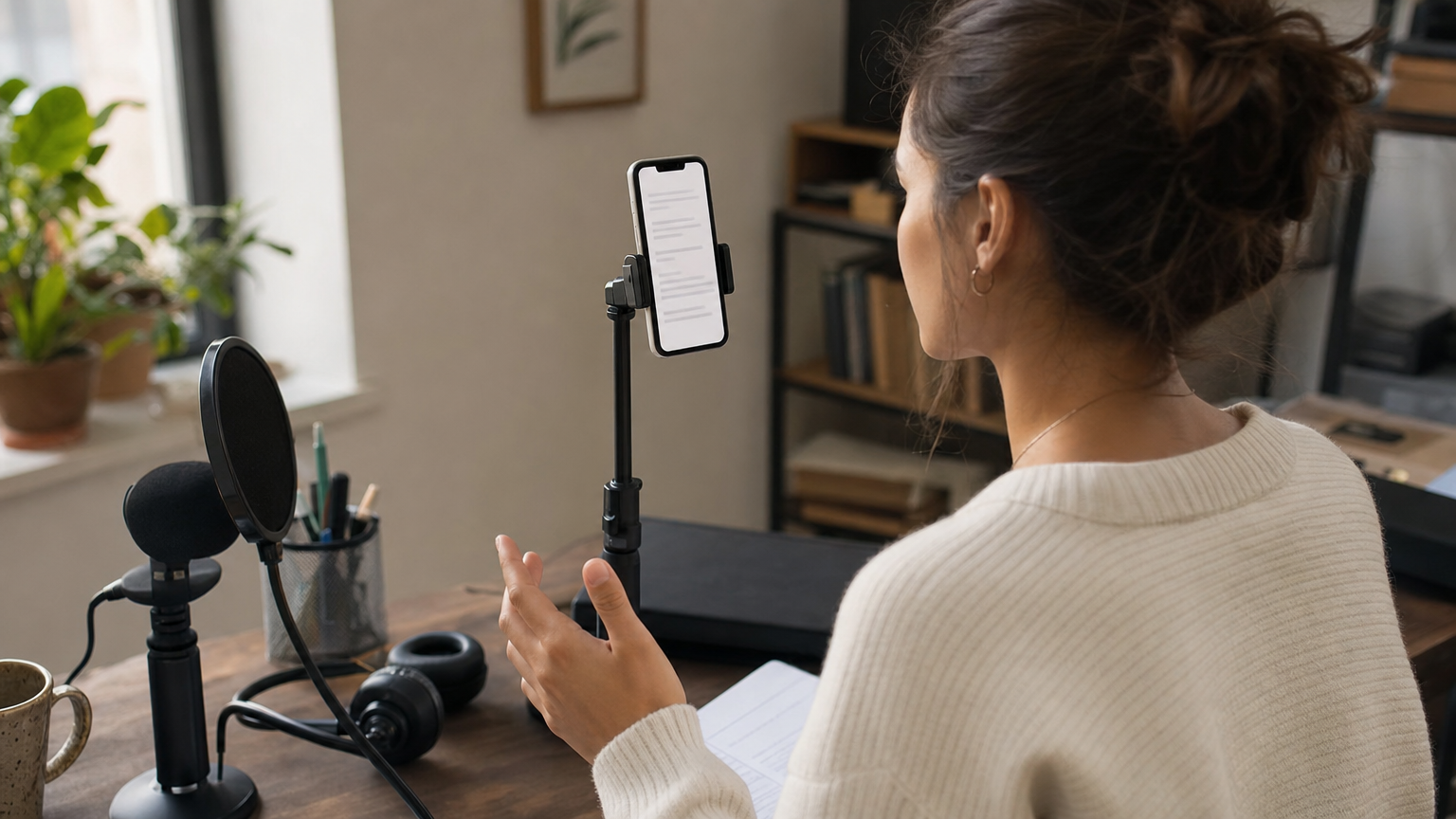
Good teleprompter formatting helps you find your next thought without making every line look like a sentence you must read mechanically. The goal is not to make the script attractive as a document; it is to make it easy to speak while your attention stays near the camera.
This guide focuses on the text itself: where to break lines, what to remove after an import, and how to test the result in the reader. For the broader process of preparing and recording creator videos, see Teleprompter Automatic for content creators. If you need to add a script first, use the script creation and import guide.
1. Break up paragraphs that hide the next idea
A paragraph that looks compact in a document can become a wall of moving text in a teleprompter. If you lose your place while speaking, separate the introduction, explanation, example, and next action into short blocks. Start a new line where you would naturally pause or change thought—not after every fixed number of words.
Hypothetical script example: Instead of one long paragraph explaining a service, try: “Here is the problem we solve.” Then leave a break before: “Here is what happens during the first visit.” This makes the transition visible without adding words you have to say.
Read the revised passage aloud. If a line forces you to rush through two ideas without a breath, split it again. Aim to give each idea its own line or short block.
2. Remove document debris before you rehearse
Imported text may carry page numbers, repeated headings, footers, hard line breaks, or notes that were useful in the original document but distracting in a spoken script. Read the import from top to bottom before opening the reader. Delete anything you should not say, then reconnect sentences that were broken only to fit a page or column.
Hypothetical before and after: An import reads “PROJECT UPDATE — PAGE 2 / We finished the first / round of testing.” Remove the page header and the break inside the sentence so the spoken line reads: “We finished the first round of testing.” Keep a separate line break only if it marks a useful pause or change of idea.
Pay particular attention to PDF text. Use a PDF with selectable text when the PDF import option is available on your device, and inspect the result in the editor. A scanned or complicated layout may need text extraction elsewhere or a manually pasted script instead. Import options differ by platform; if an option is missing on your device, copy the script as plain text and paste it into a blank script.
3. Keep spoken lines separate from filming directions
A cue such as “show the finished object” can help you plan a take, but it can also interrupt a sentence if it sits in the middle of the words you intend to speak. Decide whether each line is dialogue, a pause, or a production reminder. Put reminders on their own lines and make their role unmistakable.
Hypothetical script example: “This is the finished shelf.” Then, on a separate line: “[Pause for close-up of shelf.]” Continue with the next spoken line below it. The brackets are a writing convention in this example, not an app feature. For an especially short take, you may find it easier to keep the shot list outside the spoken script entirely.
Before recording, scan every reminder and ask: Could I accidentally read this aloud? If so, move it, shorten it, or remove it.
4. Test readability from your recording position
Text that looks clear while you edit up close may be difficult to follow from where you will record. Mount or place the device as you intend to use it, open a typical section in the reader, and sit or stand at your recording distance. If you have to lean forward to recognize words, increase the text size. If the lines feel crowded or you repeatedly pick up the wrong one, try more spacing or a different reading position. Read the same passage again after each change so you can tell what helped.
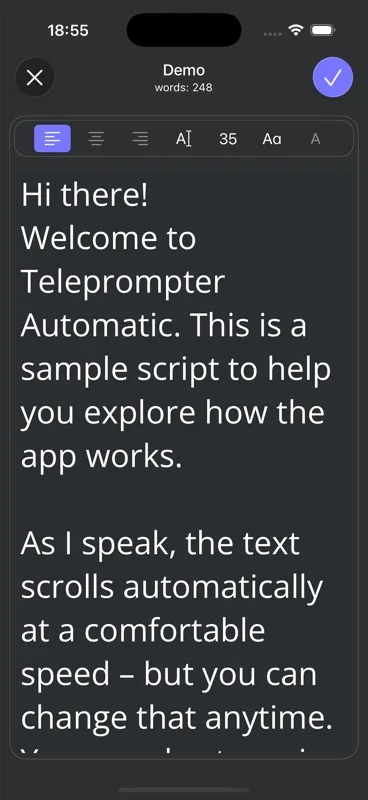
Teleprompter Automatic’s script editor includes text size, line height, alignment, and uppercase styling. Its reader offers font, size, spacing, alignment, colors, and reading-position adjustments. Check the reader rather than relying on how the text looks in the editor. For the available reading-view settings, see the reader controls guide.
5. Use emphasis only where it changes delivery
If every phrase is capitalized or marked as important, the marks stop helping you spot the moments that need attention. Reserve emphasis for a name you must pronounce carefully, a transition you tend to miss, or a phrase that calls for a deliberate pause. Leave ordinary sentences in the letter case you find easiest to read.
Hypothetical script example: Put “The deadline is Friday” on its own line if you need to slow down and state it clearly. You need not put the surrounding paragraph in uppercase. If that deadline refers to a real event, verify it against your source before recording; emphasis does not make a fact correct.
6. Do not skip the aloud test
The final formatting check is a spoken rehearsal, not another silent proofread. Open the saved script in the reader, stand or sit where you will record, and read one complete section aloud. Notice where you search for the next line, where a cue appears too late, and where the text moves before you finish the thought.
- Fix wording or line breaks when you stumble over the same passage twice.
- Move a pause or filming cue so it appears before you need to act on it.
- Adjust the reading view or scrolling pace only after the spoken text is workable.
- Run the section again, including its transition into the next section.
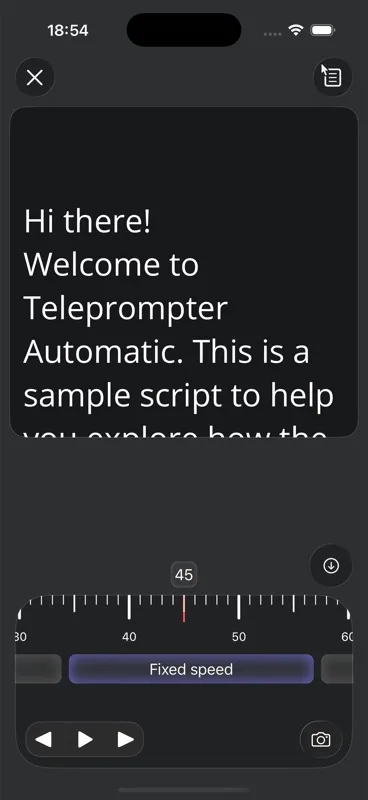
Teleprompter Automatic provides fixed-speed, timed, words-per-minute, and Voice Scroll options in supported workflows. If you are testing a steady manual pace, the fixed-speed scroll guide explains how to tune it. A short rehearsal tells you whether the formatting works for your delivery.
Teleprompter script formatting questions
How long should a line in a teleprompter script be?
There is no universal word count. Break a line where you naturally pause or change ideas, then rehearse aloud from your recording position. Split any line that repeatedly makes you lose your place or rush.
Should I write the entire script in uppercase?
Usually not. Use the letter case you can read most comfortably, and reserve emphasis for a few places where it genuinely helps delivery. Teleprompter Automatic includes uppercase styling among its editor controls.
Why does an imported PDF script look messy?
Page numbers, headers, footers, hard line breaks, and complex layouts can appear in extracted text. Review the import in the editor. If the PDF contains only scanned images or the text extraction is poor, prepare clean text separately and paste it into a blank script.
Should filming cues go in the teleprompter script?
Include them only if they help you during the take. Put each cue on a separate line so it cannot be mistaken for spoken dialogue. If the cues crowd the reading view, keep a separate shot list.